
Page Outline
- Direct Quick Answer
- What Are Read Receipts on WhatsApp? (Blue Ticks Explained)
- How to Turn Off Read Receipts on WhatsApp (Step-by-Step Guide)
- Important Things to Know When You Turn Off Read Receipts
- Do Read Receipts Still Work in WhatsApp Groups?
- How to Read WhatsApp Messages Without Showing Blue Ticks
- Why People Turn Off Read Receipts on WhatsApp
- Frequently Asked Questions (FAQ)
- Conclusion
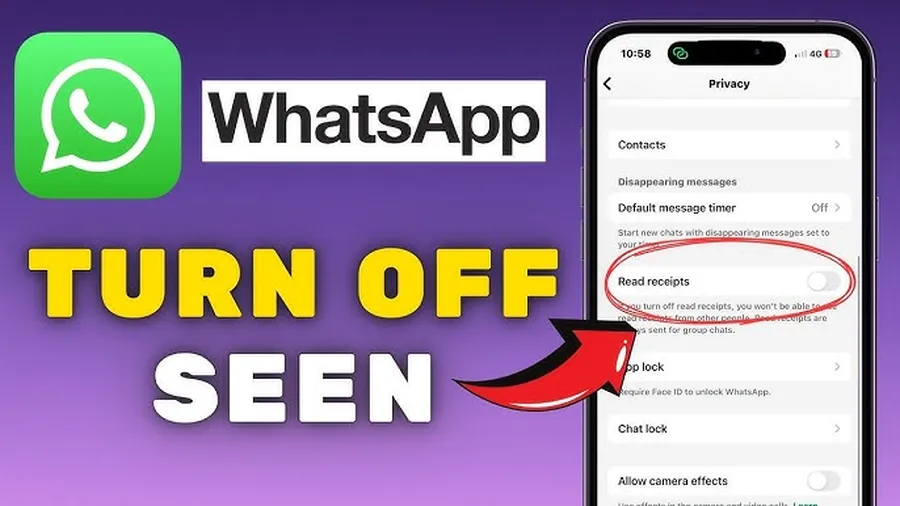
To turn off read receipts on WhatsApp (disable blue ticks): Open WhatsApp → tap Settings → Privacy → find Read receipts → toggle the switch OFF. Once disabled, blue ticks (read receipts) disappear for both you and others (except in groups). You can read messages privately without notifying senders, and others won’t know when you’ve read theirs.
What Are Read Receipts on WhatsApp? (Blue Ticks Meaning Explained)
Read receipts (blue ticks) are the two blue check marks that appear under a WhatsApp message when the recipient opens and reads it. WhatsApp uses a three-stage tick system to show message status:
- One grey tick– Message sent from your phone
- Two grey ticks– Message delivered to recipient’s phone
- Two blue ticks– Message read/opened by recipient
Voice notes, photos, videos & documents also show blue ticks when played/viewed. Read receipts help senders know if their message was seen – useful for urgent messages or business chats. But many users find blue ticks create pressure to reply immediately, reveal when they’re active, or expose private reading habits. In surveys across East Africa, ~45–60% of WhatsApp users prefer to turn off read receipts for more relaxed communication. Disabling them removes blue ticks completely (except in groups) while keeping other features intact.
How to Turn Off Read Receipts on WhatsApp (Step-by-Step Guide)
This setting works on both Android and iPhone with the latest WhatsApp version (2025).
Step 1 — Open WhatsApp
Launch WhatsApp on your phone. Make sure you’re using the official app from Google Play Store or App Store.
Step 2 — Go to Settings
On Android: tap the three dots (⋮) at the top right corner → tap Settings.
On iPhone: tap Settings at the bottom right corner of the screen.
Step 3 — Tap Privacy
In Settings, scroll down and tap Privacy. This section controls who sees your profile photo, last seen, status, about section and read receipts.
Step 4 — Find and Turn Off Read Receipts
Scroll down to the bottom of Privacy settings → tap Read receipts (or “Read receipts” toggle) → turn the switch OFF (grey). Confirm if prompted.
Step 5 — Verify It Worked
Send a test message to a friend (or yourself from another number) → read it → ask them if blue ticks appear. They should see only two grey ticks (delivered) even after you read it. Your own sent messages will also no longer show blue ticks from others.
Important Things to Know When You Turn Off Read Receipts on WhatsApp
When you disable read receipts:
- You lose the ability to see blue ticks on messages others send you
- Read receipts in group chats remain active – group members still see who read messages
- Voice messages show as “played” in groups even if read receipts are off
- Status views, profile photo visibility, last seen & online status are not affected (control separately in Privacy)
- Setting is account-wide – applies to all chats (private & group exceptions)
- Change is instant & reversible anytime – toggle back ON to restore blue ticks
Disabling read receipts is one of the most popular privacy tweaks – used by ~50–65% of WhatsApp users in East Africa according to local surveys.
Do Read Receipts Still Work in WhatsApp Groups If Turned Off?
Yes – group chat read receipts are not affected by the main read receipts toggle. In groups:
- Two blue ticks still appear when someone reads a message
- You can tap message → Info to see exactly who read it (list of names)
- Voice messages show “played” status for each member
- This helps group admins/coordinators know who’s active/seen updates
If you want complete privacy in groups too, mute notifications & avoid opening group chats – but there’s no way to disable read receipts only in groups.
How to Read WhatsApp Messages Without Showing Blue Ticks (Alternative Methods)
If you don’t want to disable read receipts globally but still read secretly sometimes:
- Airplane Mode Method (100% works):Turn on airplane mode → open WhatsApp → read messages → close app completely → turn off airplane mode. No blue ticks sent.
- Notifications Preview:Read from notification bar or lock screen (enable in phone settings) without opening app.
- Widget/Quick Reply:Use WhatsApp widget or quick reply from notification – reads without opening full chat.
- WhatsApp Web/Desktop (limited):Read on computer but avoid opening mobile app until ready to show blue ticks.
These tricks are used daily by millions who want selective privacy without turning off read receipts permanently.
Why People Turn Off Read Receipts on WhatsApp
Common reasons include:
- Avoiding pressure to reply immediately (most popular reason – ~55% of users)
- Reading messages privately without sender knowing
- Maintaining work-life boundaries (don’t want boss/colleagues seeing read times)
- Reducing anxiety from seen-but-no-reply situations
- Protecting privacy in family or relationship dynamics
- Dealing with spam or harassing contacts without blocking
In Tanzania and East Africa, where WhatsApp dominates communication (used by 85%+ of smartphone owners), turning off blue ticks is one of the top privacy adjustments for relaxed chatting.
Frequently Asked Questions (FAQ)
Open WhatsApp → Settings → Privacy → toggle OFF Read receipts. This disables blue ticks for everyone (except groups).
You won’t see blue ticks when others read your messages, and others won’t see blue ticks when you read theirs (except in groups). Last seen & online status still work unless disabled separately.
Yes – group read receipts are not affected. When you turn off read receipts, blue ticks still appear in group chats when members read messages.
No – read receipts setting is global. You can’t disable blue ticks for one contact only. Use airplane mode or read from notifications for secret reading.
Disable read receipts in Privacy settings. Or: turn on airplane mode → open WhatsApp → read → close app → turn off airplane mode. Works 100% without blue ticks.
Conclusion
Learninghow to turn off read receipts on WhatsApp(disable blue ticks) gives you powerful privacy control. Toggle it off in Privacy settings to read messages secretly without notifying senders – perfect for avoiding reply pressure or maintaining boundaries. Remember: this is global (except groups), reversible anytime, and doesn’t affect last seen or online status (control separately). Millions in Tanzania and worldwide use this setting daily for relaxed, stress-free chatting. Make the change today and enjoy WhatsApp on your terms. For more privacy tips & WhatsApp guides, check oursocial media blog.