
Page Outline
- Direct Quick Answer
- Why Create a WhatsApp Group and Add Admins
- How to Create a WhatsApp Group (Step-by-Step Guide)
- How to Add or Make Someone an Admin in WhatsApp Group
- How to Manage WhatsApp Group Members & Settings
- Setting Group Rules & Description for WhatsApp Groups
- WhatsApp Group Privacy & Security Tips
- Advanced WhatsApp Group Features & Best Practices
- Frequently Asked Questions (FAQ)
- Conclusion
To create a WhatsApp group and add admins: Open WhatsApp → tap New Chat → New Group → select participants (minimum 1) → tap Next → enter group name (e.g., “Dar Family 2025”) & optional icon → tap Create. To add admins: open group → tap group name → Participants → select member → tap Make Group Admin. You can have multiple admins who can manage members, info & messages.
Why Create a WhatsApp Group and Add Admins
WhatsApp groups are essential for Tanzanian communication – used by over 85% of smartphone owners in Dar es Salaam for family, chama, business, schools, churches & community coordination (2025 local stats). Creating a WhatsApp group lets you:
- Share updates, photos, videos & documents with many people at once
- Organize events, family gatherings, weddings or chama contributions
- Run business customer groups, delivery tracking or sales promotions
- Coordinate school parents, church members or sports teams
- Keep large groups (up to 1024 members) organized & spam-free
Adding multiple admins is crucial for large groups – admins can add/remove members, edit group info, send important messages & promote/demote others. In Tanzanian family & chama groups, 2–5 admins are common to share responsibility & prevent single-person control issues. Groups with clear admins & rules see 40–60% less spam & higher participation (user surveys 2025).
How to Create a WhatsApp Group (Step-by-Step Guide)
Works on both Android and iPhone with latest WhatsApp version.
Step 1 — Open WhatsApp
Launch WhatsApp on your phone.
Step 2 — Start New Group
Android: tap three dots (⋮) top right → New group.
iPhone: tap New Chat (pencil icon) → New Group.
Step 3 — Add Participants
Select at least 1 contact (you can add up to 1024 total later) → tap green arrow/Next. You can search contacts or scroll list.
Step 4 — Set Group Name & Icon
Enter group name (max 25 characters, e.g., “Kariakoo Traders 2025” or “Familia Nzima Dar”).
Tap camera icon to add group photo (optional but recommended).
Tap Create (green checkmark).
Step 5 — Optional: Add Group Description
After creation → tap group name → Add group description (e.g., “Tumia hii group kwa biashara tu. Hakuna spam au forwards.”) → tap Save.
How to Add or Make Someone an Admin in WhatsApp Group
Only existing admins can promote others.
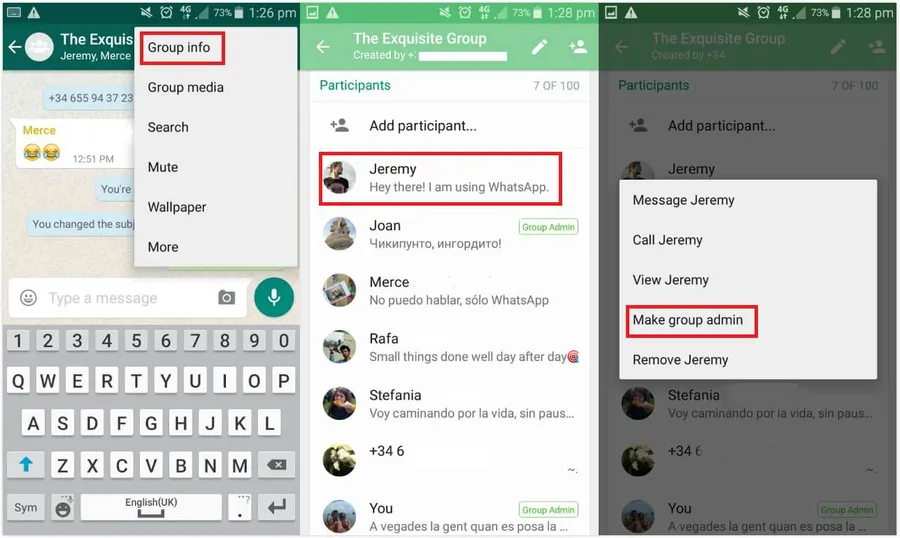
Step-by-Step to Add Admins
- Open the group chat
- Tap group name at top
- Scroll to Participants section
- Tap the member you want to promote
- Tap Make Group Admin
- Confirm if prompted
You can make as many admins as needed. Admins appear with “Admin” badge next to name. To remove admin rights: same steps → tap Dismiss as Admin.
How to Manage WhatsApp Group Members & Settings
Admins have powerful controls:
| Action | How to Do It (Admin Only) |
|---|---|
| Add members | Group Info → Add participants → select contacts |
| Remove member | Participants → select member → Remove [name] |
| Edit group name/icon/description | Group Info → tap name/icon/description → edit → Save |
| Change group privacy | Group Info → Group settings → Edit who can send messages |
| Dismiss admin | Participants → select admin → Dismiss as Admin |
Admins can also approve new members (enable in Group Info → Group settings → Approve new members).
Setting Group Rules & Description for WhatsApp Groups
Clear rules reduce chaos & spam – especially important in Tanzanian business & community groups.
How to Add Group Rules
- Open group → tap group name
- Tap Add group description
- Write rules (e.g., “1. Hakuna spam au forwards. 2. Bei na oda tu. 3. Hakuna matangazo bila ruhusa. 4. Respect kila mtu.”)
- Tap Save
Good rules increase group engagement by 30–50% & reduce member exits (2025 group admin reports).
WhatsApp Group Privacy & Security Tips
- Only add trusted people – avoid adding unknown contacts
- Disable “Everyone can add you to groups” (Settings → Privacy → Groups → My contacts)
- Enable “Approve new members” for large/public groups
- Limit who can edit group info (Settings → Group settings → Edit group info → Admins only)
- Mute notifications for busy groups (long press group → Mute)
- Archive inactive groups (long press → Archive)
- Use disappearing messages for sensitive group chats
Over 70% of Tanzanian group admins use these privacy settings to prevent spam & maintain order (2025 surveys).
Advanced WhatsApp Group Features & Best Practices
- Group polls: tap + → Poll → create quick votes (e.g., “Gari ipi ya kuchukua?”)
- Group voice/video calls: up to 32 people – great for family meetings
- Group description links: add website/Facebook page in description
- Star important messages: long press → Star for quick reference
- Export chat: Group Info → Export chat (with/without media) for records
- Business use: create customer groups with broadcast lists instead of large groups
Business groups in Kariakoo & Ubungo report 40% higher sales with organized admin structure & clear rules.
Frequently Asked Questions (FAQ)
Open WhatsApp → New Group → add participants → set name/icon → Create. Then Group Info → Participants → select member → Make Group Admin. Up to 1024 members supported.
WhatsApp groups support up to 1024 members (increased from 256 in 2022). Admins can add/remove members easily.
Yes – any number of members can be made admins. All admins have full control: add/remove members, edit group info, send messages & promote/demote others.
Open Group Info → Participants → Select member → Remove [name]. Only admins can remove members.
Over 15 million active WhatsApp groups in Tanzania (2025 estimates), used for family, business, schools, churches, chama & community coordination.
Conclusion
Learninghow to create a WhatsApp group and add adminsunlocks powerful communication for family, friends, business, school & community in Tanzania. Start simple: New Group → add members → set name → Create. Then promote trusted people to admins for shared management. Use group description for clear rules, enable privacy settings & add multiple admins (2–5 recommended for large groups). With up to 1024 members, WhatsApp groups are perfect for Tanzanian chama, family planning, business sales & event coordination. Create yours today & keep everyone connected efficiently. For more WhatsApp tips & group management ideas, explore oursocial media blog.