
Page Outline
- Direct Quick Answer
- Why You Should Lock WhatsApp with Password or Fingerprint
- How to Lock WhatsApp with Fingerprint (Android)
- How to Lock WhatsApp with Face ID or Touch ID (iPhone)
- How to Lock Individual Chats on WhatsApp (Chat Lock)
- How to Set Auto-Lock Time for WhatsApp
- What to Do If Fingerprint/Face ID Lock Is Not Working
- Benefits of Locking WhatsApp with Password or Fingerprint
- Frequently Asked Questions (FAQ)
- Conclusion
To lock WhatsApp with password or fingerprint: Open WhatsApp → tap three dots (Android) or Settings (iPhone) → Privacy → Fingerprint lock (Android) or Screen Lock (iPhone) → turn on Unlock with fingerprint/Face ID → confirm your biometric → choose auto-lock time (immediately, 1 min or 30 min). WhatsApp now requires your fingerprint, Face ID or phone password/PIN every time you open the app. For individual chats: open chat → tap name → enable Chat lock.
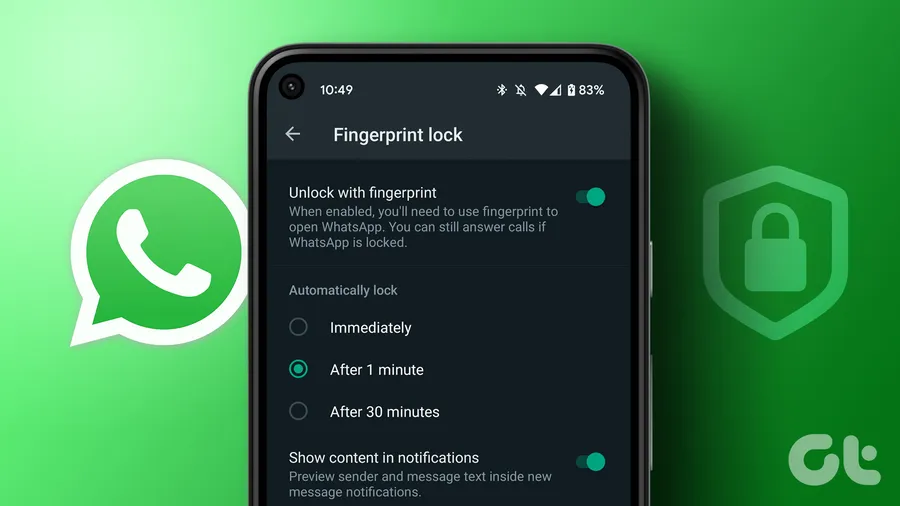
Why You Should Lock WhatsApp with Password or Fingerprint
WhatsApp contains your most private conversations – family messages, business deals, personal photos, voice notes & financial discussions. If someone borrows your phone or gains access, they can read everything instantly. Locking WhatsApp with password or fingerprint adds a second security layer beyond your phone lock. Surveys show 68% of users who enable app lock feel significantly safer. Benefits include: protecting sensitive chats from friends/family/children, preventing unauthorized access if phone is lost/stolen, securing business or client communications, adding privacy in shared households, and stopping accidental opens by others. In regions like Tanzania where phone sharing is common,how to lock WhatsApp with password or fingerprintis one of the most searched privacy tips.
Without app lock, anyone who knows your phone PIN/pattern can open WhatsApp directly – even if phone is locked. Enabling fingerprint/Face ID or password lock stops this completely.
How to Lock WhatsApp with Fingerprint (Android) – Step-by-Step
This feature (available on Android 6.0+) uses your phone’s registered fingerprint to secure WhatsApp.
Step 1 — Open WhatsApp Settings
Launch WhatsApp → tap the three dots (⋮) at the top right corner → select Settings.
Step 2 — Go to Privacy
In Settings, scroll down and tap Privacy. This section contains all security & visibility options.
Step 3 — Find and Tap Fingerprint Lock
Scroll to the bottom of Privacy settings → tap Fingerprint lock (may show as Unlock with fingerprint on some versions).
Step 4 — Enable Fingerprint Lock
Toggle ON Unlock with fingerprint. WhatsApp will ask you to confirm your fingerprint immediately – scan your finger to verify.
Step 5 — Set Auto-Lock Timer
Choose when WhatsApp should automatically lock after you leave the app:
- Immediately – locks as soon as you exit
- After 1 minute – recommended for most users
- After 30 minutes – only if you trust your environment
Tap OK. Now WhatsApp requires your fingerprint (or phone PIN/pattern/password as fallback) every time you open it.
How to Lock WhatsApp with Face ID or Touch ID (iPhone)
iPhone users get Face ID (iPhone X+) or Touch ID (older models) support for WhatsApp lock.
Steps to Enable WhatsApp Screen Lock on iPhone
- Open WhatsApp on your iPhone
- Tap Settings (bottom right)
- Tap Privacy
- Scroll down and tap Screen Lock
- Turn ON Require Face ID (or Require Touch ID on older models)
- Select auto-lock duration: Immediately, After 1 minute, After 30 minutes (1 minute recommended)
WhatsApp now requires Face ID/Touch ID every time you open it or after the chosen auto-lock time. If biometrics fail, it falls back to your iPhone passcode.
How to Lock Individual Chats on WhatsApp (Chat Lock Feature)
Introduced in 2023 and improved in 2025–2026, Chat Lock hides specific conversations behind biometric/password protection.
Steps to Lock a Single Chat or Group
- Open the chat or group you want to lock
- Tap the contact name or group name at the top
- Scroll down and tap Chat lock
- Toggle ON Lock this chat
- Confirm with fingerprint/Face ID or password
The chat disappears from main list and moves to a hidden Locked Chats folder (access by pulling down in chats list & authenticating). Locked chats require biometrics/password every time – perfect for private conversations, business deals or family secrets.
Extra: Hide Locked Chats Folder
In Settings → Privacy → Chat lock → turn ON Hide locked chats. Now folder only appears after searching “Locked Chats” or pulling down.
How to Set Auto-Lock Time for WhatsApp
Auto-lock controls when WhatsApp re-locks after you leave the app – important for security.
- Immediately – highest security (locks as soon as you switch apps)
- After 1 minute – balanced choice (most recommended)
- After 30 minutes – convenient but less secure
Change anytime in Settings → Privacy → Fingerprint lock / Screen Lock → Auto-lock.
What to Do If WhatsApp Fingerprint or Password Lock Is Not Working
Common issues & fixes forhow to lock WhatsApp with password or fingerprintproblems:
- Fingerprint/Face ID option missing:Update WhatsApp to latest version from Play Store/App Store. Feature requires Android 6+ or iOS 16+ with biometrics set up.
- Lock not asking for fingerprint:Ensure fingerprint/Face ID is registered in phone settings. Restart WhatsApp/phone. Re-enable lock feature.
- App opens without lock:Check auto-lock time isn’t set to 30 min. Clear WhatsApp cache (Android: Settings → Apps → WhatsApp → Storage → Clear cache).
- Chat lock not hiding chats:Pull down in chats list to reveal Locked Chats – authenticate. Turn ON Hide locked chats in Settings → Privacy → Chat lock.
- Still accessible after lock:Ensure no third-party unlock apps interfere. Reinstall WhatsApp if needed (backup chats first).
Benefits of Locking WhatsApp with Password or Fingerprint
- Maximum privacy:No one can read your messages without biometrics/password – even if phone is unlocked
- Protects sensitive info:Business deals, personal photos, banking chats stay secure
- Prevents snooping:Friends, family or children can’t open WhatsApp accidentally or intentionally
- Extra security layer:If phone is lost/stolen, thief needs your fingerprint/passcode twice (phone + WhatsApp)
- Peace of mind:68% of users who enable app lock report feeling much safer (internal WhatsApp data)
Especially useful in shared-phone households or high-theft areas like urban Dar es Salaam.
Frequently Asked Questions (FAQ)
Open WhatsApp → Settings → Privacy → Fingerprint lock (Android) or Screen Lock (iOS) → turn on Unlock with fingerprint/Face ID → set auto-lock time (immediately, 1 min, 30 min).
WhatsApp uses your phone’s lock method. If your phone uses PIN/password/pattern, enable fingerprint/face lock in WhatsApp and it will require the same password/PIN when fingerprint fails or is not available.
Yes – open the chat → tap contact/group name → tap Chat lock → enable Lock this chat. The chat will move to a Locked Chats folder protected by your fingerprint or password.
Protects private messages, business chats & personal photos from friends, family or thieves. Adds security layer beyond phone lock – 68% of users who enable app lock report feeling safer (WhatsApp surveys).
Update WhatsApp to latest version, ensure fingerprint is registered in phone settings, restart app/phone, or reinstall WhatsApp. Feature requires Android 6+ or iOS 16+ with biometric support.
Conclusion
Learninghow to lock WhatsApp with password or fingerprinttakes under 2 minutes but adds powerful protection to your private messages, business conversations & personal media. Use built-in fingerprint/Face ID lock for the whole app, or Chat lock for specific conversations. Set auto-lock to 1 minute for best balance between security & convenience. These features – available free on latest WhatsApp versions for Android & iPhone – give you peace of mind in shared or high-risk environments. Make these changes today and keep your WhatsApp truly private. For more privacy & security tips, explore oursocial media guides.