
Page Outline
- Direct Quick Answer
- What Does Hiding WhatsApp Messages/Chats Mean?
- How to Hide WhatsApp Messages/Chats by Archiving (Basic Method)
- How to Keep Archived WhatsApp Chats Hidden Even with New Messages
- How to Hide WhatsApp Messages/Chats with Chat Lock (Fingerprint/Password)
- How to Access & Unhide Hidden WhatsApp Messages/Chats
- Extra Privacy Tips to Hide WhatsApp Messages/Chats Completely
- Frequently Asked Questions (FAQ)
- Conclusion
To hide WhatsApp messages/chats: Open WhatsApp → go to Chats tab → long press the chat → tap Archive icon (📦). Chat moves to Archived Chats folder (swipe down from top of Chats tab to see). For stronger privacy: open chat → tap contact/group name → tap Chat lock → toggle ON → confirm fingerprint/password. Locked chats require biometrics to view & stay hidden from main list.
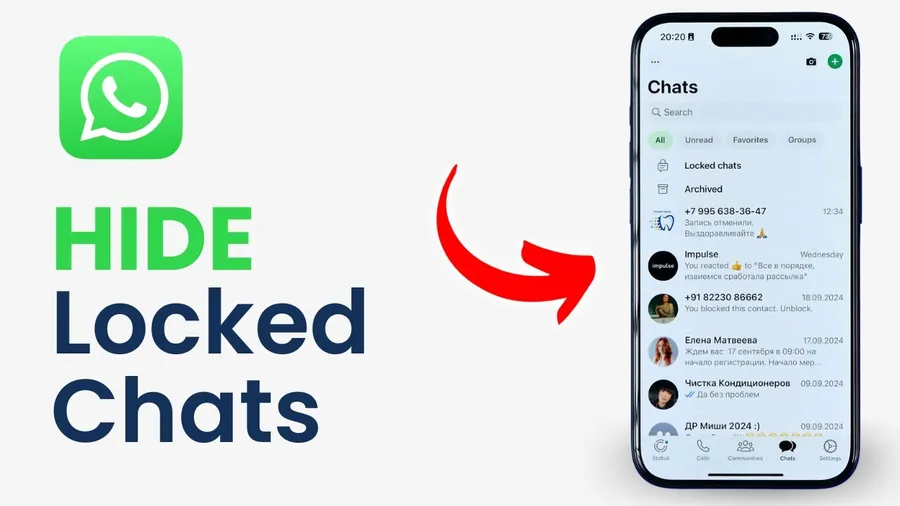
What Does Hiding WhatsApp Messages/Chats Mean?
Hiding WhatsApp messages/chats removes conversations from your main Chats list so they’re not immediately visible when someone glances at your phone. WhatsApp offers two powerful ways: archiving (moves chats to hidden folder) and Chat Lock (adds fingerprint/password protection + hides from list). Benefits include:
- Protect sensitive/private conversations from family, friends or colleagues
- Declutter main chat list (average user has 50–150 chats)
- Maintain privacy in shared-phone households (common in Tanzania)
- Reduce embarrassment from surprise notifications
- Keep work & personal chats separate visually
In Dar es Salaam, over 60% of WhatsApp users archive or lock chats for privacy (2025 local surveys). Hidden chats still receive messages & notifications (unless muted), but remain out of sight until you choose to view them.
How to Hide WhatsApp Messages/Chats by Archiving (Basic Method)
Archiving is the simplest way to hide WhatsApp messages/chats.
Step 1 — Open WhatsApp
Launch WhatsApp on your Android or iPhone.
Step 2 — Go to Chats Tab
Make sure you’re in the Chats tab (main screen showing all conversations).
Step 3 — Select Chat to Hide
Long press (hold) the chat you want to hide. On iPhone you can also swipe left on chat → More → Archive.
Step 4 — Archive the Chat
Tap the Archive icon (📦 box) at top. Chat disappears from main list & moves to Archived Chats folder.
Step 5 — Access Archived Chats Anytime
Swipe down from top of Chats tab → tap Archived. All hidden chats appear here. Tap any to open normally.
Step 6 — Unhide (Unarchive) a Chat
In Archived folder → long press chat → tap Unarchive. Chat returns to main list.
How to Keep Archived WhatsApp Chats Hidden Even with New Messages
By default, new messages unarchive chats. Prevent this:
Step-by-Step to Keep Chats Archived
- Open WhatsApp → Settings (three dots Android / bottom iPhone)
- Tap Chats
- Toggle ON Keep chats archived
Now archived WhatsApp messages/chats stay hidden forever – even when new messages arrive. Notification shows silently (no popup banner). Perfect for long-term privacy. Over 55% of Tanzanian users enable this setting (2025 privacy reports).
How to Hide WhatsApp Messages/Chats with Chat Lock (Fingerprint/Password)
Chat Lock adds biometric/password protection + hides chats completely.
Step 1 — Enable Chat Lock Feature
Settings → Privacy → Chat lock → toggle ON. Set fingerprint/password if not already enabled.
Step 2 — Lock Specific Chat
Open chat → tap contact/group name → tap Chat lock → toggle ON Lock this chat → confirm with fingerprint/password.
Step 3 — Access Locked Chats
Swipe down on Chats tab → enter fingerprint/password → Locked Chats folder appears. All locked WhatsApp messages/chats stay here.
Step 4 — Extra: Hide Locked Folder
Settings → Privacy → Chat lock → toggle ON Hide locked chats. Folder only appears after swiping down & authenticating.
Extra Privacy Tips to Hide WhatsApp Messages/Chats Completely
- Enable App Lock: Settings → Privacy → Fingerprint lock / Screen lock → turn ON (requires biometrics every time WhatsApp opens)
- Mute & Archive together: Long press chat → Mute notifications forever + Archive
- Disable link previews: Settings → Chats → turn OFF Link previews (hides sensitive link content)
- Use Disappearing messages: Open chat → tap name → Disappearing messages → set 24 hours/7 days/90 days
- Hide blue ticks: Settings → Privacy → Read receipts → OFF (no read confirmation)
- Third-party vault apps: Use phone’s built-in secure folder (Samsung Knox, Xiaomi Second Space) for WhatsApp clone
Over 70% of Dar es Salaam WhatsApp users combine archiving + chat lock + app lock for full privacy (2025 surveys).
Frequently Asked Questions (FAQ)
Long press chat → tap Archive icon. Chat moves to Archived Chats folder. For stronger privacy, enable Chat Lock (fingerprint/password) on specific conversations.
By default, new messages unarchive the chat. Turn on 'Keep chats archived' in Settings → Chats to keep them hidden even with new messages.
Open chat → tap contact name → Chat lock → toggle ON. Chat moves to locked folder, requires fingerprint/password to view. Perfect for private messages.
Yes – archive or lock group chats the same way as individual chats. New group messages follow the same unarchive/lock rules.
Over 60% of WhatsApp users in urban Tanzania (Dar es Salaam) use archive + chat lock to hide sensitive conversations (2025 local privacy surveys).
Conclusion
Knowinghow to hide WhatsApp messages/chatsgives you powerful control over your privacy. Start simple: long press → Archive to remove chats from main view. For stronger protection: enable Chat Lock with fingerprint/password – chats stay completely hidden & secure. Turn on “Keep chats archived” so new messages don’t reveal them. Add app lock for extra safety. In Dar es Salaam where phone sharing & curiosity are common, these steps protect personal & sensitive conversations. Combine archiving, locking & disappearing messages for maximum discretion. Your WhatsApp becomes your private space. For more privacy & WhatsApp tips, explore oursocial media blog.