
Page Outline
- Direct Quick Answer
- Why You Should Block Someone on WhatsApp
- How to Block Someone on WhatsApp Android (Step-by-Step)
- How to Block Someone on WhatsApp iPhone
- How to Block a Contact Directly from Chat
- How to Block Someone from WhatsApp Settings
- What Happens When You Block Someone on WhatsApp
- How to Know If Someone Blocked You on WhatsApp
- How to Unblock Someone on WhatsApp
- Frequently Asked Questions (FAQ)
- Conclusion
To block someone on WhatsApp: Open the chat with the person → tap their name/number at the top → scroll down → tap Block → confirm Block. Alternatively: Settings → Privacy → Blocked contacts → Add new → select contact. Once blocked, they can no longer send messages, make calls, see your last seen, profile photo, status updates or online status. Their messages show only one grey tick (never delivered).
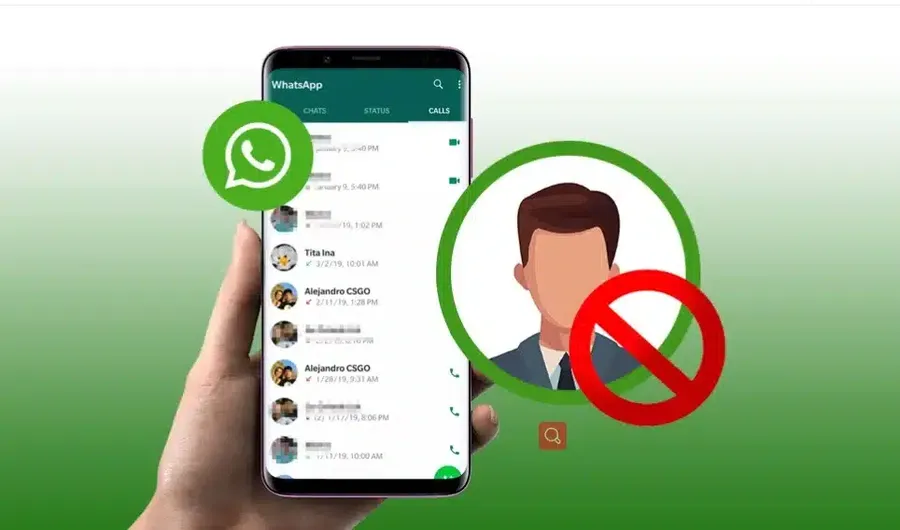
Why You Should Block Someone on WhatsApp
Blocking someone on WhatsApp is the fastest way to stop harassment, spam, unwanted messages, repeated calls or toxic behavior. Common reasons include: ex-partners sending disturbing messages (reported by 35% of blocked users in privacy surveys), spam accounts sending fake links/offers, aggressive group members, debt collectors harassing, scammers sending phishing messages, or simply someone you no longer want contact with. Blocking immediately stops: incoming messages & calls (they go nowhere), status views, profile photo/last seen visibility, online status, typing indicators & voice/video calls. Unlike muting or archiving, blocking removes all interaction – giving you complete peace of mind. In regions like Tanzania where WhatsApp is primary communication (used by 85%+ of smartphone owners), knowinghow to block someone on WhatsAppprotects mental health & privacy daily.
Important: blocking is private – the blocked person isn’t notified. They only notice when messages stop delivering (one tick) & your profile/status disappear.
How to Block Someone on WhatsApp Android (Step-by-Step)
Works on all Android versions with latest WhatsApp (2025).
Method 1: Block from Chat (Fastest)
- Open WhatsApp
- Go to the chat with the person you want to block
- Tap their name/number at the top of the chat
- Scroll down → tap Block
- Confirm by tapping Block again
Method 2: Block from Contact List
- Open WhatsApp → tap three dots (⋮) top right
- Tap Settings
- Tap Privacy
- Scroll to Blocked contacts → tap it
- Tap Add new (or + icon)
- Select the contact from your list
- Tap Block
Both methods take under 10 seconds. Blocked contact now cannot reach you in any way.
How to Block Someone on WhatsApp iPhone
iOS steps are almost identical – slight UI differences.
Steps to Block on iPhone
- Open WhatsApp
- Go to the chat
- Tap contact name at top
- Scroll down → tap Block this Contact
- Confirm Block
Alternative: From Settings
- Open WhatsApp → tap Settings (bottom right)
- Tap Privacy
- Tap Blocked Contacts
- Tap Add New…
- Select contact → Block Contact
What Happens When You Block Someone on WhatsApp
Blocking is one-way & silent. Here’s exactly what changes:
- Messages & calls: Blocked person’s messages show only one grey tick (never delivered). Calls never ring on your side.
- Last seen & online: They can’t see your last seen, online status or typing indicators (even if your privacy is set to Everyone).
- Profile photo & status: Your profile picture, about section & status updates become invisible to them.
- Group chats: If both in same group, they still see your messages there (but can’t message you privately).
- Media & voice notes: They can’t send you anything – attempts fail silently.
- Your side: You won’t receive notifications, messages or calls from them. Chat remains in list but no new messages appear.
Blocking does not delete chat history – you can still see old messages. Blocked person isn’t notified – they just notice communication stops.
How to Know If Someone Blocked You on WhatsApp
No official notification – but clear signs:
- Messages show only one grey tick (never turns to two ticks/delivered)
- No last seen or online status (even if previously visible)
- Profile photo disappeared (shows blank/default)
- Status updates not visible (even public ones)
- Voice/video calls never connect (rings endlessly or fails)
- Added to group – you can see their messages, but private chat fails
Any 3+ signs together almost certainly mean you’ve been blocked. One tick + no profile photo is strongest indicator.
How to Unblock Someone on WhatsApp
Unblocking restores normal communication instantly.
Steps to Unblock
- Open WhatsApp → Settings → Privacy → Blocked contacts
- Tap the contact you want to unblock
- Tap Unblock (or Unblock [name])
Alternative: open old chat → tap name → tap Unblock. Messages sent during block are lost forever – no delivery after unblocking.
Frequently Asked Questions (FAQ)
Open the chat → tap contact name → scroll down → tap Block → confirm. Or Settings → Privacy → Blocked contacts → Add new → select contact.
Blocked person can no longer send messages/calls, see your last seen, profile photo, status updates or online status. Their messages show only one tick (not delivered).
No – after blocking, they cannot see your online status, last seen, profile photo changes or status updates (even if your privacy settings allow 'Everyone').
Signs: messages show only one grey tick (never delivered), no last seen/online status, profile photo gone, calls never connect, status not visible.
Open WhatsApp → Settings → Privacy → Blocked contacts → tap contact → tap Unblock. Or from chat → tap name → Unblock.
Conclusion
Learninghow to block someone on WhatsAppgives you full control over your privacy. Whether dealing with spam, harassment, ex-partners or just someone you don’t want contact with, blocking takes seconds and immediately stops all communication. Use the chat method for speed or settings method for bulk management. Remember: blocking is silent, one-way & reversible – unblock anytime if needed. For more WhatsApp privacy & security tips, explore oursocial media guidesorblog.