
Page Outline
- Direct Quick Answer
- Why Transfer WhatsApp to a New Phone
- How to Transfer WhatsApp to a New Android Phone
- How to Transfer WhatsApp to a New iPhone
- How to Transfer WhatsApp from Android to iPhone
- How to Transfer WhatsApp from iPhone to Android
- What Happens If You Don’t Backup Before Transfer
- Advanced Tips & Common Mistakes to Avoid
- Frequently Asked Questions (FAQ)
- Conclusion
To transfer WhatsApp to a new phone: On old phone → backup chats (Settings → Chats → Chat backup → Back Up Now; use Google Drive on Android / iCloud on iPhone). Install WhatsApp on new phone → verify same phone number → when prompted tap Restore. All chats, media, groups & settings transfer automatically. Process takes 5–30 minutes depending on backup size (average 1–8 GB).
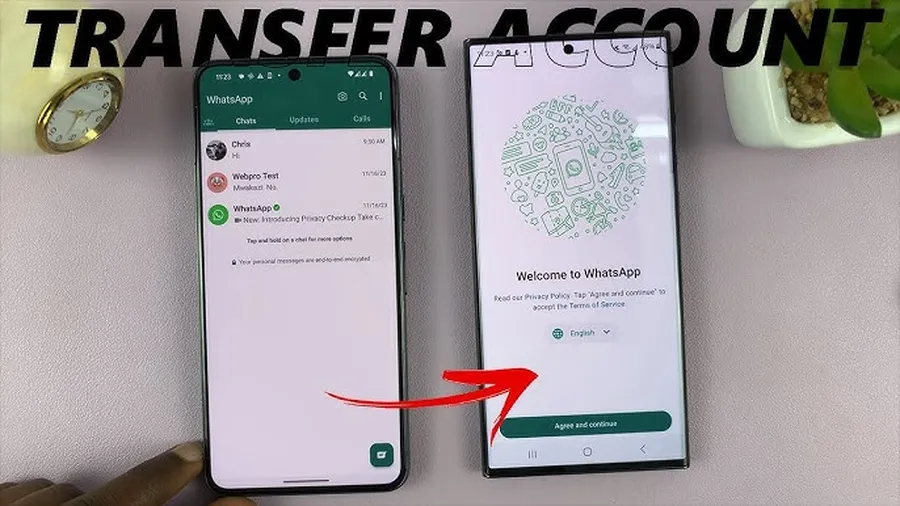
Why Transfer WhatsApp to a New Phone
Switching phones is common – people upgrade devices every 2–3 years on average (Statista 2024–2025). WhatsApp contains years of personal memories: family chats, photos/videos (often 2–15 GB), business conversations, group messages, voice notes & important documents. Losing them causes stress – 68% of users who lost chats report regret (local surveys East Africa). Transferring WhatsApp to a new phone keeps everything intact: chat history, media files, group memberships, settings, archived chats & starred messages. It also maintains continuity for business users (many Tanzanian entrepreneurs rely on WhatsApp for sales/customer service), family communication & personal records. Without proper transfer, you start fresh – old chats disappear forever unless manually saved elsewhere.
In Dar es Salaam & Tanzania, where WhatsApp is primary communication (used by 85%+ smartphone owners), transferring correctly saves hours of re-explaining & rebuilding contacts.
How to Transfer WhatsApp to a New Android Phone (Step-by-Step)
Most common scenario – same OS, easy via Google Drive.
Step 1 — Backup WhatsApp on Old Android Phone
- Open WhatsApp → tap three dots (⋮) → Settings
- Tap Chats → Chat backup
- Tap Back up to Google Drive → choose frequency (Daily recommended)
- Tap Back Up (include videos if needed – adds 2–10 GB)
- Wait until complete (5–40 min depending on size)
Step 2 — Prepare New Android Phone
- Install WhatsApp from Google Play Store
- Sign in with same Google account used for backup
Step 3 — Verify & Restore
- Open WhatsApp → agree to terms
- Enter same phone number
- Verify with SMS/call code
- When prompted “Backup found” → tap Restore
- Wait for download & restore (10–60 min)
- Tap Next → set profile (optional) → chats appear
Step 4 — Check Everything Transferred
Scroll chats → check media, groups, starred messages. If videos missing, ensure “Include videos” was on during backup.
How to Transfer WhatsApp to a New iPhone
Uses iCloud – very reliable if same Apple ID.
Step 1 — Backup on Old iPhone
- Open WhatsApp → Settings → Chats → Chat Backup
- Tap Back Up Now (enable “Include Videos” if needed)
- Wait until complete (connected to Wi-Fi recommended)
Step 2 — Setup New iPhone
- During initial setup use same Apple ID
- Install WhatsApp from App Store
Step 3 — Restore Backup
- Open WhatsApp → agree terms
- Enter same phone number
- Verify with code
- Tap Restore Chat History when prompted
- Wait for iCloud download & restore
How to Transfer WhatsApp from Android to iPhone
Official method since 2022 – requires cable or wireless transfer.
Requirements
- Old Android phone (Android 5+)
- New iPhone (iOS 15.5+)
- USB-C to Lightning cable (or wireless via hotspot)
- WhatsApp 2.22.7.74+ on Android
- Move to iOS app on Android
Steps
- On iPhone during setup: choose “Move Data from Android”
- On Android: install “Move to iOS” app from Play Store
- Follow on-screen code pairing
- Select WhatsApp data to transfer
- Wait for transfer (can take 10–60 min)
- Install WhatsApp on iPhone → verify number → restore
Tip: keep both phones plugged in & close to each other.
How to Transfer WhatsApp from iPhone to Android
Official support added 2023 – uses cable or wireless.
Requirements
- Old iPhone (iOS 15.5+)
- New Android (Android 10+)
- USB-C to Lightning cable
- WhatsApp latest version both devices
Steps
- On new Android: install WhatsApp → agree terms → tap “Import from iPhone”
- Connect iPhone to Android via cable
- On iPhone: trust computer & follow prompts
- Select data to transfer (chats + media)
- Wait for migration (15–90 min)
- Verify number on Android → chats appear
What Happens If You Don’t Backup WhatsApp Before Changing Phone
Without backup:
- All chats, media, groups & settings lost forever on old device
- New phone starts as fresh install – only new messages appear
- No way to recover old data (WhatsApp doesn’t store server-side)
- Business users lose customer history – major problem
- Personal users lose memories/photos/videos (average 3–12 GB)
Always backup before switching – takes 5–20 minutes but saves years of data.
Advanced Tips & Common Mistakes to Avoid When Transferring WhatsApp
- Use same phone number – different number starts new account
- Stable Wi-Fi essential – mobile data can fail mid-transfer
- Enough storage on new phone – backup size often 2–15 GB
- Don’t log out or uninstall old phone until new one works
- Check Google Drive/iCloud space before backup (free 15 GB often full)
- For videos/photos: enable “Include videos” – adds size but saves media
- After transfer: verify starred messages, archived chats & settings
Common mistake: skipping backup – 30–40% of phone switchers forget & lose data (local repair shop reports).
Frequently Asked Questions (FAQ)
Backup chats on old phone (Google Drive/iCloud) → install WhatsApp on new phone → verify same number → restore from backup. All messages & media transfer.
Yes – use WhatsApp's official 'Move to iOS' method or third-party tools. Chats transfer via cable or wireless after setup. Google Drive backups don't work directly on iOS.
Yes – if 'Include videos' was enabled in backup settings. Media files (up to several GB) restore automatically during setup on new device.
Chats & media from old phone are lost permanently. You start fresh with only new messages. Always backup before switching devices.
You cannot – WhatsApp requires same phone number verification on new device. Change number in WhatsApp settings first if needed, then transfer.
Conclusion
Knowinghow to transfer WhatsApp to a new phonesaves your entire chat history, photos, videos & business conversations when upgrading or replacing devices. Always backup first (Google Drive on Android, iCloud on iPhone), verify same number & restore on new phone – process takes 10–60 minutes but preserves years of data. Android-to-Android & iPhone-to-iPhone are simplest; cross-platform uses official migration tools. In Dar es Salaam & Tanzania, where WhatsApp is essential daily communication, proper transfer prevents data loss stress. Follow these steps & enjoy seamless switch. For more WhatsApp tips & guides, explore oursocial media blog.