
Page Outline
- Direct Quick Answer
- Why WhatsApp Automatically Downloads Images and Videos
- How to Stop Auto Download on WhatsApp (Step-by-Step)
- How to Stop Auto Download Images from WhatsApp Groups
- How to Stop WhatsApp Photos Saving to Phone Gallery
- Benefits of Turning Off WhatsApp Auto Download
- Common Problems and Fixes When WhatsApp Still Downloads
- Frequently Asked Questions (FAQ)
- Conclusion
To stop auto download on WhatsApp (images, videos, documents): Open WhatsApp → tap three dots (Android) or Settings (iPhone) → Storage and data → Media auto-download → open each option (When using mobile data / When connected on Wi-Fi / When roaming) → uncheck Photos, Videos, Audio, Documents. This disables automatic downloading completely. For groups: open group → tap name → Media visibility → select No. After these changes, WhatsApp stops auto-saving media and you manually choose what to download.
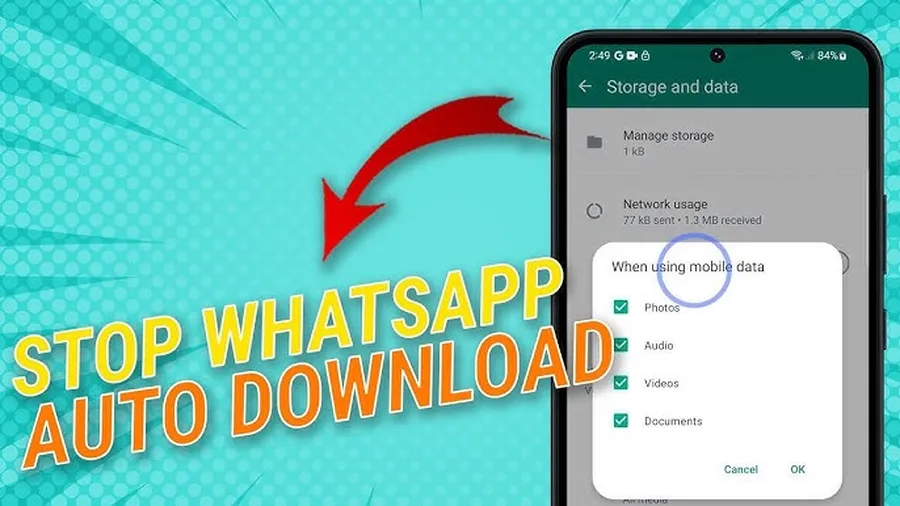
Why WhatsApp Automatically Downloads Images and Videos
WhatsApp auto-downloads media by default to provide instant access – when someone sends a photo, video or document, it saves automatically so you can view it without tapping. While convenient, this feature consumes mobile data (200–800 MB/month for average users, up to 2–5 GB in active groups), fills phone storage quickly (especially with large videos or group media), drains battery faster during downloads, and clutters your gallery with unwanted memes, status replies or forwarded content. In WhatsApp groups – the biggest culprit – dozens or hundreds of images/videos can download daily without permission, causing storage full warnings and slow phone performance. Disabling auto-download gives you full control: only download what you want, when you want.
Many users search “how to stop auto download on WhatsApp” after noticing high data usage or full storage – especially on limited mobile plans common in Tanzania and East Africa.
How to Stop Auto Download on WhatsApp (Step-by-Step Guide)
This method works on both Android and iPhone and stops WhatsApp from automatically downloading images, videos, audio and documents in chats and groups.
Step 1 — Open WhatsApp Settings
Launch WhatsApp on your phone. On Android tap the three dots (⋮) at the top right. On iPhone tap Settings at the bottom right.
Step 2 — Go to Storage and Data
Scroll down and tap Storage and data. This section controls all media download settings and shows how much space WhatsApp is using on your device.
Step 3 — Disable Media Auto-Download Completely
Under Media auto-download you see three options:
- When using mobile data
- When connected on Wi-Fi
- When roaming
Tap each one separately and uncheck:
- Photos
- Audio
- Videos
- Documents
After unchecking all items in all three sections, tap OK. WhatsApp will now ask permission before downloading any media – you must tap to download manually.
Optional: Reduce WhatsApp Storage Usage Further
In the same Storage and data menu, tap Manage storage to see which chats/groups use the most space. Tap large ones → select messages/media → delete to free up GBs instantly.
How to Stop Auto Download Images from WhatsApp Groups
WhatsApp groups are the #1 reason for unwanted auto-downloads – some groups send 50–200+ photos/videos daily. Even after disabling global auto-download, group media can still save to gallery if Media visibility is ON.
Option 1: Stop Images/Videos from Specific Groups Saving to Gallery
- Open the WhatsApp group chat
- Tap the group name at the top
- Scroll to Media visibility
- Select No
Repeat for every active group. New media from that group will no longer appear in your phone gallery automatically.
Option 2: Global Fix – Turn Off Media Visibility for All Chats
- Open WhatsApp → Settings
- Tap Chats
- Turn OFF Media visibility
This prevents ALL WhatsApp media (chats + groups) from appearing in your gallery. You can still view media inside WhatsApp and manually save what you want.
How to Stop WhatsApp Photos Saving to Phone Gallery
Even when auto-download is off, downloaded or sent images can still appear in your gallery if Media visibility is enabled. To fix:
- Open WhatsApp → Settings
- Tap Chats
- Turn OFF Media visibility
Existing photos already in gallery won’t disappear – delete them manually via phone gallery or WhatsApp Manage storage. After this change, no new WhatsApp images will clutter your gallery.
Benefits of Turning Off WhatsApp Auto Download
- Saves mobile data:Average user saves 1–5 GB/month; heavy group users save 5–15 GB/month
- Frees phone storage:Prevents 2–10 GB of unwanted media accumulation monthly
- Improves performance:Less background downloading = faster phone, longer battery life
- Stops clutter:No more gallery filled with group memes, status replies or forwarded videos
- More control:Only download content you actually want to keep
Users in Tanzania and regions with limited/expensive data report biggest relief after disabling auto-download.
Common Problems and Fixes When WhatsApp Still Downloads Media
Even after following steps, some users still see auto-downloads. Here are the most common causes & fixes:
- Wi-Fi auto-download still enabled:Check all three tabs (mobile data, Wi-Fi, roaming) – uncheck everything
- Media visibility still ON:Go to Settings → Chats → turn OFF Media visibility
- Old cache or bug:Clear WhatsApp cache (Settings → Apps → WhatsApp → Storage → Clear cache) or force stop & reopen
- Documents bypass some settings:PDFs & files sent as documents may still auto-download – uncheck Documents in auto-download settings
- Group admin sent as view once:View-once media downloads automatically regardless of settings – no fix, only avoid opening
- Permissions issue:On Android, go to phone Settings → Apps → WhatsApp → Permissions → make sure Storage permission is allowed only when needed
Frequently Asked Questions (FAQ)
Open WhatsApp → Settings → Storage and data → Media auto-download → When using mobile data / When connected on Wi-Fi / When roaming → uncheck Photos, Videos, Audio, Documents.
For individual groups: open the group → tap group name → Media visibility → select No. For all media: disable auto-download in Settings → Storage and data.
Common reasons: Wi-Fi auto-download still enabled, Media visibility ON (saves to gallery), old cache, WhatsApp permissions not revoked, or group admin sent as document (bypasses some settings).
Yes – users save 1–5 GB per month (depending on group activity). WhatsApp can use 200–800 MB/month on auto-download; disabling drops usage to near zero for media.
Go to WhatsApp → Settings → Chats → turn OFF Media visibility. This prevents downloaded/sent images from appearing in your phone gallery automatically.
Conclusion
Learninghow to stop auto download on WhatsApp(images, videos, documents) is one of the fastest ways to save mobile data, free up phone storage and improve device performance – especially if you’re in active groups or on limited data plans. By disabling Media auto-download in Storage and data settings and turning off Media visibility in Chats, you take full control: no more automatic downloads, no gallery clutter, no wasted GBs. The whole process takes under 2 minutes and works on both Android and iPhone in 2025–2026. Make these changes today and enjoy a cleaner, faster phone. For more WhatsApp tips, check oursocial media guides.