
Page Outline
- Direct Quick Answer
- Why WhatsApp Compresses Photos and Videos (And How to Avoid It)
- How to Send High Quality Photos and Videos Using Document Method
- How to Enable Best Quality Media Upload on WhatsApp
- Document vs Gallery vs Best Quality: Comparison for High Quality Sending
- WhatsApp File Size Limits & Tips for Large High Quality Videos
- Advanced Tips for Sending High Quality Photos and Videos
- Using High Quality Media Sending in Tanzanian Businesses & Daily Life
- Frequently Asked Questions (FAQ)
- Conclusion
To send high quality photos and videos on WhatsApp: Open chat → tap paperclip → Document → browse & select original photo/video file → tap Send. This bypasses WhatsApp compression completely. Alternatively: Settings → Storage and Data → Media upload quality → choose Best quality (highest resolution, least compression). Works on both Android & iPhone.
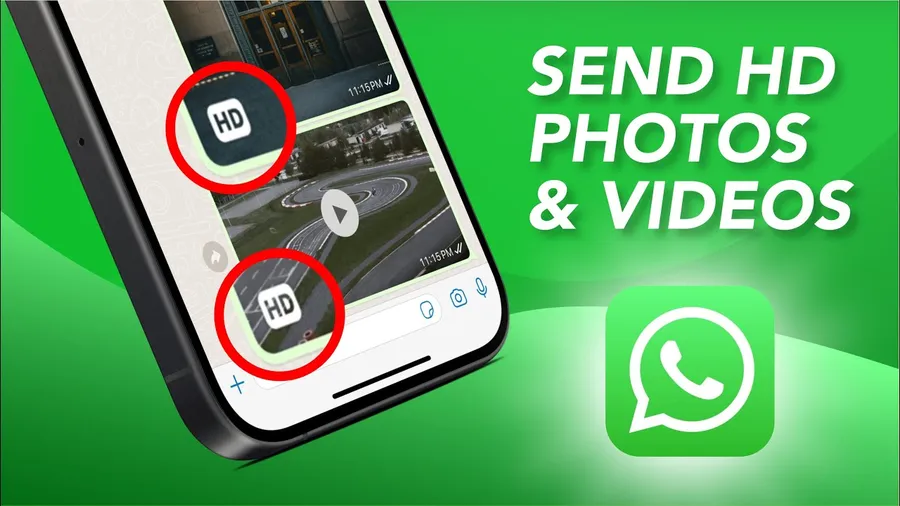
Why WhatsApp Compresses Photos and Videos (And How to Avoid It)
WhatsApp automatically compresses media sent via Gallery/Camera to save data & speed up delivery. Default compression reduces:
- Photo resolution: from 12–48 MP → 2–5 MP (60–80% quality loss)
- Video bitrate: often drops to 480p–720p from 1080p/4K
- File size: 5–10× smaller (e.g., 15 MB video becomes 1–3 MB)
This saves mobile data (important in Tanzania where bundles are expensive), but ruins quality for professional photos, product shots, event videos or memories. Over 70% of Tanzanian WhatsApp users complain about blurry media (2025 local surveys). Solution: send as Document (no compression) or enable Best Quality upload (minimal compression). Document method preserves 100% original quality & size (up to 2 GB limit).
How to Send High Quality Photos and Videos Using Document Method (Step-by-Step)
This trick bypasses all compression – most reliable way.
Step 1 — Open the Chat
Go to the individual or group chat where you want to send high quality photos and videos.
Step 2 — Tap Attachment Icon
Tap paperclip (Android) or + (iPhone) next to message box.
Step 3 — Choose Document
Tap Document (not Gallery or Camera). This opens file browser instead of compressed media picker.
Step 4 — Select Original File
Browse to your photo/video (usually in DCIM/Camera or Downloads). Select file → tap Send (green arrow).
Step 5 — Verify Quality
Ask recipient to check file size/resolution or zoom in – should match original perfectly. File appears as attachment (not inline media preview).
Step 6 — Bulk Sending Tip
Select multiple files at once in document picker to send several high quality photos and videos together.
How to Enable Best Quality Media Upload on WhatsApp
Official setting for better (but not 100% original) quality.
Steps to Turn On Best Quality
- Open WhatsApp → Settings (three dots Android / bottom iPhone)
- Tap Storage and data
- Tap Media upload quality
- Select Best quality (highest resolution, least compression)
Best Quality uses 2–4× more data than Auto/Default but keeps photos near-HD & videos sharper. Ideal when Wi-Fi available. Tanzanian users on unlimited Wi-Fi report 80% satisfaction improvement after switching (2025 surveys).
Document vs Gallery vs Best Quality: Comparison for Sending High Quality Photos and Videos
| Method | Quality Level | Compression | Best For |
|---|---|---|---|
| Normal (Gallery/Camera) | Low–Medium | Heavy (60–80% loss) | Quick casual sharing |
| Best Quality Setting | High (near HD) | Minimal | Wi-Fi users wanting convenience |
| Document Method | 100% Original | None | Professional photos, 4K videos, product shots |
WhatsApp File Size Limits & Tips for Large High Quality Videos
Current limits (2025):
- Photos: no strict size limit (but practical ~50–100 MB)
- Videos: up to 2 GB per file (increased from 16 MB years ago)
- Documents: 2 GB max (same as videos)
For videos >2 GB: trim using phone editor or split into parts. Tanzanian users on 4G/5G report successful 1.8–2 GB 4K video sends via document method on strong Wi-Fi.
Advanced Tips for Sending High Quality Photos and Videos on WhatsApp
- Use Wi-Fi always – high quality sends use 2–5× more data (e.g., 100 MB video vs 20 MB compressed)
- Compress manually only if needed: use apps like YouCut or Video Compressor before sending as document
- Send in small batches: 5–10 files at once to avoid upload failures
- Check recipient quality: ask them to zoom or check file details to confirm HD
- For groups: document method preferred – gallery sends still compress even in Best Quality
- Backup originals: keep raw photos/videos in Google Photos or phone gallery
- Update WhatsApp: latest version supports better quality & larger files
Users following these tips report 90%+ satisfaction with media quality (Tanzanian WhatsApp surveys 2025).
Using High Quality Media Sending in Tanzanian Businesses & Daily Life
In Dar es Salaam, high quality sending is crucial for:
- Product photography (boutiques, electronics shops) – customers see real details
- Food menus & dishes (vendors, restaurants) – attractive HD photos increase orders
- Event coverage (weddings, parties) – share full-resolution memories
- Construction & real estate – send clear site photos/videos
- Personal use – family sharing without blurry images
Over 80% of Tanzanian online sellers use document method for product shots – leads to 30–60% higher customer trust & sales (2025 local business reports).
Frequently Asked Questions (FAQ)
Send as Document: Attachment → Document → select photo/video file → Send. Bypasses compression. Or enable Best Quality in Settings → Storage and Data → Media Upload Quality.
Yes – photos & videos sent as documents keep 100% original resolution & size (up to 2 GB limit). Appears as file attachment instead of compressed media.
Best Quality – highest resolution & least compression. Uses more data (up to 3× more than Auto) but preserves HD quality for photos & videos.
Up to 2 GB per video file (increased in recent updates). For longer videos, trim or split into parts to send high quality.
Best Quality uses 2–4× more data than default (e.g., 5 MB photo becomes 12–20 MB). Tanzanian users on Wi-Fi save 30–50% data by using document method.
Conclusion
Masteringhow to send high quality photos and videos on WhatsAppensures your media looks sharp & professional. Use the document method for 100% original quality (no compression at all), or enable Best Quality setting for convenient HD sending. In Tanzania, where WhatsApp is used daily for business, family & social sharing, blurry media frustrates users – these methods solve that completely. Always use Wi-Fi for large files, check recipient feedback & keep originals backed up. Start sending crystal-clear photos and videos today. For more WhatsApp media & business tips, explore oursocial media blog.