
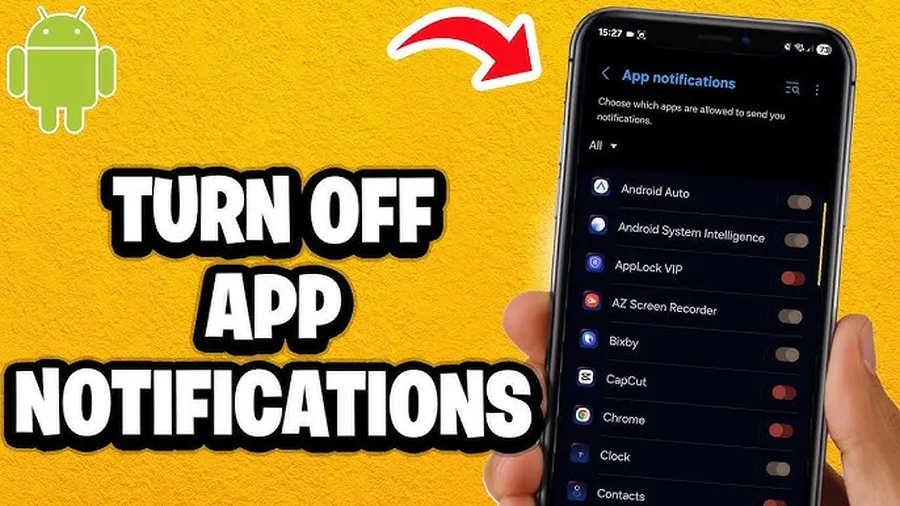
The fastest way toturn off app notifications on Androidis to open Settings > Notifications > App notifications, tap the problematic app, and toggle off "Allow notifications". For selective control, disable only certain categories like promotions or sounds. Most users see an immediate drop in distractions – studies show people receive over 100 notifications daily, many of which fragment attention and take up to 23 minutes to recover from each interruption.
Why Learning to Manage Android Notifications Matters in 2026
Your Android phone is constantly trying to grab your attention. Social media, shopping apps, games, and even system updates send alerts that light up your screen dozens of times an hour. On average, smartphone users receive more than 100 notifications per day, with many people checking their device every 10-12 minutes while awake. Each unnecessary ping can break your concentration, and research shows it often takes around 23 minutes to fully regain focus after a distraction.
Turning off unwantedapp notifications on Androidhelps you stay productive, reduce stress, and even improve battery life by limiting background activity and screen wake-ups. Whether you want complete silence from a noisy game or just to quiet promotional alerts from shopping apps, Android gives you powerful built-in tools. This guide walks you through every method with clear steps that work on the latest Android versions.
Related: Check our guide onhow to mute WhatsApp notificationsor exploreAI tools that boost productivity.
Why You Should Turn Off App Notifications
Constant alerts contribute to "alert fatigue." Teens and young adults often receive 150-200+ notifications daily, leading many to feel overwhelmed. By silencing non-essential ones, you can cut distractions significantly, improve sleep (especially by using Bedtime mode), and enjoy longer focus sessions for work or study.
- Reduce daily interruptions from over 100 to just the important ones
- Save 10-20% battery by preventing unnecessary screen-on events
- Lower stress and improve attention span during tasks
- Prevent accidental taps on time-wasting apps
Main Ways to Turn Off App Notifications on Android
- Through the main Notifications settings (most complete control)
- Directly from the notification shade (quick for one-off alerts)
- Using Do Not Disturb or Focus modes (scheduled quiet time)
- Inside the app's own settings (some apps offer extra options)
These methods are free, built-in, and work without installing extra apps.
Step-by-Step: Disable Notifications via Settings
This is the most reliable method and gives you full control over every app.
- Open theSettingsapp on your Android phone.
- Scroll down and tapNotifications.
- TapApp notificationsorAll appsto see the full list.
- Find and tap the app you want to manage (use the search bar at the top if you have many apps).
- Toggle offAllow notificationsto stop everything from that app.
- Or, keep it on and tap into individual categories (like "Promotions", "Updates", or "Sounds & vibration") to turn specific types off.
Pro tip: Sort by "Recently sent" to quickly spot the apps that have been bothering you most in the last day or week.
Managing Notification Categories for Precision Control
Modern Android versions let apps create notification channels or categories. This means you can keep important alerts (like messages from family) while silencing ads or game invites.
On some phones (especially Samsung), you may need to go to Settings > Notifications > Advanced settings and turn on "Manage notification categories for each app" first. Then return to the app's notification page and tap "Notification categories" to fine-tune.
- Turn off sounds and vibration for less urgent categories
- Hide notification dots on app icons
- Set some to "Silent" so they don't pop up on your screen
Using Do Not Disturb and Focus Modes
For temporary or scheduled peace, swipe down from the top of your screen to open Quick Settings and tap the Do Not Disturb icon. You can set exceptions for calls from favorite contacts, alarm apps, or specific messaging apps so you never miss something truly important.
Go deeper in Settings > Modes (or Digital Wellbeing) to create custom schedules – for example, quiet hours during work or bedtime. Many users combine this with app timers to limit overall phone use.
Samsung and Pixel Specific Tips
On Samsung Galaxy phones, some advanced options are hidden by default. Enable "Manage notification categories" in Advanced settings for more granular control. You can also use Good Lock modules for even deeper customization if available.
On Google Pixel phones, the interface is cleaner and integrates nicely with Digital Wellbeing. Use the "Recently sent" view to review and silence noisy apps quickly. Both brands support snoozing notifications directly from the shade.
Quick Alternative Methods from Notification Shade
When a notification appears, long-press it. Tap the gear icon or "Settings" to jump straight to that app's notification controls. You can also choose "Silent" or "Snooze" for 1 hour or more. This is perfect for handling one annoying alert without going into full Settings.
Benefits of Managing Your Notifications
| Action | Typical Impact | Benefit |
|---|---|---|
| Turn off noisy social apps | 50-100 fewer pings/day | Better focus & less stress |
| Use Do Not Disturb at night | No interruptions during sleep | Improved rest & mood |
| Silence non-essential categories | Keep only key alerts | 10-20% better battery life |
Frequently Asked Questions (FAQ)
Open Settings > Notifications > App notifications. Tap the app and toggle off "Allow notifications" or manage individual categories like alerts, reminders, or promotions.
Yes, use Do Not Disturb mode (swipe down Quick Settings and tap it) or go to Settings > Notifications and manage global options. For scheduled quiet time, set up Modes or Bedtime mode.
Some apps have multiple notification categories. Check inside the app's own settings or enable "Manage notification categories for each app" in Advanced settings (especially on Samsung). Critical alerts may also bypass settings.
Set notifications to Silent in app settings, use Do Not Disturb with exceptions for important contacts or apps, or snooze individual notifications by long-pressing them.
Yes – fewer notifications mean less background activity and screen wake-ups. Many users report 10-20% better battery life after cleaning up noisy apps.
Final Thoughts on Turning Off App Notifications
Taking control of your Android notifications is one of the simplest ways to make your phone feel calmer and more useful. Start by silencing the noisiest apps today – most people notice an immediate improvement in focus and battery. Combine these settings with Android's Digital Wellbeing tools for even better results.
Remember, you don't have to turn everything off. The goal is balance: keep what matters and silence the rest. If you found this helpful, explore more tutorials likehiding WhatsApp statusorbest AI tools for productivity. Your phone should work for you – not the other way around!