
The easiest and safest way toclear cache on iPhone appsis to offload the app: go to Settings > General > iPhone Storage > select the app > Offload App. This removes the app but keeps your data. When you reinstall from the App Store, the cache is cleared while your information stays intact. You can also clear Safari cache directly in Settings.
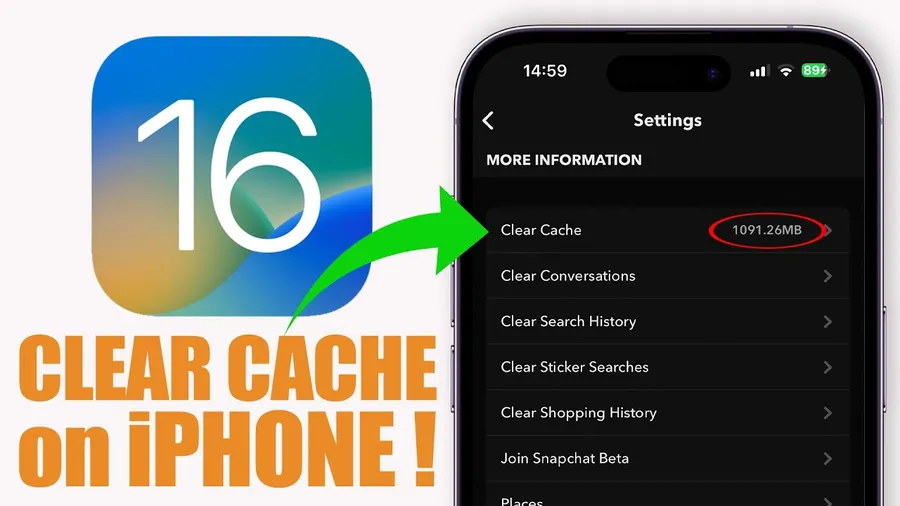
Why Clearing Cache on iPhone Apps Is Helpful
Apps on your iPhone store temporary files (cache) to load faster. Over weeks and months, this cache can grow to hundreds of MB or even several GB per app, especially for social media, streaming, and photo apps. When cache becomes too large or corrupted, apps slow down, crash, or cause your phone to feel laggy.
Clearing cache frees up valuable storage space and often improves performance without losing your important data like logins, photos, or settings. iOS makes this easy with the Offload App feature and built-in storage management tools.
This guide shows you the safest and most effective methods that work on current iOS versions. Related: Seehow to reduce data usage on iPhonefor even better results.
Benefits of Clearing Cache on iPhone
- Reclaim 1-10 GB of storage space
- Make apps open and run smoother
- Fix crashes and slowdowns
- Improve overall phone speed and battery life
Offload Unused Apps (Recommended Method)
Offloading removes the app itself but keeps all your documents and data. When you reinstall, the cache is cleared automatically.
- Go toSettings>General>iPhone Storage.
- Scroll and tap the app you want to clean.
- TapOffload Appand confirm.
- Reinstall the app from the App Store when needed.
Delete and Reinstall Apps
For a complete cache clear, delete the app and reinstall it. Your data may be lost unless the app saves to iCloud.
- Long-press the app icon on the Home Screen.
- TapRemove App>Delete App.
- Go to the App Store and reinstall it.
Clear Safari Cache and Website Data
Safari cache can grow large from browsing.
- Go toSettings>Safari.
- TapClear History and Website Data.
- Choose the time range and confirm.
Use iPhone Storage Recommendations
iOS automatically suggests apps to offload. Go to Settings > General > iPhone Storage and follow the recommendations at the top.
How Often Should You Clear Cache?
Check and offload apps every 2–4 weeks or when storage drops below 15% free. Heavy users of social media and streaming apps benefit from more frequent maintenance.
Benefits of Clearing Cache on iPhone
| Method | Typical Space Freed | Effect on Data |
|---|---|---|
| Offload App | 100 MB – several GB | Keeps your data |
| Delete & Reinstall | Similar to offload | May lose local data |
| Clear Safari Cache | 50 MB – 1 GB | Removes browsing history |
Frequently Asked Questions (FAQ)
Go to Settings > General > iPhone Storage > select the app > Offload App or Delete App (then reinstall). For Safari cache, go to Settings > Safari > Clear History and Website Data.
Yes – Offload App removes the app but keeps its documents and data. When you reinstall, the cache is effectively cleared while your saved information remains.
Clear cache every 2–4 weeks or when storage is low (under 10-15% free). Many users free up 2-10 GB after offloading several large apps.
No when using Offload App – your documents and settings stay. Only full deletion removes everything. Safari’s Clear History and Website Data removes browsing cache but keeps passwords if you choose.
Users typically reclaim 1-10 GB depending on usage. Apps like Instagram, TikTok, and Photos can hold hundreds of MB to several GB of cache each.
Final Thoughts on Clearing Cache on iPhone Apps
Clearing cache on iPhone is simple and effective using the Offload App feature and iPhone Storage tools. Do this regularly to keep your phone fast and free up valuable space. Offloading is usually the best balance between cleaning and keeping your data safe.
Check your storage weekly and offload large or unused apps. For more iPhone maintenance tips, explorehow to reduce data usage on iPhoneorhiding WhatsApp chats.