
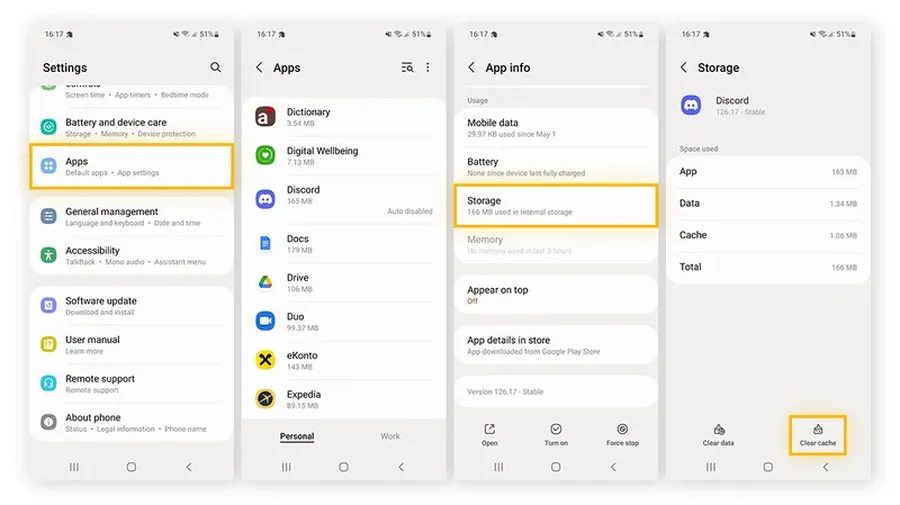
Toclear cache on Android apps, go to Settings > Apps > select the app > Storage & cache > Clear cache. For faster results, clear cache for all apps at once through Storage settings or use the built-in cache cleaner. This safe process frees up storage (often 1-5 GB) and can fix lag and crashes without deleting your important data or logins.
Why Clearing Cache on Android Apps Helps
Every app on your Android phone stores temporary files (cache) to load faster. Over time, this cache builds up and can take up hundreds of MB or even several GB of storage. When cache gets corrupted or too large, apps start lagging, crashing, or using more RAM than necessary.
Clearing cache regularly frees up space, improves performance, and can solve many common issues like slow app opening or freezing. Unlike clearing data, clearing cache is completely safe — it doesn't delete your logins, photos, or settings inside the app.
This guide shows you all the easy methods that work on Samsung, Pixel, Xiaomi, and other Android phones. Related: Learnhow to reduce data usage on Androidfor even better performance.
Benefits of Clearing Cache
- Free up 1-5 GB of storage space on average
- Make apps open and run smoother
- Fix crashes and freezing issues
- Improve overall phone speed and battery life
Clear Cache for a Single App
This is the most precise method when only one app is causing problems.
- OpenSettings>Apps.
- Tap the app you want to clean.
- TapStorage & cache.
- TapClear cache.
Repeat for any app that feels slow or is using too much storage.
Clear Cache for All Apps at Once
For a bigger cleanup, clear cache across multiple or all apps.
- Go to Settings > Storage (or Storage & cache).
- TapFree up spaceor look for cache options.
- Select apps or choose to clear all cached data.
Many users recover 2-5 GB after a full cache clear.
Clear System Cache Partition
This advanced step clears temporary system files that regular app cache clearing misses.
- Power off your phone.
- Boot into recovery mode (usually Power + Volume Down).
- Select “Wipe cache partition” using volume buttons and confirm.
- Reboot the phone.
Samsung & Pixel Specific Tips
On Samsung: Use Device Care > Storage > Clean now for quick cache cleanup. On Pixel: The Storage menu offers a direct “Clear cached data” option for the entire system.
How Often Should You Clear Cache?
Clear cache every 2-4 weeks or when your phone feels sluggish and storage is below 15% free. Heavy users of games, social media, or streaming apps benefit from more frequent clearing.
Benefits of Clearing Cache on Android
| Action | Typical Space Freed | Performance Impact |
|---|---|---|
| Single app cache | 50 MB – 1 GB | Fixes specific app lag |
| All apps cache | 1-5 GB | Overall speed boost |
| System cache partition | 200 MB – 2 GB | System-wide improvement |
Frequently Asked Questions (FAQ)
Go to Settings > Apps > Select the app > Storage & cache > Clear cache. For multiple apps, use the Storage settings or a dedicated cleaner tool.
Yes, clearing cache for all apps is safe and can free up hundreds of MB to several GB. It doesn't delete your login data or important files.
Clear cache every 1-4 weeks or when your phone feels slow and storage is low. Many users reclaim 1-5 GB of space after a full cache clear.
No – Clear Cache only removes temporary files. Clear Data (or Clear Storage) would delete app settings and login info, so avoid that unless necessary.
Clearing cache removes temporary files to free space and fix glitches. Clearing data resets the app completely, deleting saved preferences, logins, and progress.
Final Thoughts on Clearing Cache on Android Apps
Clearing cache is one of the simplest and most effective ways to keep your Android phone running smoothly. Do it regularly to free up storage and prevent lag. Start with individual heavy apps, then do a full clear when needed.
Your phone will feel faster and have more available space without losing any important information. For more Android maintenance tips, seehow to reduce data usage on Androidorbest antivirus for Android.