
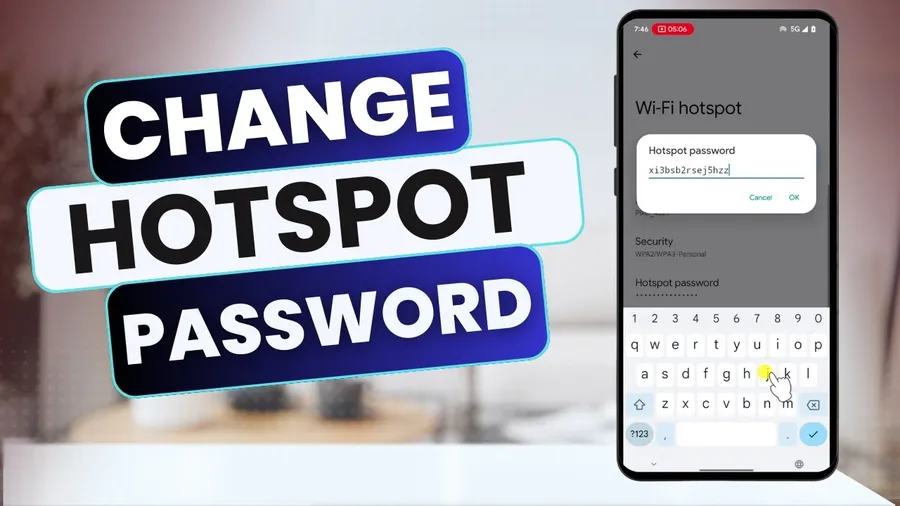
Tochange hotspot password on Android, open Settings > Network & internet > Hotspot & tethering > Wi-Fi hotspot, tap the current password, type a new strong one (minimum 8 characters with letters, numbers, and symbols), then tap Save. Connected devices will disconnect and need the new password to reconnect. This simple change helps protect your mobile data from unauthorized access.
Why Changing Your Hotspot Password Is Important
When you turn on mobile hotspot, your phone shares its internet connection with nearby devices. By default, many phones use a simple or auto-generated password that can be easy to guess or already known if you've shared it before. Changing it regularly keeps strangers from using your data without permission, which can quickly eat into your monthly data allowance or expose your network.
Most users turn on hotspot when traveling, at cafes, or when home internet is down. A weak password means anyone within range could potentially connect. Updating it takes less than a minute and gives you better control over who can join.
This guide covers the exact steps for different Android phones. Related: Learnhow to secure WhatsApp from hackersor exploreAI tools for productivity.
Why You Should Change Your Hotspot Password Regularly
Public or frequently shared hotspots are common targets. Changing the password every 1-3 months or after sharing with many people reduces risk. It also forces old devices to disconnect, helping you manage connected users better.
- Prevent unauthorized data usage
- Improve security of your mobile connection
- Control who can connect to your phone
- Avoid surprise high data bills
Step-by-Step: How to Change Hotspot Password on Android
The process is very similar across most Android phones.
- Open theSettingsapp.
- TapNetwork & internet(orConnectionson Samsung).
- SelectHotspot & tetheringorMobile hotspot.
- TapWi-Fi hotspot.
- Tap the currentpasswordfield.
- Enter a new strong password and tapSaveorOK.
All currently connected devices will be disconnected and will need the new password to reconnect.
Samsung Galaxy Specific Steps
On Samsung phones, go to Settings > Connections > Mobile Hotspot and Tethering > Mobile Hotspot. Tap the password field, enter your new password, then tap Save. You can also change the network name (SSID) here if needed.
Google Pixel Specific Steps
On Pixel phones, open Settings > Network & internet > Hotspot & tethering > Wi-Fi hotspot. Tap Password, type the new one, and save. Pixel phones also show how many devices are currently connected.
Other Android Brands (Xiaomi, OnePlus, etc.)
Most brands follow the standard path: Settings > Network & internet > Hotspot & tethering. If you can't find it, use the search bar at the top of Settings and type “hotspot”. The option is usually under Wi-Fi hotspot settings.
How to Create a Strong Hotspot Password
Use at least 8-12 characters. Mix uppercase and lowercase letters, numbers, and symbols. Avoid simple words, birthdates, or “12345678”. A good example: “MyHotspot2026!Blue”. Never use the same password as your main Wi-Fi.
Troubleshooting When You Can't Change Password
If the option is grayed out or missing, make sure the hotspot is turned on first. Restart your phone, check for system updates, or look under Advanced settings. Some carrier-locked phones may have restrictions – contact your carrier if needed.
Extra Security Tips for Your Mobile Hotspot
- Turn off hotspot when not in use
- Limit the number of allowed devices
- Monitor connected devices regularly
- Use WPA3 security if your phone supports it
Benefits of Changing Your Hotspot Password
| Action | Benefit | Why It Matters |
|---|---|---|
| Change password regularly | Better security | Prevents unauthorized access |
| Use strong password | Harder to guess | Protects your data plan |
| Monitor connected devices | Full control | Avoid data overuse |
Frequently Asked Questions (FAQ)
Go to Settings > Network & internet > Hotspot & tethering > Wi-Fi hotspot. Tap the password field, enter a new strong password (at least 8 characters with mix of letters, numbers & symbols), then save.
Open Settings, search for 'hotspot' or go to Network & internet (or Connections on Samsung) > Hotspot & tethering > Wi-Fi hotspot. The exact path varies slightly by brand and Android version.
Change it every 1-3 months or immediately if you suspect someone unauthorized has connected. Using a strong, unique password reduces the risk of unauthorized access to your mobile data.
Some carriers or phones hide advanced options. Make sure hotspot is turned on first, or check under Mobile Hotspot settings. Restarting your phone or updating the system can also make the option appear.
Yes – all currently connected devices will be disconnected immediately. They will need to reconnect using the new password. This is normal and helps improve security.
Final Thoughts on Changing Hotspot Password
Changing your Android hotspot password is quick and gives you better control over your mobile data. Do it regularly and always use a strong password to keep your connection safe. Turn off the hotspot when you're not using it to save battery and reduce risk.
Try the steps above today – it only takes a minute. For more Android tips, see our guide onupdating WhatsApp on Androidorbest AI tools for productivity. Stay safe and enjoy secure sharing!