
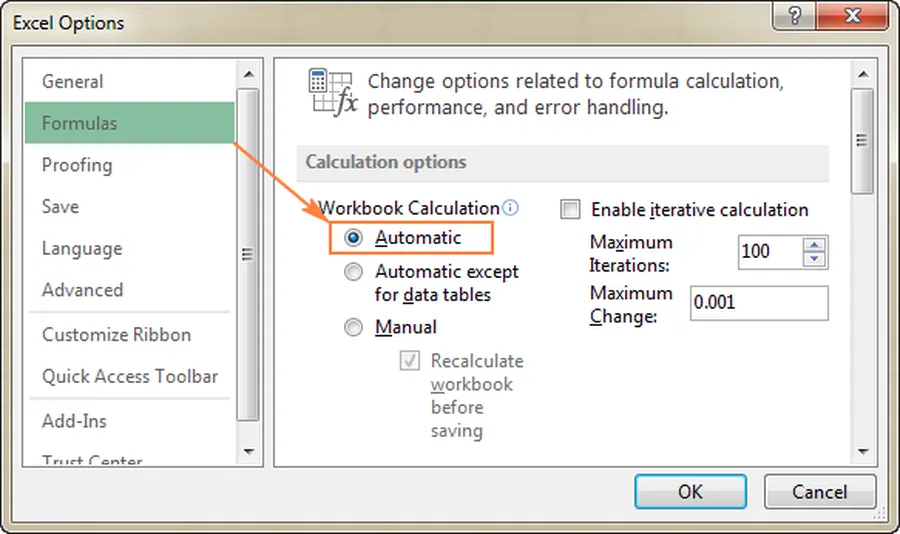
WhenExcel formulas are not calculating automatically, the quickest fix is to go to the Formulas tab, click Calculation Options, and select Automatic. If formulas still show as text, change the cell format to General and re-enter the formula. These two steps solve the problem for the majority of users without losing any data.
Why Excel Formulas Suddenly Stop Calculating Automatically
Many people rely on Excel for budgets, reports, sales tracking, and data analysis. When formulas stop updating, it can lead to wrong numbers, missed deadlines, or hours of extra work checking everything manually. This issue affects both beginners and experienced users, especially in larger files with hundreds of formulas.
The good news is that the fix is usually simple and takes just a minute or two. Common triggers include accidentally switching calculation mode to Manual, cells formatted as Text, or the Show Formulas button being enabled. Understanding these causes helps you fix the problem quickly and avoid it in the future.
Related: Improve your workflow withAI tools for productivityor exploreAI tools for making presentationsthat pair well with clean Excel data.
Quick List: Fixes for Excel Formulas Not Calculating
- Switch Calculation Options to Automatic (Formulas tab)
- Change cell format from Text to General
- Turn off Show Formulas in the Formula Auditing group
- Press F9 to force recalculation
- Check for circular references in the status bar
- Re-enter the formula after fixing the format
- Save, close, and reopen the workbook
Start with the first three – they resolve most cases instantly.
Common Causes Why Excel Formulas Stop Calculating
The top reason is Calculation Options set to Manual. This mode is useful for very large workbooks to speed up editing, but it stops automatic updates. Another frequent issue is cells formatted as Text, so Excel treats the formula like plain text instead of a calculation.
The Show Formulas feature can also be accidentally turned on, displaying the formula text instead of results. Other causes include circular references (a formula referring back to itself), large data tables, or issues after copying formulas from other sources.
Change Calculation Options to Automatic
This is the most common and effective fix. Go to the Formulas tab on the ribbon. In the Calculation group, click Calculation Options and select Automatic. Once changed, formulas will update instantly whenever you edit a dependent cell.
Note that this setting applies to all open workbooks. If you need Manual mode for performance in big files, remember to switch back or use F9 to recalculate when needed.
Fix Cell Format Showing Formula as Text
If you see the formula text like =SUM(A1:A10) instead of the result, the cell is likely formatted as Text. Select the cell or range, right-click, choose Format Cells, go to the Number tab, select General, and click OK.
Then click into the formula bar, press Enter (or F2 then Enter) to force Excel to recognize it as a formula. This simple change makes the calculation work immediately.
Turn Off the Show Formulas Option
Sometimes the Show Formulas button gets toggled on accidentally. Go to the Formulas tab and click the Show Formulas button in the Formula Auditing group to turn it off. This switches the view back to showing calculated results instead of the formulas themselves.
Force Recalculation with Keyboard Shortcuts
Even in Automatic mode, you can manually trigger a full recalculation. Press F9 to recalculate the entire workbook. For a more thorough refresh, use Ctrl + Alt + F9. These shortcuts are handy when working with complex or large spreadsheets.
Check and Fix Circular References
Excel shows a warning for circular references in the status bar. Click it to see the cells involved. Fix by adjusting the formula so it no longer refers back to itself directly or indirectly. This often resolves calculation issues in interconnected sheets.
Comparison of Common Fixes
| Fix | Time Needed | When to Try It |
|---|---|---|
| Set to Automatic Calculation | Under 30 seconds | Formulas never update |
| Change Cell to General Format | 1 minute | Formula displays as text |
| Turn Off Show Formulas | Under 20 seconds | All formulas visible as text |
| Press F9 | Instant | Need immediate refresh |
How These Fixes Improve Your Excel Experience
Getting formulas to calculate automatically saves time and reduces errors in your reports and analysis. Many users notice faster workflow and more reliable data after applying these steps, especially when working with dynamic models or shared files.
Step-by-Step Troubleshooting Guide
- Check Calculation Mode:Formulas tab > Calculation Options > Automatic
- Fix Cell Format:Select cells > Format Cells > General > Re-enter formula
- Disable Show Formulas:Formulas tab > Click Show Formulas button
- Force Recalculate:Press F9 or Ctrl + Alt + F9
- Check References:Look for circular reference warnings
- Save and Reopen:Close and reopen the workbook
Frequently Asked Questions (FAQ)
The most common reason is that Calculation Options is set to Manual instead of Automatic. Other causes include cells formatted as Text, Show Formulas enabled, or circular references.
Go to the Formulas tab, click Calculation Options in the Calculation group, and select Automatic. This makes formulas update instantly when you change dependent values.
The cell is formatted as Text. Change the cell format to General, then re-enter or edit the formula (press F2 and Enter) to make it calculate.
F9 forces a manual recalculation of the entire workbook. Useful when in Manual calculation mode or to refresh formulas after changes.
Go to the Formulas tab and click the Show Formulas button in the Formula Auditing group to toggle it off. This switches back to showing calculated results.
Final Thoughts on Fixing Excel Formulas Not Calculating Automatically
Most cases of formulas not updating come down to a few easy-to-check settings. Start with Calculation Options and cell formatting, and you'll likely solve the issue right away. Keeping these tips in mind helps maintain smooth performance in your spreadsheets.
For more helpful Microsoft tutorials, see our guide onfixing Microsoft Word not respondingor exploreAI productivity toolsthat can complement your Excel work. Get back to accurate calculations and confident data analysis today!