
When yourMicrosoft Office product key is not working, first double-check for typing mistakes. Then sign in with your Microsoft account instead of entering the key manually. If that fails, run Quick Repair on Office and ensure your internet connection is stable. These steps resolve activation issues for most users without needing a new key.
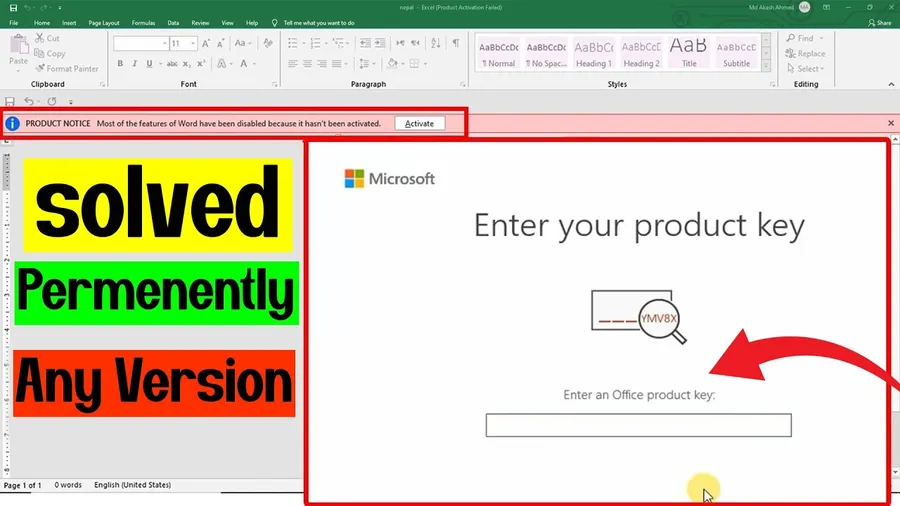
Why Your Microsoft Office Product Key Might Not Work
Entering a product key only to see an error message like “invalid key” or “already used” is incredibly frustrating. This happens to many people after reinstalling Office, buying a new PC, or transferring licenses. Microsoft’s activation system is strict to prevent abuse, but it can also block legitimate users due to simple mistakes or temporary glitches.
Common issues include typing errors in the 25-character key, keys already activated on the maximum number of devices (usually 1–5 depending on the edition), region mismatches, or problems with the Office installation itself. The good news is that most problems have quick, official fixes that don’t require buying a new key.
Related: See our guide onactivating Microsoft Office for freeorAI tools for productivitythat work well with a properly activated Office.
Quick List: Fixes for Office Product Key Not Working
- Double-check the key for typos (use copy-paste if possible)
- Sign in with your Microsoft account instead of manual key entry
- Run Quick Repair or Online Repair on Office
- Deactivate the key from old devices via your Microsoft account
- Update Windows and Microsoft 365
- Check your internet connection and try again
- Contact Microsoft Support with proof of purchase if needed
Start with the first three steps – they fix the issue for most people.
Common Causes of Product Key Errors
Typing mistakes are the number one reason – even one wrong character makes the 25-character key invalid. Keys can also be blocked if previously used on too many devices or if the key was purchased from an unauthorized seller. Internet problems during activation, outdated Office files, or regional restrictions (keys bought in one country may not work in another) also cause failures.
Corrupted Office installation files after a Windows update or improper shutdown are another frequent culprit.
Double-Check and Verify Your Product Key
Carefully type the key again, or better, copy and paste it from your purchase email or packaging. Make sure there are no extra spaces. Check that you’re using the correct key for your edition (Home, Personal, Professional, etc.).
Go to the official Microsoft activation troubleshooter or enter the key on the Microsoft account website to verify its status.
Activate by Signing In with Microsoft Account
Many modern Office versions activate automatically when you sign in with the Microsoft account linked to your subscription or purchase. Open any Office app, go to File > Account, and sign in. This often bypasses manual key entry completely.
Run Office Repair
Go to Windows Settings > Apps > Installed apps. Find Microsoft 365 or Office, click Modify, and choose Quick Repair. If that doesn’t work, select Online Repair. This fixes corrupted files that can block activation.
Deactivate Key from Old Devices
Sign in at account.microsoft.com, go to Services & subscriptions, find your Office product, and manage installations. Remove old devices to free up activation slots. Then try activating on your current computer again.
Update Windows and Office
Go to Windows Settings > Windows Update and install all available updates. Then open any Office app, go to File > Account > Update Options > Update Now. Keeping everything current often resolves activation glitches.
Comparison of Fixes
| Fix | Time Needed | Best For |
|---|---|---|
| Sign In with Microsoft Account | 1–2 minutes | Subscription-based Office |
| Quick Repair | 5–10 minutes | Corrupted installation |
| Deactivate Old Devices | 3–5 minutes | Key already in use |
| Check & Re-enter Key | Under 1 minute | Typing errors |
How These Fixes Improve Your Office Experience
Resolving product key issues quickly means you can get back to creating documents, spreadsheets, and presentations without interruption. Users often report smoother performance and fewer errors after repairing Office and keeping everything updated.
Step-by-Step Troubleshooting Guide
- Verify key:Check for typos and correct edition
- Sign in:Use your Microsoft account in any Office app
- Repair:Run Quick Repair on Microsoft 365/Office
- Deactivate old:Remove previous devices from your account
- Update:Install latest Windows and Office updates
Frequently Asked Questions (FAQ)
Common reasons include typing errors, the key already used on too many devices, expired or blocked keys, region mismatch, or issues with the Office installation itself. Internet connection problems during activation also cause failures.
Double-check the key for typos, sign in with your Microsoft account instead of entering the key manually, run Office Repair, and ensure you're connected to the internet. If the key is already used, remove it from previous devices via your Microsoft account.
Yes – sign in with a Microsoft account that has an active Microsoft 365 subscription. Many users activate successfully this way without manually entering a 25-character key.
Go to account.microsoft.com, sign in, go to Services & subscriptions, find the Office installation, and deactivate it from old devices. Then try activating on your current computer again.
Yes. Running Quick Repair or Online Repair often resolves activation problems caused by corrupted files. Many users report successful activation immediately after repairing the installation.
Final Thoughts on Fixing Microsoft Office Product Key Not Working
Most product key problems are caused by simple issues like typos, already-used licenses, or temporary glitches that Microsoft’s repair tools can fix quickly. Start with signing in using your Microsoft account and running a Quick Repair – these two steps solve the majority of cases.
Always use official Microsoft channels and keep your software updated to avoid future activation headaches. For more helpful tutorials, see our guide onactivating Office for freeorfixing Word issues.