
When yourMicrosoft Teams microphone is not working, first check Windows privacy settings to ensure Teams has microphone access. Then select the correct input device in Teams settings. If the problem persists, update your audio drivers and reset the Teams cache. These steps fix the issue for most users during calls and meetings.
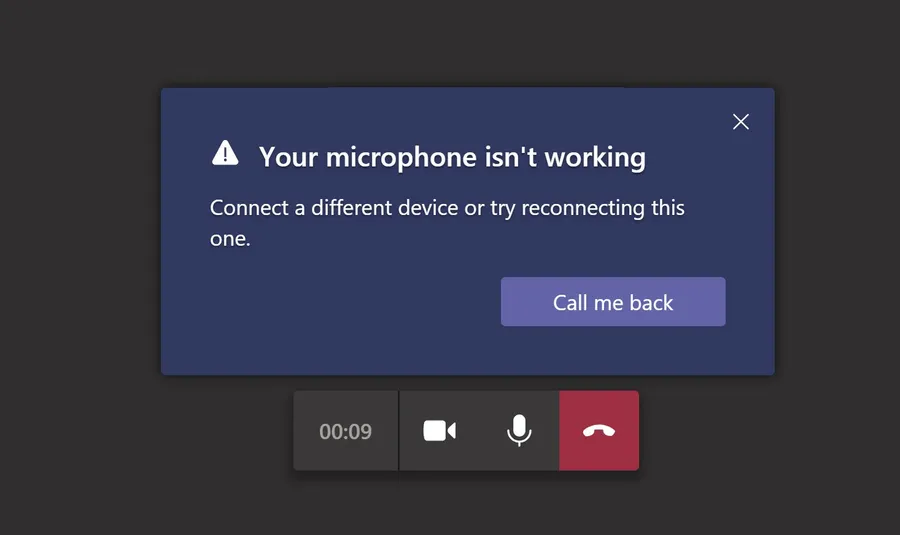
Why the Microphone Stops Working in Microsoft Teams
Microsoft Teams is widely used for meetings, classes, and team collaboration, yet microphone problems are one of the most reported issues. You join a call only to find others can’t hear you, or the mic icon shows as muted or unavailable. This can happen suddenly after a Windows update, driver conflict, or when another app takes control of the microphone.
Common symptoms include no sound input, Teams showing “No microphone detected,” or the mic working in other apps but not in Teams. The problem affects both built-in laptop mics and external headsets. The good news is that most cases are fixed with simple permission checks, driver updates, and cache resets – without losing any chat history or files.
Related: Improve your meetings withAI tools for making presentationsor boost overall productivity usingAI productivity tools.
Quick List: Fixes for Microsoft Teams Microphone Not Working
- Check Windows microphone privacy permissions
- Select the correct microphone device in Teams settings
- Update audio drivers
- Reset Microsoft Teams cache
- Run the Windows audio troubleshooter
- Restart Teams and your computer
- Test the microphone in other apps
Start with permissions and device selection – these solve the issue for many users instantly.
Common Causes of Teams Microphone Issues
Windows privacy settings often block Teams from accessing the microphone after updates or new app installations. Incorrect input device selection (especially with multiple mics or headsets) is another frequent problem. Outdated or corrupted audio drivers cause the mic to stop working only in Teams while functioning elsewhere.
Corrupted Teams cache, background apps monopolizing the microphone, or network-related glitches can also prevent proper audio input. On laptops, power-saving features sometimes disable the built-in mic to save battery.
Check Microphone Permissions in Windows
Go to Settings > Privacy & security > Microphone. Make sure the toggle for “Microphone access” is on, and that Microsoft Teams is allowed to use the microphone. Also check Camera permissions if using a webcam with built-in mic.
Select the Correct Microphone in Teams
During a call or in Teams settings (gear icon > Devices), click the microphone dropdown and select the correct input device. Test it using the “Make a test call” feature. Make sure the mic is not muted in the call controls.
Update Audio Drivers
Right-click the Start button and open Device Manager. Expand “Audio inputs and outputs” and “Sound, video and game controllers.” Right-click your microphone and audio devices and select “Update driver.” Restart your PC afterward.
Reset Microsoft Teams Cache
Close Teams completely. Press Windows + R, type `%appdata%\Microsoft\Teams` and delete the contents of the folders (not the main Teams folder). Restart Teams and sign in again. This clears corrupted temporary files that often cause mic problems.
Run Windows Audio Troubleshooter
Go to Settings > System > Troubleshoot > Other troubleshooters. Find “Recording Audio” and run it. The tool automatically detects and fixes common microphone configuration issues.
Comparison of Quick Fixes
| Fix | Time Needed | When to Use |
|---|---|---|
| Check Permissions | 1 minute | Mic works in other apps but not Teams |
| Select Correct Device | Under 1 minute | Multiple microphones connected |
| Reset Teams Cache | 3–5 minutes | Persistent issues after restart |
| Update Audio Drivers | 5–10 minutes | Mic stopped after Windows update |
How These Fixes Improve Your Teams Experience
Resolving microphone issues ensures clear communication in meetings, reduces frustration, and helps you participate fully in calls. Many users notice better audio quality and fewer dropped connections after updating drivers and clearing the cache.
Step-by-Step Troubleshooting Guide
- Check permissions:Settings > Privacy & security > Microphone
- Select device:In Teams > Settings > Devices
- Update drivers:Device Manager > Audio inputs
- Reset cache:Delete contents of %appdata%\Microsoft\Teams
- Run troubleshooter:Recording Audio troubleshooter
Frequently Asked Questions (FAQ)
Common reasons include wrong input device selected, microphone muted or disabled in privacy settings, outdated audio drivers, Teams cache issues, or conflicts with other apps using the mic.
Check privacy permissions, select the correct microphone in Teams settings, update audio drivers, reset Teams cache, and run the Windows audio troubleshooter. Most users resolve it within these steps.
No. Clearing the Teams cache only removes temporary files. Your chats, meetings, and files remain safe in the cloud.
Yes. Outdated or corrupted audio drivers are a frequent cause of microphone problems in Teams. Updating them often restores clear audio immediately.
Go to Windows Settings > Privacy & security > Microphone and make sure the toggle for Microsoft Teams is turned on. Also check in-app settings under Devices.
Final Thoughts on Fixing Microsoft Teams Microphone Not Working
Microphone problems in Teams are usually caused by permissions, wrong device selection, or cache issues. Start with the simple checks and move to resetting the cache or updating drivers. These steps restore clear audio quickly and safely.
Clear communication is essential for productive meetings. For more Microsoft help, see our guide onMicrosoft Store download issuesor exploreAI productivity tools.