
WhenMicrosoft Word stops responding, first press Ctrl + Shift + Esc to open Task Manager, select Word, and click End Task. Restart Word normally. For recurring issues, hold Ctrl while launching Word to enter Safe Mode, disable add-ins, and run a Quick Repair on Office. These steps resolve the problem for most users without losing unsaved work when AutoRecover is enabled.
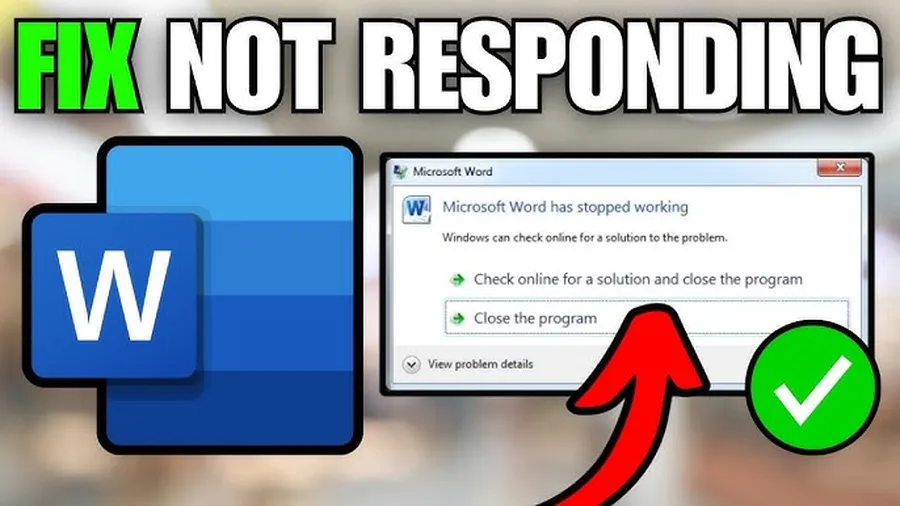
Why Microsoft Word Keeps Freezing or Not Responding
Microsoft Word is one of the most used programs for documents, reports, and collaborative work, yet many users face the frustrating “Not Responding” message. This often happens during typing, saving, or opening large files. In busy environments like offices or schools, it can waste valuable time – some people lose progress on important projects or spend hours troubleshooting.
The good news is that most cases have straightforward fixes. Common triggers include conflicting add-ins (like grammar checkers), too many tracked changes in long documents, corrupted settings, or outdated Office files. By following the right steps in order, you can usually get Word running smoothly again and prevent it from happening frequently.
Related: Boost your workflow withAI tools for productivityor learnfree AI tools for writingthat work alongside Word.
Quick List: Best Fixes for Microsoft Word Not Responding
- Force close Word via Task Manager and restart
- Launch Word in Safe Mode (hold Ctrl while opening)
- Disable problematic add-ins
- Run Quick Repair or Online Repair on Microsoft Office
- Accept or reject excessive tracked changes and comments
- Reset the Normal.dotm template
- Update Windows and Microsoft 365
- Disable hardware graphics acceleration
Try these in sequence – most people solve the issue within the first few steps.
Common Causes of Microsoft Word Freezing or Not Responding
Understanding why Word freezes helps you avoid it in future. Add-ins from third-party tools (grammar checkers, citation managers) are frequent culprits because they run in the background and conflict with Word. Large documents with hundreds of tracked changes, comments, or complex tables can overload the program – some reports show Word slowing dramatically after 200+ changes.
Other causes include a corrupted Normal.dotm template that loads every time Word starts, outdated Microsoft 365 or Windows versions, low system resources, or hardware acceleration issues on certain graphics cards. Opening very large files with many images or pasted content from the web also triggers freezes.
Force Close Word Using Task Manager
When Word becomes completely unresponsive, don’t panic. Press Ctrl + Shift + Esc to open Task Manager. Look under the Processes tab for Microsoft Word or WINWORD.EXE, select it, and click “End task.” This safely closes the frozen instance without affecting other programs.
After closing, reopen Word. If you had AutoRecover enabled (default in recent versions), Word often offers to restore your unsaved work automatically.
Start Word in Safe Mode and Disable Add-ins
Safe Mode starts Word without add-ins or custom templates, helping identify the root cause. Hold down the Ctrl key while double-clicking the Word icon or launching from the Start menu. When prompted, click Yes to start in Safe Mode.
If Word works normally in Safe Mode, the problem is likely an add-in. Go to File > Options > Add-ins, select COM Add-ins, click Go, uncheck all, and restart Word normally. Re-enable them one by one to find the guilty one.
Repair Microsoft Office Installation
A corrupted Office installation is a common fixable issue. On Windows 11, go to Settings > Apps > Installed apps, find Microsoft 365 or your Office version, click the three dots or Modify, and choose Quick Repair first. This runs quickly without needing internet.
If that doesn’t help, select Online Repair (requires internet) for a deeper fix. Many users report Word becoming responsive again after this step.
Handle Excessive Tracked Changes and Comments
In collaborative documents, too many tracked changes or comments can make Word slow or unresponsive. Open the document, go to the Review tab, set the view to All Markup, then use Accept or Reject changes in batches. For very large files, consider copying content into a new blank document after cleaning up.
This single action often restores normal performance, especially in reports over 50 pages.
Reset the Normal.dotm Template
The Normal.dotm file stores your default settings and can become corrupted. Close Word completely. Press Windows + R, type %appdata%\Microsoft\Templates, and press Enter. Rename Normal.dotm to Normal.old. When you reopen Word, it will create a fresh template.
This fixes startup freezes and strange behavior for many users.
Comparison of Quick Fixes
| Fix | Time Required | When to Use |
|---|---|---|
| Task Manager Force Close | Under 1 minute | Immediate freeze |
| Safe Mode + Disable Add-ins | 2–5 minutes | Recurring issue after opening |
| Quick Repair Office | 5–10 minutes | Persistent problem |
| Clean Tracked Changes | Varies | Large collaborative documents |
How These Fixes Improve Your Microsoft Word Experience
Applying these troubleshooting steps not only resolves the current freeze but also makes Word more stable overall. Users often notice faster performance, fewer crashes, and smoother handling of large documents after disabling conflicting add-ins or repairing Office. Regular maintenance saves time and reduces stress during important deadlines.
Step-by-Step Troubleshooting Guide
- Force close:Use Task Manager to end Word
- Restart:Reopen Word and test
- Safe Mode:Hold Ctrl while launching to test
- Disable add-ins:Turn them off one by one
- Repair Office:Run Quick Repair then Online if needed
- Clean document:Accept/reject changes in problematic files
- Update everything:Check for Windows and Office updates
Frequently Asked Questions (FAQ)
First, open Task Manager (Ctrl + Shift + Esc), find Microsoft Word, and click End Task. Restart Word. If it continues, start in Safe Mode by holding Ctrl while launching Word, then disable add-ins and repair your Office installation.
No. Safe Mode only disables add-ins and custom templates temporarily. Your documents remain safe. It helps identify if an add-in is causing the freeze.
Common causes include conflicting add-ins, excessive tracked changes or comments in large documents, corrupted Normal.dotm template, outdated Office installation, or hardware acceleration issues. Large files with many images or tables also contribute.
Go to Windows Settings > Apps > Installed apps, find Microsoft 365 or Office, click Modify, choose Quick Repair first. If needed, select Online Repair. This fixes corrupted files without losing your documents.
Yes. Documents with hundreds of tracked changes or comments can slow Word significantly or cause it to stop responding, especially in long reports or collaborative files.
Final Thoughts on Fixing Microsoft Word Not Responding
Microsoft Word not responding is annoying but usually easy to fix with the right approach. Start simple with Task Manager and Safe Mode, then move to repairing Office or cleaning your documents. Keep your software updated and be careful with add-ins to avoid future problems.
These steps work for most people on Windows 11 and Microsoft 365. For more helpful tutorials, check our guides onproductivity tools,storing files safely, orfree design toolsthat complement Word. Get back to your important work confidently!