
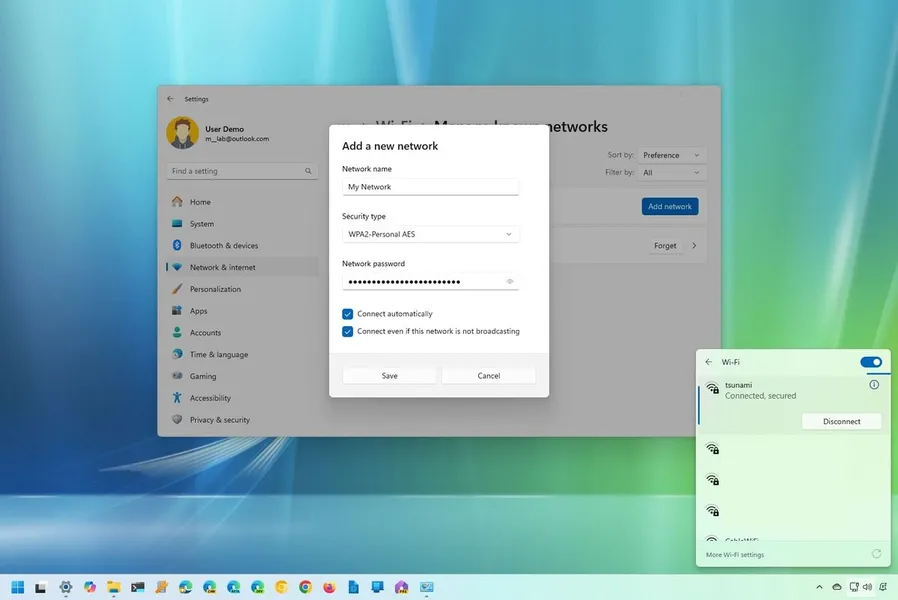
Connecting your Windows PC to WiFi is quick and simple. Click the network icon in the taskbar (looks like WiFi waves), select your network name, enter the password, and click Connect. On Windows 11, you can also go to Settings > Network & internet > WiFi. Most people connect successfully in under 20 seconds. If the WiFi icon is missing or no networks appear, the built-in troubleshooter or a quick driver check usually fixes it. This works whether you’re setting up a new PC or reconnecting after a restart.
Why Connecting to WiFi on Windows PC Is Straightforward
Whether you just bought a new laptop, reinstalled Windows, or moved to a new location, getting online via WiFi is one of the first things most people need to do. Windows makes this process user-friendly with clear icons and automatic detection of available networks.
However, sometimes the WiFi option disappears, networks don’t show up, or connections keep dropping. These issues affect many users but are usually easy to fix with built-in tools. This guide covers every common scenario for both Windows 11 and Windows 10, including hidden networks and troubleshooting steps. You’ll be connected reliably in minutes. For better online productivity once connected, explore ourAI productivity tools.
Quick List: Ways to Connect WiFi on Windows PC
- Click the WiFi icon in the taskbar
- Select your network and enter password
- Use Settings > Network & internet > WiFi
- Connect to hidden networks manually
- Run the Network troubleshooter for problems
- Update WiFi drivers if connection fails
These steps cover 95% of connection scenarios on modern Windows PCs.
How to Connect to WiFi on Windows 11
Windows 11 has a clean, modern interface for managing networks.
- Click the network icon in the bottom-right taskbar (WiFi, speaker, and battery icons).
- Click the arrow next to WiFi to expand available networks.
- Select your WiFi network name (SSID).
- Enter the WiFi password and clickConnect.
- Check “Connect automatically” for future convenience.
Alternatively, open Settings (Windows key + I), go to Network & internet > WiFi > Show available networks, and follow the same steps.
How to Connect to WiFi on Windows 10
The process is very similar but with a slightly different interface.
- Click the network icon in the taskbar (looks like WiFi bars).
- Select your network from the list.
- Enter the password and click Next or Connect.
You can also go to Settings > Network & Internet > WiFi to manage connections.
Fix Common WiFi Connection Problems
If you can’t connect or the WiFi icon is missing, try these reliable fixes.
- Run the Network troubleshooter: Settings > System > Troubleshoot > Other troubleshooters > Network Adapter or Internet Connections.
- Restart your router and PC.
- Make sure airplane mode is turned off.
- Update WiFi drivers through Device Manager.
- Forget the network and reconnect (Settings > WiFi > Manage known networks).
These steps resolve the majority of connection issues reported by Windows users.
WiFi Icon Missing or No Networks Showing
This common problem is often caused by a disabled adapter or driver issue.
- Right-click Start > Device Manager.
- Expand Network adapters.
- Right-click your WiFi adapter > Enable device (if disabled).
- If missing, right-click and select Scan for hardware changes.
- Update driver by right-clicking the adapter > Update driver.
Restart your PC after making changes. This fixes the “no WiFi networks found” issue for many users.
Tips for Stable and Fast WiFi Connection
Position your PC closer to the router for stronger signal. Use 5GHz band when possible for faster speeds (if your router supports it). Avoid interference from microwaves or thick walls. Update your router firmware periodically for best performance.
For better overall internet experience, combine stable WiFi with good security practices like using strong passwords. Once connected, explore useful tools in ourAI productivity collection.
- Connect to 5GHz for speed, 2.4GHz for range
- Use wired Ethernet for critical tasks when possible
- Regularly restart your router
- Keep Windows and WiFi drivers updated
Windows 11 vs Windows 10 WiFi Connection
| Feature | Windows 11 | Windows 10 |
|---|---|---|
| Interface | Modern quick settings panel | Classic taskbar flyout |
| Hidden network setup | Add network button | Hidden network option |
| Troubleshooter access | Settings > System > Troubleshoot | Settings > Update & Security > Troubleshoot |
Frequently Asked Questions (FAQ)
Click the WiFi icon in the taskbar, select your network, enter the password, and click Connect. On Windows 11, go to Settings > Network & internet > WiFi > Show available networks.
Common causes include WiFi adapter disabled, outdated drivers, airplane mode on, or driver issues. Fix by enabling the adapter in Device Manager, running the Network troubleshooter, or updating drivers.
Go to Settings > Network & internet > WiFi > Manage known networks > Add network. Enter the network name (SSID), security type, and password, then save and connect.
Usually 5–15 seconds once you enter the correct password. First-time connections or driver issues may take longer. Automatic connections to known networks happen almost instantly.
Yes, if the network uses WPS (push button or PIN) or is an open public network. For WPS, press the WPS button on your router within 2 minutes of selecting the network on your PC.
Final Thoughts on Connecting WiFi on Windows PC
Connecting to WiFi on a Windows PC is usually quick and simple using the taskbar icon or Settings. When problems occur, the built-in troubleshooter and Device Manager fixes resolve most issues without advanced technical knowledge.
Once connected, maintain a stable connection by keeping drivers updated and positioning your PC for good signal strength. These steps work reliably on both Windows 11 and Windows 10.
Need more Windows help? Check our othercomputer tutorialsor explore productivity tools in ourAI guides. Enjoy your reliable internet connection!