
Changing wallpaper and themes on Windows is one of the easiest ways to make your PC feel more personal. Right-click on the desktop and choose Personalize, then select Background for wallpaper or Themes for full theme packs. You can use your own photos, solid colors, or slideshows, and switch between light and dark modes instantly. Millions of users customize their desktop daily – it takes less than a minute and instantly improves the look and feel of your computer.
Why Customizing Wallpaper and Themes Makes Your PC Better
Your desktop is the first thing you see every time you turn on your computer. A boring default wallpaper or mismatched theme can make even a fast PC feel dull. Personalizing it with your favorite photos, colors, or full themes improves your mood and makes the experience more enjoyable.
Windows offers powerful built-in tools to change wallpaper, apply complete themes (which include colors, sounds, and mouse pointers), and switch between light and dark modes. This guide covers everything for both Windows 11 and Windows 10 with simple steps that anyone can follow. You'll also learn how to fix common problems and get creative with your own images. For more ways to enhance your PC, see ourAI image generator guide– perfect for creating custom wallpapers.
Quick List: Ways to Change Wallpaper and Themes
- Right-click desktop > Personalize > Background (quick wallpaper change)
- Settings > Personalization > Themes (full theme packs)
- Settings > Personalization > Colors (light/dark mode)
- Use your own photos or slideshow
- Download themes from Microsoft Store
- Change lock screen separately
These options let you personalize your PC in seconds.
How to Change Desktop Wallpaper on Windows
The fastest way to update your background.
- Right-click on an empty area of your desktop.
- SelectPersonalize.
- ClickBackground.
- ChoosePicture,Solid color, orSlideshow.
- Browse and select your image or folder.
- Choose fit option (Fill, Fit, Stretch, Tile, Center, or Span).
You can also go through Settings > Personalization > Background for the same options. For a slideshow, select a folder with multiple photos – Windows will cycle through them automatically.
How to Apply and Customize Themes
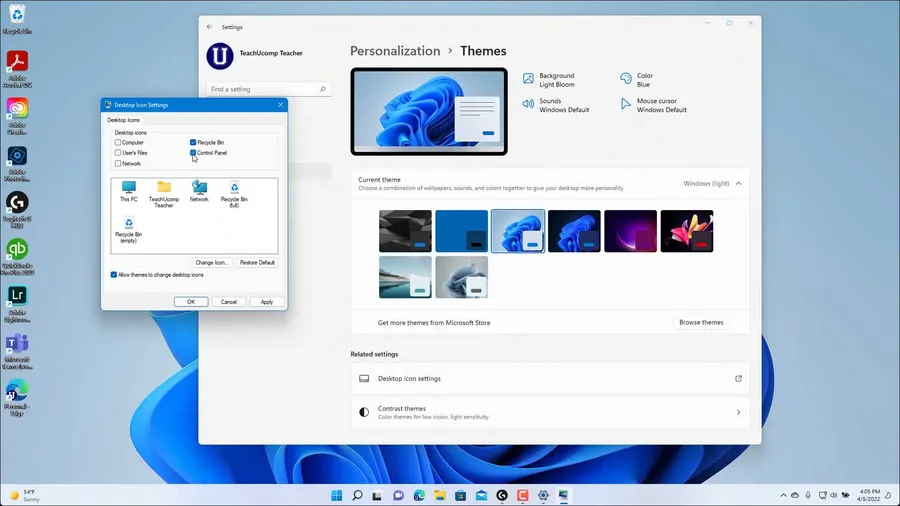
Themes change more than just the wallpaper – they update colors, sounds, and mouse pointers together.
- OpenSettings>Personalization>Themes.
- Browse available themes or clickBrowse themesto open Microsoft Store.
- Click on a theme to apply it instantly.
- Customize further by changing background, colors, or sounds individually.
Many beautiful free themes are available in the Microsoft Store, including nature, abstract, and dark-themed packs.
Switch Between Light and Dark Mode
Dark mode reduces eye strain and saves battery on laptops.
- Go toSettings>Personalization>Colors.
- Under “Choose your mode”, selectDark,Light, orCustom.
- For Custom, you can set Windows mode and app mode separately.
Many apps and the entire interface will adapt to your choice automatically.
Change Lock Screen Wallpaper
The lock screen appears when your PC is locked or waking from sleep.
- Go toSettings>Personalization>Lock screen.
- ChoosePictureorWindows spotlight(rotating beautiful images).
- For your own photo, select Picture and browse to the image.
You can also show quick status from apps like Mail or Calendar on the lock screen.
Fix Problems Changing Wallpaper or Themes
If you can’t change wallpaper or themes apply incorrectly:
- Restart Windows Explorer (Task Manager > Processes > right-click Windows Explorer > Restart).
- Run the System File Checker: open Command Prompt as admin and typesfc /scannow.
- Reset personalization settings or check for Windows updates.
These quick fixes solve most customization issues.
Tips for Beautiful and Practical Personalization
Use high-resolution images (at least 1920x1080) for sharp wallpapers. Create a dedicated folder for wallpaper images to make slideshows easy. For dark mode users, choose darker images to maintain consistency. Download custom themes from the Microsoft Store for coordinated looks.
Experiment with different fits – “Fill” works best for most photos. Combine dark mode with accent colors that match your wallpaper for a polished look. These small changes can make your daily computer use more enjoyable.
Windows 11 vs Windows 10 Customization Options
| Feature | Windows 11 | Windows 10 |
|---|---|---|
| Wallpaper settings | Modern Settings app | Personalization in Settings |
| Themes management | Dedicated Themes page | Themes in Personalization |
| Dark/Light mode | More refined controls | Basic light/dark toggle |
Frequently Asked Questions (FAQ)
Right-click on the desktop and select Personalize > Background, then choose Picture, Solid color, or Slideshow. You can also go to Settings > Personalization > Background.
Go to Settings > Personalization > Themes, then click on any theme from Microsoft Store or installed themes. Themes change wallpaper, colors, sounds, and mouse pointers together.
Yes. In Personalization > Background, select Picture and browse to your photo. For multiple images, choose Slideshow and add a folder containing your pictures.
Go to Settings > Personalization > Colors and select Dark under Choose your mode. You can also choose Custom to mix light and dark for different elements.
Common causes include Group Policy restrictions, corrupted theme files, or the wallpaper being set by an organization. Try running the troubleshooter or resetting personalization settings.
Final Thoughts on Changing Wallpaper and Themes on Windows
Customizing your wallpaper and themes is a fun and simple way to make your Windows PC feel uniquely yours. Whether you prefer a personal photo slideshow, a sleek dark theme, or a vibrant Microsoft Store pack, the built-in tools make it easy and safe.
Take a few minutes to experiment with different backgrounds and colors – small changes can greatly improve your daily computing experience. Keep your favorite images ready and update your look whenever you want.
Enjoy your personalized desktop! For more Windows customization ideas or other tutorials, explore ourcomputer guides. Happy computing!