
Clearing temporary files on your Windows PC is one of the quickest ways to free up space and improve performance. Use the built-in Disk Cleanup tool or Storage Sense to safely remove cache, old update files, and temporary data. Most users reclaim 5–30 GB or more depending on how long it's been since the last cleanup. This process is completely safe and recommended monthly to keep your computer running smoothly.
Why Clearing Temporary Files Improves Your PC
Windows and installed programs constantly create temporary files for caching, updates, and temporary operations. Over months, these files can accumulate to 10–50 GB or more, especially on systems with many apps or frequent updates. This reduces available disk space, slows down file access, and forces Windows to work harder.
Regularly clearing temp files frees up space, improves speed, and helps prevent performance issues. This guide shows you the safest and most effective methods for Windows 11 and Windows 10, including automatic options and manual techniques. You’ll also learn how much space you can realistically recover and how to make cleanup a simple habit. For better overall maintenance, explore ourbest antivirus guide.
Quick List: Ways to Clear Temporary Files on Windows PC
- Use built-in Disk Cleanup tool
- Enable Storage Sense for automatic cleaning
- Delete temp folders manually
- Use Command Prompt for advanced cleanup
- Clear browser cache separately
- Remove old Windows update files
These methods are safe and can free several gigabytes quickly.
Use Disk Cleanup Tool (Recommended)
Disk Cleanup is the safest built-in tool for removing temporary files.
- Search forDisk Cleanupin the Start menu and run it as administrator.
- Select your main drive (usually C:) and click OK.
- Check items like Temporary files, Recycle Bin, and Temporary Internet Files.
- ClickClean up system filesfor additional options like old Windows updates.
- Confirm and let it clean.
This tool safely removes files Windows no longer needs and is the best starting point for most users.
Enable Storage Sense for Automatic Cleanup
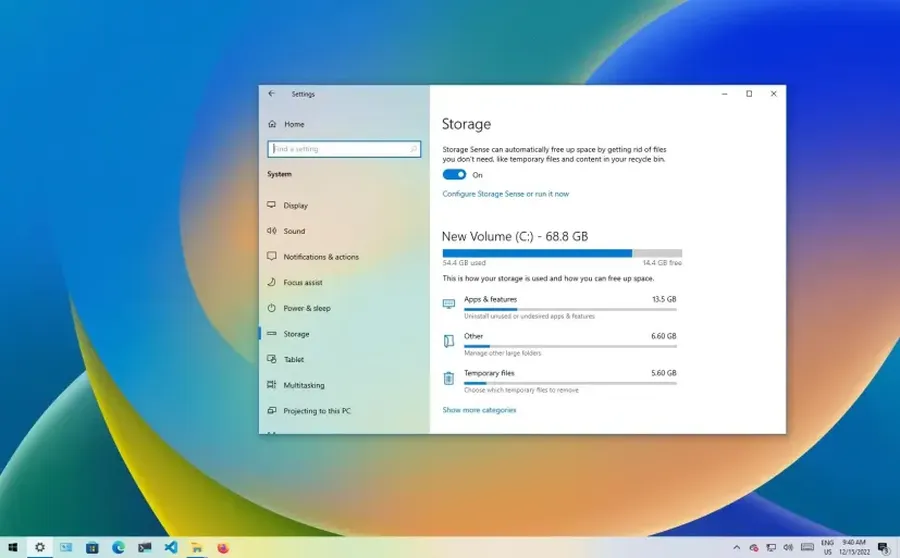
Storage Sense automatically clears temporary files and manages space.
- OpenSettings(Windows key + I).
- Go toSystem > Storage.
- Turn onStorage Sense.
- Configure options like deleting temporary files and emptying Recycle Bin automatically.
Once enabled, Windows handles cleanup in the background, saving you time.
Manual Temporary Files Deletion
For more control, you can delete temp folders directly.
- Press Windows key + R, type%temp%and press Enter.
- Select all files (Ctrl + A) and delete them (skip any in use).
- Repeat fortempfolder (type temp in Run).
- Empty the Recycle Bin afterward.
This method gives immediate results and is useful between full cleanups.
Clear Temp Files Using Command Prompt
For advanced users or batch cleaning.
- Open Command Prompt as administrator.
- Typedel /q /s %temp%\*and press Enter.
- Also runcleanmgr /sagerun:1for automated cleanup.
These commands quickly remove large amounts of temporary data.
Benefits of Regularly Clearing Temporary Files
Users typically recover 5–30 GB of space after a thorough cleanup. This leads to faster file access, reduced disk fragmentation (on HDDs), and less strain on your storage drive. Many report noticeable improvements in boot time and overall responsiveness after freeing space.
Keeping less than 15% free space causes Windows to slow down significantly as it struggles with virtual memory and file operations.
Prevention Tips for Less Junk Buildup
Enable Storage Sense for automatic maintenance. Avoid installing too many trial programs. Use browser extensions to clear cache automatically. Schedule Disk Cleanup to run monthly. These habits keep your PC cleaner with minimal effort.
Comparison of Cleanup Methods
| Method | Ease | Space Freed (Typical) |
|---|---|---|
| Disk Cleanup | Very Easy | 5–20 GB |
| Storage Sense | Automatic | Ongoing maintenance |
| Manual %temp% folder | Easy | 2–10 GB |
Frequently Asked Questions (FAQ)
Use Disk Cleanup, Storage Sense in Settings, or run cleanmgr command. These tools safely remove temporary files, cache, and old Windows update files, freeing several GB of space.
Users typically free 2–20 GB or more depending on how long it has been since the last cleanup. Heavy users or gamers can reclaim 30+ GB after a thorough clean.
Yes – temporary files are created by Windows and programs for temporary use. Deleting them is completely safe and recommended for better performance and more free space.
Once a month is ideal for most users. If you install/uninstall many programs or play games, clean every 2–3 weeks to keep your PC running smoothly.
Yes. Removing junk files frees disk space and reduces the workload on your hard drive/SSD, leading to faster file access and better overall responsiveness.
Final Thoughts on Clearing Temporary Files on Windows PC
Clearing temporary files is one of the simplest and most effective ways to keep your Windows PC running smoothly. By using Disk Cleanup, Storage Sense, or manual methods, you can recover several gigabytes of space and reduce slowdowns caused by clutter.
Make it a monthly habit – your computer will thank you with better performance and more available storage. Combine this with other maintenance like updating drivers and managing startup programs for the best results.
Need more Windows optimization tips? Browse our othercomputer tutorialsor exploreAI productivity tools. Keep your PC clean and fast!