
Changing your password on a Windows 11 PC is straightforward whether you use a Microsoft account or a local account. For most people signed in with a Microsoft account, go toSettings > Accounts > Sign-in options > Password > Change. If you have a local account, you can use the same path or press Ctrl + Alt + Delete and select Change a password. These built-in tools help millions of users update their login credentials every year for better security or after a breach. The process usually takes less than a minute and doesn't require reinstalling Windows.
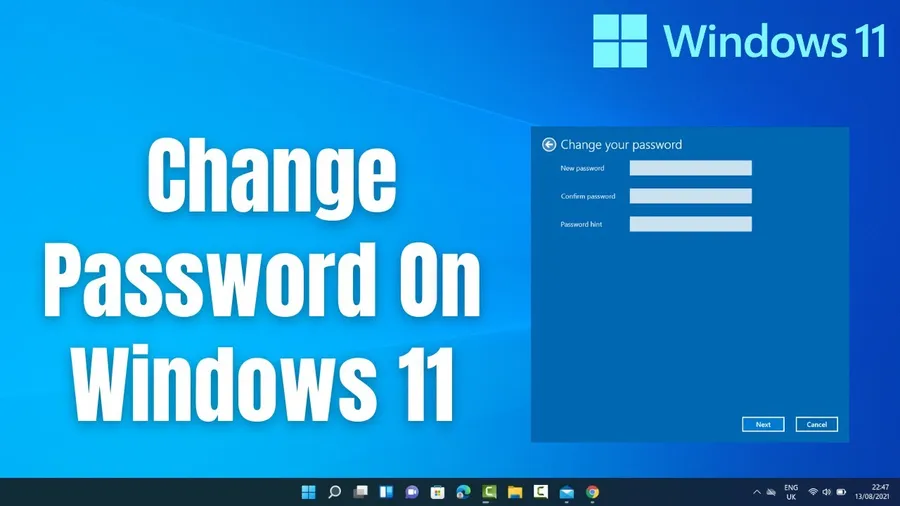
Why You Might Need to Change Your Password on Windows 11
Passwords are your first line of defense against unauthorized access. With rising cyber threats, experts recommend updating passwords regularly – ideally every 60 to 90 days for important accounts. Many Windows 11 users change their password after noticing suspicious activity, sharing their PC with family, or simply wanting stronger protection.
Windows 11 supports two main account types: Microsoft accounts (linked online for easy recovery and sync) and local accounts (offline with more privacy but harder recovery). This guide walks you through every common scenario with clear steps so you can handle it confidently. You'll also learn how to deal with forgotten passwords without losing data. For related security advice, see our guide onsecuring your Google account.
Quick List: Ways to Change or Reset Password on Windows 11
- Change via Settings app (easiest for signed-in users)
- Use Ctrl + Alt + Delete shortcut (fast for local accounts)
- Reset Microsoft account password online
- Answer security questions for local accounts
- Switch from PIN back to traditional password
- Create a password reset disk in advance
- Use another administrator account to reset
These methods cover 99% of situations and are completely free using built-in Windows tools.
How to Change Microsoft Account Password on Windows 11
Most Windows 11 users sign in with a Microsoft account. The password syncs with your email, OneDrive, and other Microsoft services.
- OpenSettings(press Windows key + I).
- ClickAccountson the left.
- SelectSign-in options.
- Under Password, clickChange.
- Enter your current password, then create and confirm a new strong password.
- Click Next to finish.
You can also change it directly ataccount.microsoft.comfrom any browser. This updates it across all your devices. Many users prefer this because recovery is simple if you ever forget it – just use the online reset tool.
How to Change Local Account Password on Windows 11
Local accounts don't require an internet connection and keep your data more private since nothing syncs to the cloud.
- Go toSettings > Accounts > Sign-in options.
- ClickPassword>Change.
- Enter your current password and set a new one with a hint.
Alternative quick method: Press Ctrl + Alt + Delete, then chooseChange a password. Enter old and new passwords. This works well for local accounts and feels faster for many people.
Related: If you're managing multiple accounts, check our guide oncreating secure accounts.
How to Reset Forgotten Password on Windows 11
Forgetting your password is common – it happens to thousands of users daily. The fix depends on your account type.
Microsoft Account (Recommended)
- At the sign-in screen, clickI forgot my password.
- Follow the prompts to verify your identity via email, phone, or authenticator app.
- Set a new password.
Or visitaccount.live.com/ResetPassword.aspxfrom another device.
Local Account
If you set security questions when creating the account, click the arrow next to the password field at sign-in, then select Reset password and answer the questions.
Tip: Create a password reset disk beforehand using a USB drive via Control Panel > User Accounts. This saves a lot of hassle if you get locked out.
Switch Between PIN and Password on Windows 11
Many people use a PIN for convenience, but sometimes you need the full password option.
- Go toSettings > Accounts > Sign-in options.
- Scroll to Additional settings and turn off “For improved security, only allow Windows Hello sign-in for Microsoft accounts on this device”.
- Now you can add or change your password below.
This small tweak gives you flexibility. PINs are faster for daily use, but passwords offer more characters and complexity for stronger security.
Comparison: Microsoft Account vs Local Account Password Management
| Feature | Microsoft Account | Local Account |
|---|---|---|
| Easy online reset | Yes (via website) | No (needs questions or disk) |
| Data sync | Yes (OneDrive, settings) | No |
| Privacy | Lower (cloud linked) | Higher |
Security Tips and Best Practices for Windows 11 Passwords
Create strong passwords with at least 12–16 characters mixing uppercase, lowercase, numbers, and symbols. Avoid reusing the same password across sites. Enable Windows Hello (fingerprint or face recognition) for convenient yet secure daily access.
Turn on two-factor authentication for your Microsoft account. Regularly review sign-in activity at account.microsoft.com. If sharing your PC, create separate standard user accounts instead of giving admin rights to everyone. For more productivity tools, explore ourAI productivity guidesorbest antivirus recommendations.
- Always create a password reset disk or note security questions
- Update Windows regularly for the latest security patches
- Consider a password manager for complex unique passwords
- Backup important files before major changes
Frequently Asked Questions (FAQ)
For a Microsoft account: Go to Settings > Accounts > Sign-in options > Password > Change. For a local account: Use Settings > Accounts > Sign-in options or Ctrl + Alt + Delete > Change a password.
If using a Microsoft account, click 'I forgot my password' at the sign-in screen or visit account.live.com/password/reset from another device. For local accounts with security questions, use the Reset password option at sign-in.
Yes. Go to Settings > Accounts > Sign-in options, turn off 'For improved security, only allow Windows Hello sign-in', then set or change your password under the Password section.
Use security questions if set, create a password reset disk in advance, or use another administrator account to reset it. Microsoft cannot recover local account passwords.
Microsoft accounts allow easy online recovery and sync across devices. Local accounts offer more privacy but make forgotten password recovery harder without a reset disk or admin access.
Final Thoughts on Changing Password on Windows 11
Keeping your Windows 11 password up to date is one of the simplest yet most effective ways to protect your personal files, photos, and work. Whether you prefer the convenience of a Microsoft account or the privacy of a local one, the built-in tools make it easy to change or reset your credentials safely.
Take a few minutes today to review your settings and create a password reset disk if you haven't already. Strong, unique passwords combined with Windows Hello and regular updates give you solid protection without much hassle. If you run into issues, the methods above solve most common problems without needing third-party software.
Need more Windows or security help? Browse ourcomputer tutorialsor check outbest AI toolsthat can help with productivity and online safety. Stay secure!