
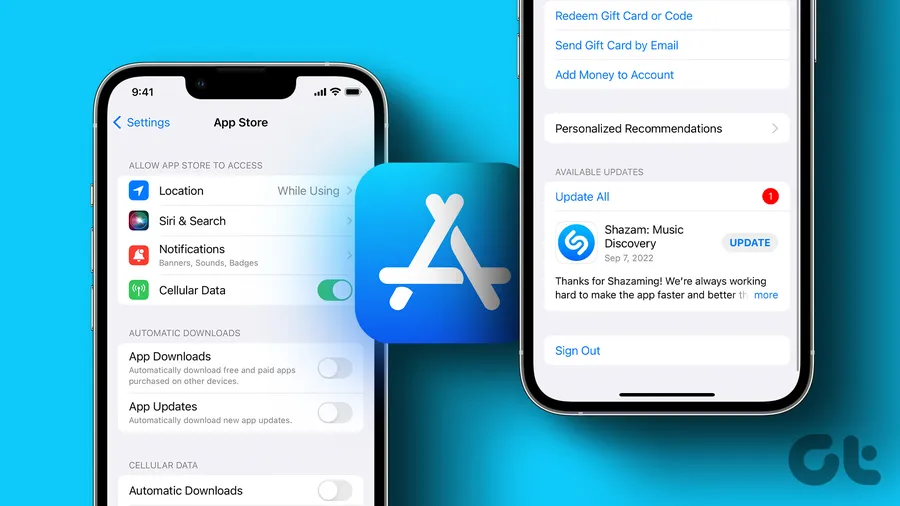
The easiest way toupdate apps on iPhoneis to open the App Store, tap your profile picture at the top right, swipe down to refresh, and tapUpdate All. For hands-off updates, go to Settings > App Store and turn on App Updates. Most people have 5–20 pending updates at any time, and keeping apps current helps fix bugs, improve speed, and protect against security issues.
Why Keeping Your iPhone Apps Updated Matters
Apps on your iPhone get updated frequently by developers. Around 76% of top iOS apps receive at least one update per month, with many getting improvements every few weeks. These updates bring new features, fix annoying bugs, make apps run faster, and patch security holes that could put your data at risk.
If you ignore updates, you might miss important changes or experience crashes and slow performance. Many iPhone users have dozens of apps installed, and manually checking each one takes time. That's why Apple makes it simple to update everything at once or set it to happen automatically in the background.
This guide covers every method clearly so you can choose what works best for you. Related: Learnhow to update the Gmail appor exploreAI tools that boost productivity.
Why You Should Update Apps on iPhone Regularly
Regular updates improve your overall experience. Apps that stay current tend to load faster, use less battery, and work better with the latest iOS version. Security is another big reason – outdated apps can have vulnerabilities that hackers might exploit.
- Get new features and design improvements right away
- Fix bugs that cause crashes or slow performance
- Stay protected with the latest security patches
- Ensure compatibility with your current iOS version
How to Update Apps Manually on iPhone
Manual updates give you full control – perfect if you want to review what's changing or update only specific apps.
- Open theApp Storeapp (blue icon with white “A”).
- Tap yourprofile pictureor initials in the top right corner.
- Swipe down on the screen to refresh and see available updates.
- TapUpdatenext to any app you want, or scroll to find specific ones.
You’ll see the number of pending updates near your profile. This method works on all recent iOS versions.
How to Turn On Automatic App Updates
Let your iPhone handle updates in the background so you never have to think about it.
- Open theSettingsapp.
- Scroll down and tapApp Store.
- Under Automatic Downloads, toggle onApp Updates.
Automatic updates usually happen when your iPhone is connected to Wi-Fi and charging, so they won’t use your mobile data or drain the battery unexpectedly.
How to Update All Apps at Once
When you have many updates waiting, use the Update All button for speed.
- Open App Store and tap your profile picture.
- Swipe down to refresh the list.
- TapUpdate Allat the top of the updates section.
This is the fastest way if you see 10 or more pending updates.
Troubleshooting When Apps Won't Update
If updates get stuck or fail, try these common fixes in order.
- Check your internet connection (Wi-Fi is best)
- Make sure you have enough storage space free
- Restart your iPhone
- Sign out and back into your Apple ID in Settings > [Your Name]
- Turn off Low Power Mode temporarily
- Update iOS itself via Settings > General > Software Update
Benefits of Keeping Apps Updated
| Benefit | Typical Impact | Why It Matters |
|---|---|---|
| Security patches | Protects against vulnerabilities | Keeps your data safer |
| Bug fixes & speed | Fewer crashes, faster loading | Better daily experience |
| New features | Monthly improvements for top apps | Stay current with tools you use |
Frequently Asked Questions (FAQ)
Open the App Store, tap your profile picture in the top right, scroll or swipe down to refresh, then tap Update All or tap Update next to individual apps.
Go to Settings > App Store and toggle on App Updates under Automatic Downloads. Your iPhone will now update apps automatically when connected to Wi-Fi and charging.
Common fixes include checking internet connection, signing in with the correct Apple ID, freeing up storage space, restarting your iPhone, or ensuring you're not in Low Power Mode.
Yes for convenience, especially if you have many pending updates. Updating regularly improves security, fixes bugs, and adds new features – most top apps get updated at least monthly.
They use data for downloading but run best over Wi-Fi. Battery impact is minimal if done while charging. Automatic updates only happen when your iPhone is plugged in and on Wi-Fi.
Final Thoughts on Updating Apps on iPhone
Updating your apps is one of the simplest ways to keep your iPhone running well. Whether you prefer manual control or automatic updates, make it a habit to check every couple of weeks. You'll enjoy better performance, new features, and stronger security without much effort.
Start today by opening the App Store and tapping Update All if anything is waiting. For more helpful tips, see our guide onupdating WhatsApp on Androidorbest AI tools for productivity. A few minutes spent updating can save you hours of frustration later.