
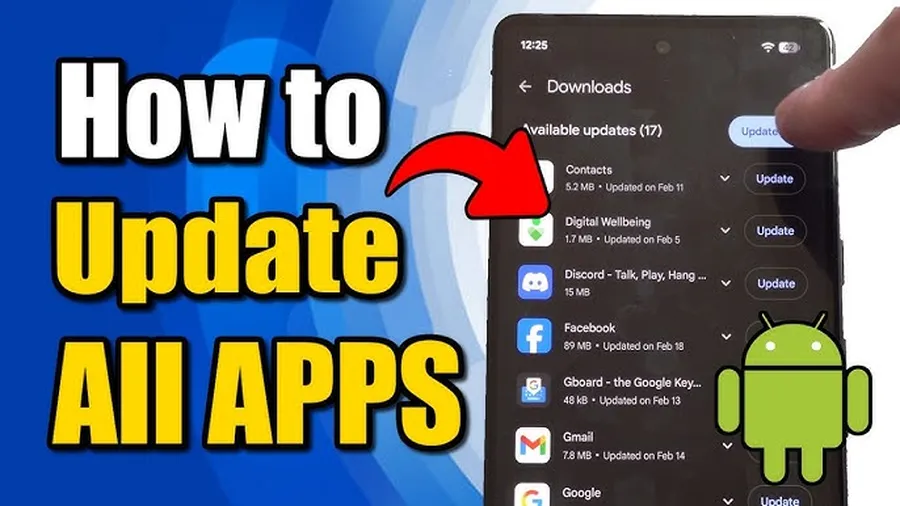
The simplest way toupdate apps on Android phonesis to open the Google Play Store, tap your profile icon at the top right, go to Manage apps & device, and tap Update all. For automatic updates, go to Settings in Play Store and turn on auto-updates over Wi-Fi. Most Android users have several pending updates at any time, and keeping them current helps fix bugs, improve speed, and protect against security threats.
Why Keeping Your Android Apps Updated Matters
Developers frequently release new versions of apps on the Google Play Store. In fact, 38% of top Android apps get updated at least once a week, while 75% receive updates every month. These updates bring fresh features, fix annoying bugs that cause crashes, make apps run smoother, and patch security vulnerabilities that could put your personal data at risk.
If you let apps fall behind, you might notice slower performance, unexpected crashes, or missing new tools that others are already using. The average Android phone has around 80 apps installed, though many people actively use only about 30 per month. Updating them regularly ensures everything works well together and your phone stays secure without extra effort.
This guide shows every method clearly, so you can pick what fits your routine. Related: See our tutorial onhow to update the Gmail appor checkAI tools for productivity.
Why You Should Update Apps on Android Regularly
Regular updates keep your experience smooth and your device protected. New versions often optimize code so apps use less battery and load faster. Security patches are especially important – they close holes that hackers could exploit.
- Access the latest features and improvements
- Fix bugs that make apps crash or freeze
- Strengthen protection against malware and threats
- Ensure better compatibility with your Android version
How to Update Apps Manually on Android
Manual updates let you control exactly when and what gets updated – great if you want to review changes or wait for Wi-Fi.
- Open theGoogle Play Storeapp.
- Tap yourprofile iconin the top right corner.
- SelectManage apps & device.
- Under Updates available, tapSee details.
- TapUpdatenext to any app, orUpdate allat the top.
You can also search for a specific app in Play Store and tap Update if available.
How to Turn On Automatic App Updates
Let your phone handle updates in the background so you never miss improvements.
- Open theGoogle Play Store.
- Tap your profile icon >Settings.
- TapNetwork preferences>Auto-update apps.
- ChooseOver Wi-Fi only(recommended to save mobile data) or Over any network.
Automatic updates usually run when your phone is charging and connected to Wi-Fi.
How to Update All Apps at Once
When you see many updates waiting, use the Update all option to save time.
- Open Play Store and tap your profile icon.
- Go to Manage apps & device.
- TapUpdate allat the top of the updates list.
This is quick and safe – most updates install without issues.
Troubleshooting When Apps Won't Update
If updates fail or get stuck, try these steps in order.
- Check your internet connection (Wi-Fi works best)
- Free up storage space on your phone
- Restart your Android phone
- Make sure you're signed in with the correct Google account
- Clear Play Store cache: Settings > Apps > Google Play Store > Storage > Clear cache
- Update the Play Store itself via its own settings
Benefits of Keeping Apps Updated
| Benefit | Typical Impact | Why It Helps |
|---|---|---|
| Security patches | Closes vulnerabilities quickly | Protects your data |
| Better performance | Faster loading, fewer crashes | Smoother daily use |
| Battery efficiency | Optimized code uses less power | Longer battery life |
Frequently Asked Questions (FAQ)
Open Google Play Store, tap your profile icon, select Manage apps & device, tap Updates available > See details, then tap Update next to individual apps or Update all.
Open Play Store, tap profile icon > Settings > Network preferences > Auto-update apps. Choose Over Wi-Fi only (recommended) or Over any network.
Common reasons include poor internet, low storage, wrong Google account, Low Power Mode, or outdated Play Store. Fixes: restart phone, clear cache, or check storage space.
Yes, it's convenient and safe. 38% of top Android apps get updated weekly and 75% monthly. Regular updates bring security patches, bug fixes, and new features.
Yes – updated apps often run more efficiently, use less background power, and fix battery-draining bugs. Many users notice better performance and longer battery after updating.
Final Thoughts on Updating Apps on Android
Updating your apps is one of the easiest ways to keep your Android phone running smoothly and safely. Whether you choose manual control or automatic updates over Wi-Fi, make it part of your routine every couple of weeks. You'll enjoy faster performance, new features, and better protection without much hassle.
Open the Play Store today and tap Update all if anything is waiting. For more tips, explore our guide onupdating WhatsApp on Androidorbest AI tools for productivity. A few taps now can prevent bigger problems later.