
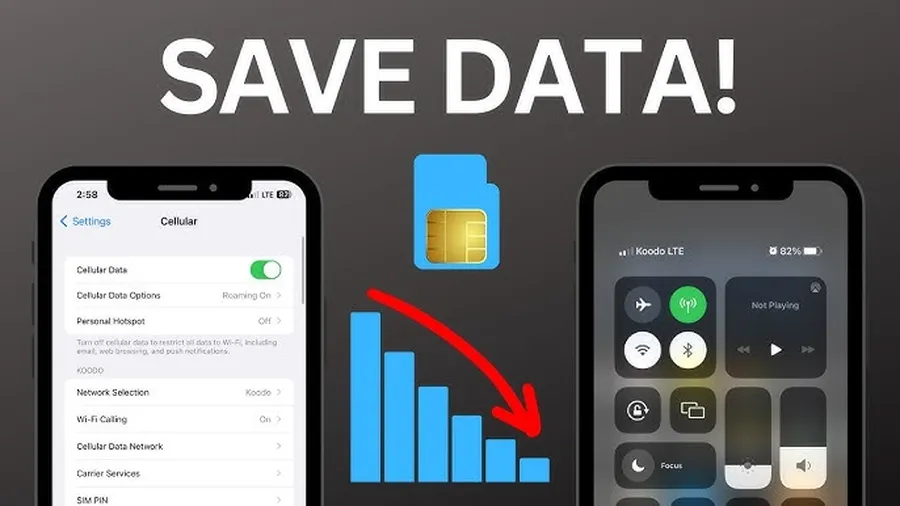
The quickest way toreduce data usage on iPhoneis to turn on Low Data Mode for both Cellular and Wi-Fi in Settings > Cellular (or Mobile Data) > Cellular Data Options. Also restrict Background App Refresh and lower streaming quality in apps like YouTube and Netflix. These changes help most users save 30-60% of their monthly data without sacrificing core functionality.
Why Reducing Data Usage on iPhone Is Important
Cellular data plans can be expensive, and many iPhone users regularly go over their limits due to streaming, social media, and automatic background activity. A typical user can consume 5-15 GB or more per month just from apps running in the background and high-quality video playback. Simple adjustments can cut this usage dramatically while keeping your phone fully usable.
Lower data usage also improves battery life because fewer processes run constantly and pages load faster with less content. The tips in this guide use built-in iOS features, so no extra apps or complicated setups are needed.
This guide provides clear, step-by-step instructions that work on current iOS versions. Related: Seehow to stop auto-download on WhatsApporAI tools for productivity.
Common Causes of High Data Usage on iPhone
- Background App Refresh running constantly
- High-quality auto-playing videos on social media
- iCloud Photos and backups over cellular
- Automatic downloads and app updates
Enable Low Data Mode
Low Data Mode is one of the most powerful built-in tools on iPhone. It pauses automatic downloads, reduces background activity, and lowers media quality.
- OpenSettings>Cellular(or Mobile Data).
- TapCellular Data Options.
- Turn onLow Data Mode.
- Repeat for Wi-Fi if desired (Settings > Wi-Fi > [Your Network] > Low Data Mode).
Restrict Background App Refresh
Background App Refresh lets apps update content even when not open, using significant data.
- Go toSettings>General>Background App Refresh.
- Set it toWi-FiorOff.
- For individual apps, go to Settings > [App Name] and manage refresh options.
App-Specific Data Controls
In YouTube, Netflix, and TikTok, lower the default video quality when on cellular. In WhatsApp and Messages, disable auto-download for media. Check Settings > Cellular to see which apps use the most data and restrict them.
Smart Streaming and Browsing Tips
- Use Safari’s Reader Mode and Data Mode for lighter web pages
- Download videos and music over Wi-Fi only
- Disable auto-play in social media apps
- Use Wi-Fi calling and FaceTime over Wi-Fi
Optimize iCloud and Photos
Go to Settings > [Your Name] > iCloud > iCloud Photos and choose “Optimize iPhone Storage” instead of full resolution. Turn off iCloud Backup over cellular and set Photos backup to Wi-Fi only.
Safari and System-Wide Tips
In Settings > Safari, enable “Prevent Cross-Site Tracking” and use Reader View more often. Also disable unnecessary system services like Significant Locations if not needed.
Benefits of Reducing Data Usage on iPhone
| Action | Typical Savings | Extra Benefit |
|---|---|---|
| Low Data Mode | 30-60% | Longer battery life |
| Background Refresh off | 20-40% | Faster performance |
| Lower streaming quality | Up to 50% on video | Less buffering |
Frequently Asked Questions (FAQ)
Turn on Low Data Mode for Wi-Fi and Cellular, restrict Background App Refresh, lower video quality in streaming apps, disable iCloud Photos backup over cellular, and use Data Mode in Safari.
Yes – Low Data Mode can reduce usage by 30-60% by pausing automatic downloads, background refresh, and high-quality media. Many users save several GB per month.
Streaming services (YouTube, Netflix, TikTok), social media (Instagram, Facebook), and iCloud backups are the top consumers. Check Settings > Cellular to see exact usage per app.
Yes – enable Low Data Mode, set video quality to lower settings in apps, turn off auto-play, and download content only over Wi-Fi. These changes maintain functionality while saving data.
Users commonly save 20-50% of monthly data with these optimizations. Heavy users of video and social apps can see even higher savings, sometimes cutting usage in half.
Final Thoughts on Reducing Data Usage on iPhone
Reducing data usage on your iPhone is straightforward with built-in tools like Low Data Mode and Background App Refresh controls. Start with Low Data Mode and a few app tweaks — most people notice significant savings right away.
Monitor your usage in Settings > Cellular to see what works best for you. For more helpful iPhone tips, checkstopping auto-download on WhatsApporbest AI tools for productivity. Enjoy lower bills and smoother performance!