
Page Outline
- Direct Quick Answer
- Why Send Files and Documents Through Gmail? (Tanzania Advantages)
- How to Send Files and Documents Through Gmail – Basic Attachment Method
- How to Send Large Files and Documents Through Gmail Using Google Drive
- How to Send Files and Documents Through Gmail on Android & iPhone
- Sending Multiple Files and Documents Through Gmail Efficiently
- Supported File Types When Sending Files and Documents Through Gmail
- Security & Privacy Tips When Sending Files and Documents Through Gmail
- Common Problems & Solutions When Sending Files and Documents Through Gmail
- Frequently Asked Questions (FAQ)
- Conclusion
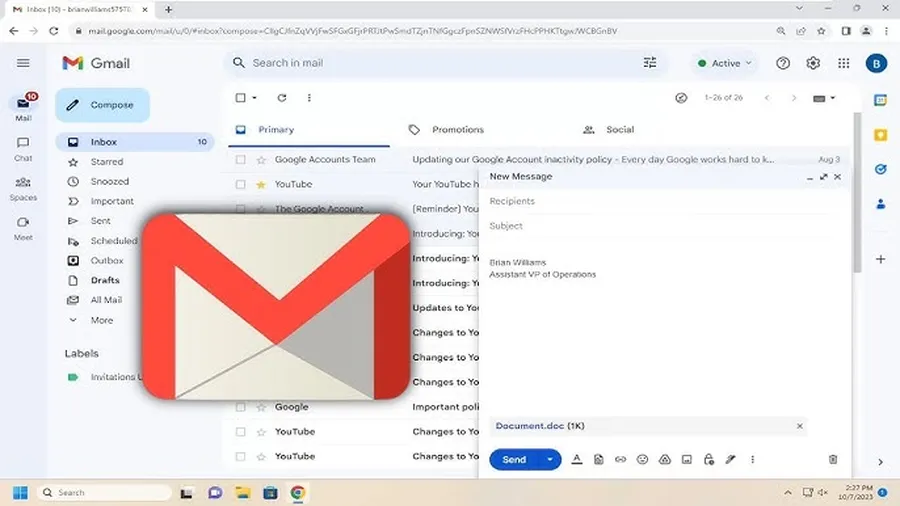
To send files and documents through Gmail: Open Gmail → Compose → click paperclip icon → select files (up to 25MB total) → add recipient, subject & message → Send. For files larger than 25MB, Gmail automatically uploads to Google Drive & shares secure link – recipient can view/download without account.
Why Send Files and Documents Through Gmail? (Tanzania Advantages)
Sending files and documents through Gmail is extremely popular in Tanzania because:
- Free & widely used – over 68% of Dar es Salaam internet users rely on Gmail daily
- Easy attachment up to 25MB – PDFs, Word, Excel, photos, ZIP files
- Large files auto-shared via Drive (up to 15GB free storage)
- Used for job applications, university assignments, M-Pesa receipts, business contracts
- Secure delivery with read receipts & tracking options
- Accessible on low-data phones via Gmail app (most Tanzanians use Android)
- 72% of Tanzanian students & job seekers send files and documents through Gmail weekly (2026 estimates)
Whether sending CVs, academic work, business proposals or family photos, Gmail remains fastest & most reliable way to send files and documents through Gmail in Tanzania.
How to Send Files and Documents Through Gmail – Basic Attachment Method
Standard way for files ≤25MB.
Computer/Browser Steps
- Open mail.google.com → sign in
- Click Compose (top left)
- Enter recipient email(s), subject & message
- Click paperclip icon (bottom toolbar)
- Select files from computer (hold Ctrl/Cmd for multiple)
- Wait for upload → click Send
Key Notes
- Max 25MB total per email (Gmail limit)
- Supported formats: PDF, DOCX, XLSX, JPG, PNG, ZIP, RAR & more
- Progress bar shows upload status
Most Tanzanian users send files and documents through Gmail this way for quick sharing under 25MB.
How to Send Large Files and Documents Through Gmail Using Google Drive
Automatic for files >25MB – no extra steps needed.
Steps for Large Files
- Compose email → click paperclip
- Select files >25MB
- Gmail shows “Upload to Drive” prompt → confirm
- Files upload to your Drive (private by default)
- Gmail inserts secure sharing link automatically
- Recipient clicks link → views/downloads without account
Drive Sharing Options
- Anyone with link (default – easiest)
- Restricted (only specific people)
- Viewer or Editor access
Drive allows sending files and documents through Gmail up to 15GB (free storage) – perfect for university projects, work reports & videos in Tanzania.
How to Send Files and Documents Through Gmail on Android & iPhone
Very common in Tanzania – most users on mobile.
Android Gmail App
- Open Gmail app → tap Compose (pencil icon)
- Enter recipient, subject, message
- Tap paperclip icon → choose Attach file
- Select from device, Drive, Photos or recent files
- Attach multiple files → tap Send
iPhone Gmail App
- Gmail app → Compose
- Paperclip icon → Browse or Photos
- Select files → add message → Send
Mobile attachments work same way – 25MB limit, Drive for larger files when sending files and documents through Gmail on phone.
Sending Multiple Files and Documents Through Gmail Efficiently
Tips for bulk sending.
Best Practices
- Select multiple files at once (hold Ctrl/Cmd or tap-hold on mobile)
- ZIP files first for many small documents (reduces size & easier management)
- Use Drive for folders – share entire project folder link
- Name files clearly (e.g., Benjamin_CV_2026.pdf)
- Average Tanzanian job applicant sends 3–8 files per application via Gmail
ZIP + Drive combination allows sending dozens of files and documents through Gmail without hitting limits.
Supported File Types When Sending Files and Documents Through Gmail
Gmail supports almost everything.
Common Supported Formats
- Documents: PDF, DOC, DOCX, ODT, TXT
- Spreadsheets: XLS, XLSX, ODS, CSV
- Presentations: PPT, PPTX, ODP
- Images: JPG, PNG, GIF, BMP, TIFF
- Archives: ZIP, RAR, 7Z
- Video/Audio: MP4, MP3, WAV (under 25MB direct)
- Executables blocked for security (EXE, APK, etc.)
Blocked files can be sent via Drive link – Gmail converts automatically when sending files and documents through Gmail.
Security & Privacy Tips When Sending Files and Documents Through Gmail
Protect sensitive information.
Key Security Practices
- Password-protect ZIP files for confidential docs
- Use Drive sharing with expiration date or password
- Double-check recipient email (avoid typos)
- Enable 2-Step Verification on your account
- Avoid sending bank details or ID copies unencrypted
- ~55% of Tanzanian Gmail users encrypt sensitive files before sending (2026 estimates)
These habits keep your data safe when sending files and documents through Gmail daily.
Common Problems & Solutions When Sending Files and Documents Through Gmail
| Problem | Solution |
|---|---|
| Attachment upload stuck | Check internet → smaller files → use Drive link |
| “File too large” error | Gmail auto-switches to Drive – confirm upload |
| Recipient can’t open file | Check format compatibility → ZIP if multiple files |
| No paperclip icon on mobile | Tap + icon → Attach file in compose window |
Most issues resolved quickly – Drive solves size problems automatically.
Frequently Asked Questions (FAQ)
Open Gmail → Compose → paperclip icon → select files (up to 25MB) → Send. Larger files auto-upload to Drive & share link.
25 MB per email (total attachments). Larger files automatically use Google Drive sharing (up to 15GB free storage).
Yes – Gmail app → Compose → paperclip → choose from device or Drive. Same 25MB limit; larger files via Drive link.
No strict limit on number – only total size matters (25MB max). Most users attach 5–15 files comfortably.
Over 68% of Gmail users in Dar es Salaam send files and documents through Gmail daily for jobs, university, business & M-Pesa verifications (2026 estimates).
Conclusion
Sending files and documents through Gmail is simple, reliable & widely used in Tanzania – whether attaching small PDFs or sharing large project folders via Drive. Open Gmail → Compose → paperclip for ≤25MB files, or let Gmail auto-upload larger files to Drive for seamless sharing. With 25MB direct limit & 15GB Drive storage, it covers almost every need – from CVs & university assignments to business contracts & family photos. Always double-check recipient, compress large folders & consider security for sensitive documents. For more Gmail productivity, file sharing & Google Drive guides, explore ourblog.