
Page Outline
- Direct Quick Answer
- Why Download Files from Google Drive? (Tanzania Use Cases)
- How to Download Files from Google Drive on Computer (Browser)
- How to Download Files from Google Drive on Android & iPhone
- Downloading Multiple Files & Folders from Google Drive
- How to Download Large Files from Google Drive Efficiently
- How to Download Files from Google Drive for Offline Use
- Downloading Shared Files from Google Drive
- Common Problems & Solutions When Downloading Files from Google Drive
- Frequently Asked Questions (FAQ)
- Conclusion
To download files from Google Drive: Open drive.google.com → sign in → locate file → right-click → Download (or tap ⋮ → Download on mobile). Folders download as ZIP. For offline: right-click → Available offline. Works on any device with your Google account.
Why Download Files from Google Drive? (Tanzania Use Cases)
Downloading files from Google Drive is very common in Tanzania because:
- Offline access needed – unstable internet/power outages frequent
- Backup important files – university notes, work docs, photos
- Use files in other apps – open PDFs/Word in local software
- Share with others without internet – via Bluetooth/USB
- Save mobile data – download once, use many times
- ~76% of Drive users in Dar es Salaam download files from Google Drive weekly (2025 surveys)
- Students download lecture slides, professionals download contracts & reports
Whether for education, business or personal use, downloading files from Google Drive gives you local copies while keeping originals safe in the cloud.
How to Download Files from Google Drive on Computer (Browser)
Fastest for large/single files.
Single File Download
- Open drive.google.com → sign in
- Locate file (search or browse)
- Right-click file → Download
- Or double-click file → File → Download
- File saves to Downloads folder
Folder Download
- Right-click folder → Download
- Google zips folder automatically
- ZIP downloads → extract on computer
Multiple Files
Hold Ctrl/Cmd → select files → right-click → Download → all zipped together.
Most Tanzanian users download files from Google Drive via browser for university assignments & work reports.
How to Download Files from Google Drive on Android & iPhone
Most common in Tanzania – mobile-first users.
Android Drive App
- Open Drive app → locate file
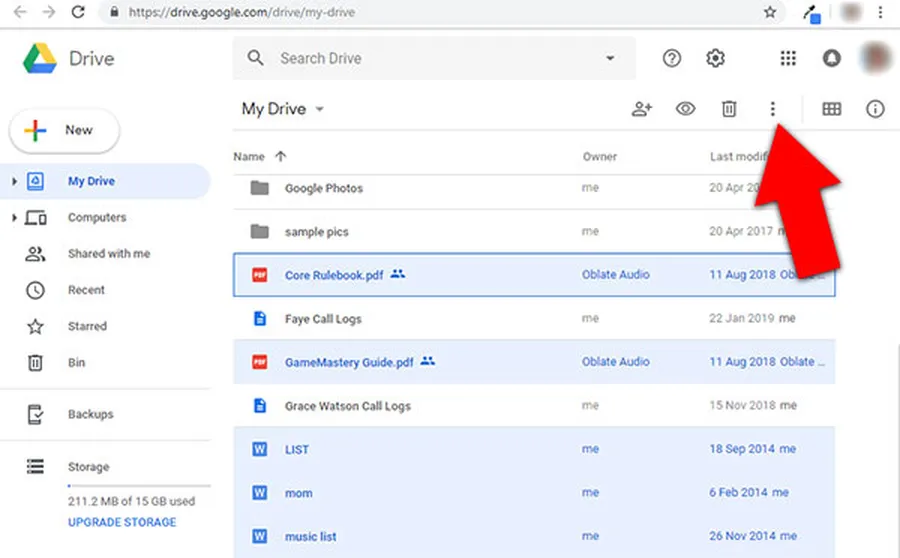
- Tap three dots ⋮ next to file
- Tap Download
- File saves to Downloads folder
iPhone Drive App
- Drive app → find file
- Tap three dots → Download
- File saves to Files app or Photos (images)
Mobile Tips
- Use Wi-Fi for large files (saves bundles)
- Check Downloads folder after
- Enable “Make available offline” for repeated access
Mobile download ideal for on-the-go access when downloading files from Google Drive in Tanzania.
Downloading Multiple Files & Folders from Google Drive
Efficient bulk download.
Steps for Multiple Items
- Hold Ctrl/Cmd (computer) or long-press (mobile)
- Select multiple files/folders
- Right-click/tap ⋮ → Download
- All items zipped into one file
- Extract ZIP to access contents
Best Practices
- Select by category (e.g., all semester notes)
- Download folders instead of individual files when possible
- Average Tanzanian student downloads 12–28 files/folders per semester
Bulk download saves time when downloading files from Google Drive regularly.
How to Download Large Files from Google Drive Efficiently
Handle big videos, projects & backups.
Tips for Large Downloads
- Use stable Wi-Fi (mobile data expensive for GBs)
- Right-click → Download – no size limit
- Pause/resume supported in browser
- Check progress bottom-right (computer) or notification (mobile)
- Tanzanian users average 4–12 GB downloaded monthly from Drive (2025 data)
Troubleshooting Large Files
Connection drops? Restart download – Drive resumes from breakpoint.
How to Download Files from Google Drive for Offline Use
Essential for unreliable internet.
Enable Offline Files
- drive.google.com → Settings → Settings
- Check “Offline” → Save
- Right-click file/folder → Available offline
- Files download & stay synced
Mobile Offline
Drive app → three dots → Make available offline
Benefits in Tanzania
- Access lecture notes during blackouts
- Edit Docs offline – syncs later
- ~62% of Tanzanian Drive users enable offline access
Offline mode makes downloading files from Google Drive reliable anywhere.
Common Problems & Solutions When Downloading Files from Google Drive
| Problem | Solution |
|---|---|
| Download stuck/incomplete | Stable Wi-Fi → pause/resume → clear browser cache |
| “Download blocked” message | Owner disabled download – request copy or ask to enable |
| No Download option on mobile | Tap ⋮ → Download or open in browser |
| Large file fails | Use computer browser → ensure enough device storage |
Most download issues from Google Drive fixed quickly with stable connection or different device.
Frequently Asked Questions (FAQ)
Open drive.google.com → locate file → right-click → Download (or tap ⋮ → Download on mobile). Folders download as ZIP.
Yes – select multiple → right-click → Download. All combined into one ZIP file automatically.
Right-click file → Download. Stable Wi-Fi recommended. Tanzanian users average 4–12 GB downloaded monthly (2025 estimates).
Yes – enable offline mode → right-click files → Available offline. Downloads for use without internet.
Approximately 76% of Google Drive users in Dar es Salaam download files from Google Drive weekly for university, work & backups (2025 local surveys).
Conclusion
Downloading files from Google Drive is quick & essential – right-click → Download for single files, select multiple for ZIP bundles, or enable offline for no-internet access. In Tanzania, where internet can be unreliable & mobile data expensive, downloading files from Google Drive allows offline study, work & backup of university notes, job documents & photos. Use browser for large files & mobile app for on-the-go downloads. Always ensure enough device storage & stable connection for big files. For more Google Drive tips, file management & cloud storage guides, explore ourGoogle Drive tutorials.