
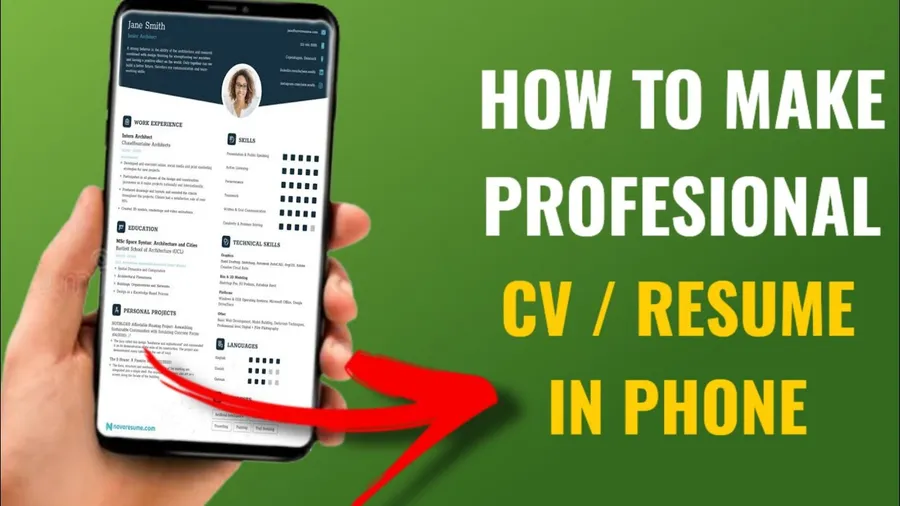
Creating aCV on your phoneis simple and free. Download Canva or use Google Docs, pick a clean professional template, fill in your details, and export as PDF. The entire process takes 15–30 minutes and gives results good enough for most job applications.
Why Creating a CV on Your Phone Is Practical
Job hunting often happens on the go. You might spot an interesting vacancy while commuting or want to apply quickly before the deadline. Having the ability to create or update your CV directly on your phone saves time and lets you apply immediately.
Modern free apps and built-in tools on Android and iPhone now offer professional templates, easy editing, and direct PDF export. Many users successfully land interviews using CVs created entirely on their phones.
Related: Improve your job search withAI productivity toolsor learnhow to create a professional Gmail account.
Quick List: Best Ways to Create a CV on Phone
- Canva (best templates and design)
- Google Docs (simple and free)
- Microsoft Word mobile app
- Dedicated resume builder apps
- Built-in phone notes + PDF export
Canva is the most popular choice for attractive, modern-looking CVs.
Best Free CV Maker Apps for Android and iPhone
Canva stands out with hundreds of professional templates and drag-and-drop editing. Google Docs is great for simple, clean layouts. Microsoft Word offers good formatting control. All are free to start and allow PDF export.
Step-by-Step on Android
Install Canva or open Google Docs. Choose a resume template, replace the placeholder text with your information (education, experience, skills), add a professional photo if appropriate, and export as PDF from the share menu.
Step-by-Step on iPhone
Open Canva or Pages app. Select a CV template, edit sections with your details, adjust fonts and spacing for readability, then share as PDF. The process is smooth and produces clean results.
What to Include in Your CV (Structure Tips)
Start with contact information and a short professional summary (3–5 lines). Then list work experience (most recent first), education, skills, and certifications. Keep it concise – one page for beginners, maximum two pages for experienced candidates.
Design and Formatting Tips for Phone
Use clean fonts (Arial, Calibri, or Roboto), plenty of white space, and consistent bullet points. Choose subtle colors if allowed by the industry. Make sure the CV looks good on both phone and computer screens.
How to Export Your CV as PDF
In Canva or Google Docs, tap the share/export button and select PDF. This ensures the layout stays the same when recruiters open it. Always check the PDF preview before sending.
Comparison of Free CV Maker Apps
| App | Ease of Use | Best Feature |
|---|---|---|
| Canva | Excellent | Beautiful modern templates |
| Google Docs | Very good | Simple and reliable |
| Microsoft Word | Good | Advanced formatting |
How Creating Your CV on Phone Helps Your Job Search
Being able to create and update your CV anytime means you never miss an opportunity. Many candidates report higher response rates when their CV looks professional and is tailored quickly for specific roles.
Overall Step-by-Step Guide
- Choose an app(Canva recommended for beginners)
- Select a clean template
- Fill in your personal details and experience
- Add skills and education sections
- Review layout and export as PDF
Frequently Asked Questions (FAQ)
Use free apps like Canva, Resume Builder, or Google Docs on your phone. Choose a professional template, fill in your details, and export as PDF. The whole process takes 15–30 minutes.
Canva is currently the most popular and user-friendly for both Android and iPhone. It offers hundreds of modern templates and allows easy customization with drag-and-drop.
It depends on the country and industry. In many places (especially creative fields or Europe), a professional photo helps. Keep it formal, well-lit, and recent.
For most fresh graduates and early-career professionals, keep it to one page. Experienced candidates can go up to two pages. Focus on relevance and readability.
Yes, using offline apps like Microsoft Word or certain resume builders that work without connection. However, templates and export options are better with internet.
Final Thoughts on Creating a CV on Your Phone
Creating a CV on your phone is now easier than ever. With free tools like Canva, you can produce a professional-looking resume in minutes that stands out to recruiters. Focus on clear structure, relevant experience, and clean design.
Take time to tailor it for each job application. Good luck with your job search! For more helpful guides, exploreAI productivity toolsorhow to edit PDF files.