
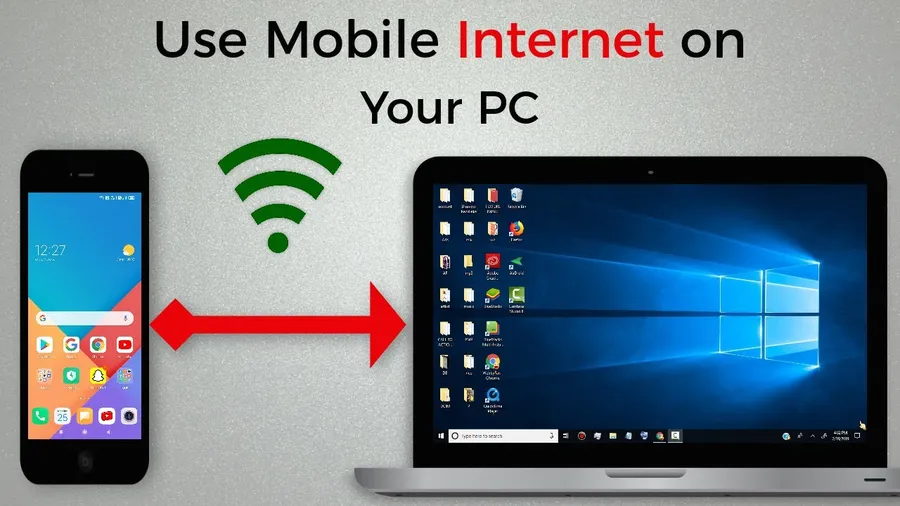
The easiest way toshare internet from phone to PC using hotspotis to turn on Wi-Fi hotspot on your phone and connect your laptop to it like any other Wi-Fi network. For better speed and battery life, use USB tethering instead. Both methods work on Android and iPhone and require no extra software.
Why Sharing Phone Internet to PC Is Useful
Whether you’re traveling, your home internet is down, or you need a backup connection for work, sharing your phone’s mobile data with a laptop is incredibly handy. Millions of people use this method daily to stay online without buying extra SIM cards or portable routers.
Modern Android and iPhone devices make it simple with built-in hotspot features. You can share via Wi-Fi (most convenient for multiple devices), USB (fastest and most stable), or Bluetooth (when Wi-Fi is restricted). With proper setup, you can achieve speeds close to your mobile data plan while keeping battery drain manageable.
Related: Learn how tofix hotspot not working on Androidor exploresafe ways to store fileswhile working remotely.
Quick List: Ways to Share Phone Internet to PC
- Wi-Fi Hotspot (easiest for wireless connection)
- USB Tethering (fastest and most stable)
- Bluetooth Tethering (when Wi-Fi is restricted)
Wi-Fi is best for convenience, USB for speed and battery life.
Share Internet from Android Phone via Wi-Fi Hotspot
Open Settings > Network & internet (or Connections) > Hotspot & tethering. Turn on Wi-Fi hotspot. Your phone will create a new network name and show a password. On your PC, connect to this Wi-Fi network just like any other.
Tip: Use a strong password and limit the number of connected devices to avoid slowing down your connection. Many Android phones let you set a timeout to turn off the hotspot automatically when not in use.
USB Tethering on Android (Faster & More Stable)
Connect your phone to the PC with a USB cable. On your phone, go to Settings > Network & internet > Hotspot & tethering and turn on USB tethering. Your PC should automatically detect the connection and start using the phone’s internet.
USB tethering usually provides better speed and uses less battery than Wi-Fi hotspot because it doesn’t need to broadcast a signal.
Share Internet from iPhone to PC (Personal Hotspot)
On iPhone, go to Settings > Personal Hotspot and turn it on. The phone will show a Wi-Fi password. On your PC, connect to the iPhone’s network. For USB connection, plug in the cable and the Mac or Windows PC will usually connect automatically.
iPhone also allows Family Sharing of the hotspot, making it easy to share with family members.
Bluetooth Tethering – When Wi-Fi Is Not Available
On your phone, enable Bluetooth tethering in the hotspot settings. Pair your phone with the PC via Bluetooth, then enable internet sharing. This method is slower but useful in places where Wi-Fi hotspot is restricted.
Troubleshooting Common Hotspot Problems
If the hotspot won’t turn on, toggle Airplane mode, restart your phone, or reset network settings. Make sure you have an active mobile data plan that allows tethering (some carriers block it on cheaper plans). Keep your phone cool – overheating can automatically disable the hotspot.
Comparison: Wi-Fi vs USB vs Bluetooth Tethering
| Method | Speed | Battery Drain | Best For |
|---|---|---|---|
| Wi-Fi Hotspot | Good | High | Multiple devices |
| USB Tethering | Excellent | Low | Single laptop |
| Bluetooth | Slow | Medium | Restricted environments |
How Sharing Internet from Phone Helps You Stay Connected
Being able to share your phone’s internet gives you flexibility when traveling, during power outages, or when public Wi-Fi is unreliable. Many people save money by using their existing mobile plan instead of paying for separate broadband or portable routers.
Step-by-Step Guide for Beginners
- Prepare your phone:Make sure mobile data is turned on
- Android Wi-Fi:Settings > Hotspot & tethering > Turn on Wi-Fi hotspot
- iPhone:Settings > Personal Hotspot > Turn on
- Connect PC:Join the phone’s Wi-Fi network using the displayed password
- For USB:Connect cable and enable USB tethering
Frequently Asked Questions (FAQ)
Go to Settings > Network & internet > Hotspot & tethering, turn on Wi-Fi hotspot, then connect your PC to the new Wi-Fi network using the password shown on your phone. For more stable connection, use USB tethering.
Yes. On iPhone go to Settings > Personal Hotspot, turn it on, then connect your PC to the iPhone’s Wi-Fi network. USB tethering is also available by connecting the iPhone with a cable.
USB tethering is usually faster and more stable with lower battery drain. Wi-Fi hotspot is more convenient when you need to connect multiple devices wirelessly.
It depends on usage. Browsing uses 50-200 MB per hour, while video streaming can consume 1-3 GB per hour per connected device. Monitor usage in your phone’s data settings.
Common reasons include data limit reached, airplane mode on, carrier restrictions, outdated software, or low battery. Try toggling airplane mode and restarting the phone first.
Final Thoughts on Sharing Internet from Phone to PC
Sharing your phone’s internet with a PC is simple and reliable once you know the right method. Wi-Fi hotspot is the most convenient for quick connections, while USB tethering gives the best speed and battery life. Always monitor your data usage to avoid unexpected charges.
These techniques keep you connected wherever you are. For more helpful Android guides, see our article onfixing hotspot not workingor exploreGoogle Drive tips.