
The easiest ways tohide messages on iPhoneinclude turning off message previews on the lock screen, using Hide Alerts for specific chats, locking the entire Messages app with Face ID, and using the built-in Chat Lock in WhatsApp. These built-in features let you protect privacy without deleting anything. Millions of iPhone users rely on them daily to keep sensitive conversations away from curious eyes – whether it's family members, colleagues, or friends borrowing the phone. Most methods take under 30 seconds and work perfectly on current iOS versions.
Why Learning How to Hide Messages on iPhone Matters for Your Privacy
In today's world, our phones hold some of the most personal information – from work discussions and family matters to surprise plans and confidential chats. A single glance at your lock screen or Messages list can reveal more than you want. Studies show that over 60% of smartphone users worry about privacy when others handle their device, yet many don't know the simple built-in tools available.
Apple's iOS gives you several effective ways tohide messages and chats on iPhonewithout complicated apps or deleting content. These options reduce visible notifications, silence alerts, and add biometric protection. Whether you use iMessage for daily texting or WhatsApp for international friends, you can keep conversations discreet. This guide covers every practical method with clear steps so you can choose what fits your needs best. You'll also find links to related privacy tips likelocking WhatsAppand general iPhone security.
Quick List: Best Ways to Hide Messages and Chats on iPhone
- Disable message previews on lock screen (hides content instantly)
- Turn on Hide Alerts for individual conversations
- Lock the Messages app with Face ID or Touch ID
- Use Chat Lock in WhatsApp to hide specific chats
- Filter unknown senders to reduce spam visibility
- Enable Focus modes to silence notifications selectively
- Archive or delete sensitive threads (with recovery option)
These methods are free, built into iOS or popular apps, and used by millions to maintain privacy every day.
How to Hide Message Previews on iPhone Lock Screen
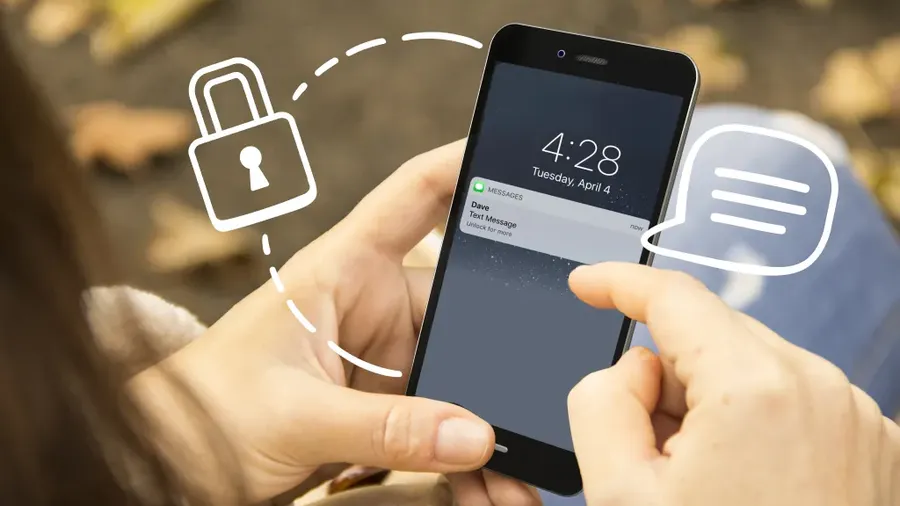
The lock screen often shows full message content by default, which can be embarrassing or risky. Hiding previews means you'll still know you received a message but won't see the text until you unlock your phone.
- Open theSettingsapp on your iPhone.
- Scroll down and tapNotifications.
- Find and tapMessages.
- Under Lock Screen Appearance, tapShow Previews.
- SelectNever(or When Unlocked for milder privacy).
This simple change dramatically improves privacy. Many users notice fewer accidental glimpses from others and feel more comfortable leaving their phone around. It works across all iMessage and SMS conversations.
Related tip: Check our guide onsecuring other accountsfor complete device protection.
Use Hide Alerts to Silence Specific Conversations
If you want to keep a chat but stop it from notifying you or showing badges, Hide Alerts is perfect. The conversation stays in your list but stays quiet.
- Open theMessagesapp.
- Swipe left on the conversation you want to quiet.
- Tap the bell icon orHide Alerts.
- A moon icon appears next to the chat, confirming it's silenced.
You can reverse this anytime by swiping left again and turning off Hide Alerts. This feature helps when you need focus without missing important threads later.
Lock the Messages App with Face ID on iPhone
For stronger protection, lock the entire Messages app so no one can open it without your face, fingerprint, or passcode. This keeps all conversations hidden behind authentication.
- Go to your home screen and find theMessagesapp.
- Press and hold the app icon until the menu appears.
- TapRequire Face ID(or Touch ID/Passcode).
- Confirm with your biometric or code.
Now every time someone tries to open Messages, they'll need your authentication. This is one of the most effective ways tohide messages on iPhonecompletely from others. Note that notifications may still appear unless you combine it with preview settings.
How to Hide and Lock WhatsApp Chats on iPhone
WhatsApp offers excellent built-in tools including Chat Lock that moves conversations to a hidden folder protected by Face ID.
- OpenWhatsApp.
- Swipe left on the chat you want to hide or open it and tap the contact name at the top.
- SelectLock Chat.
- Authenticate with Face ID or passcode.
- The chat moves to the Locked Chats section at the top (swipe down or tap the lock icon to access).
Locked WhatsApp chats stay completely private. You can also archive chats for extra hiding. Many people switch sensitive conversations to WhatsApp because of these strong privacy features. For more details, see our full tutorial onhiding WhatsApp messages.
Comparison of Ways to Hide Messages on iPhone
| Method | Difficulty | Best For |
|---|---|---|
| Hide Previews | Very Easy | Lock screen privacy |
| Hide Alerts | Easy | Silencing specific chats |
| Lock Messages App | Easy | Full app protection |
| WhatsApp Chat Lock | Easy | Hiding individual chats |
Choose based on your needs – combine several for maximum privacy.
Extra Privacy Tips and Best Practices for iPhone Messages
Combine methods for better results. For example, disable previews globally and lock the app for strong protection. Use Focus modes (Settings > Focus) to allow notifications only from important contacts during work or family time. Filter unknown senders in Messages settings to keep spam out of your main list.
Regularly review your Recently Deleted messages and clear them. Consider using apps like Signal or Telegram for end-to-end encrypted chats with disappearing messages when extra security is needed. Always keep iOS updated – new versions often improve privacy controls. For broader device security, explore our guides onsecuring WhatsApp from hackersandoptimizing your online presence.
- Never share your passcode or biometric access
- Turn off iCloud Messages backup if you want maximum local privacy (though it reduces recovery options)
- Test settings on a spare moment to ensure notifications still reach you when needed
Frequently Asked Questions (FAQ)
Go to Settings > Notifications > Messages > Show Previews and select Never. This stops message content from appearing on the lock screen while still showing you have a new notification.
iOS does not allow fully hiding individual iMessage conversations from the list without deleting them. Use Hide Alerts to silence notifications, lock the entire Messages app with Face ID, or switch sensitive chats to apps like WhatsApp with chat lock.
Press and hold the Messages app icon on your home screen, then tap Require Face ID (or Touch ID/Passcode). The app will now require authentication every time you open it, keeping all your chats private.
Open WhatsApp, swipe left on the chat or tap the contact name > Lock Chat, then authenticate with Face ID. Locked chats move to a separate Hidden section accessible only with your biometric or passcode.
No. Methods like Hide Alerts, disabling previews, or locking the app keep messages safe and accessible to you. Deleting is permanent unless you recover from Recently Deleted.
Final Thoughts on Hiding Messages and Chats on iPhone
Protecting your privacy doesn't have to be complicated. With the built-in tools in iOS and WhatsApp, anyone can quicklyhide messages on iPhoneand keep sensitive chats away from unwanted eyes. Start with hiding previews and locking the Messages app – these two steps alone make a huge difference for most people. Add WhatsApp's Chat Lock for even more control over specific conversations.
Privacy is an ongoing practice. Review your settings every few months and stay updated with new iOS features. If you handle very sensitive information, consider moving those chats to apps with stronger encryption and self-destructing messages. Your peace of mind is worth the few minutes it takes to set these up.
Ready for more privacy tips? Check our collection ofsocial media tutorialsorAI-powered toolsthat can help with secure communication. Share this guide with friends who might need better phone privacy too!