
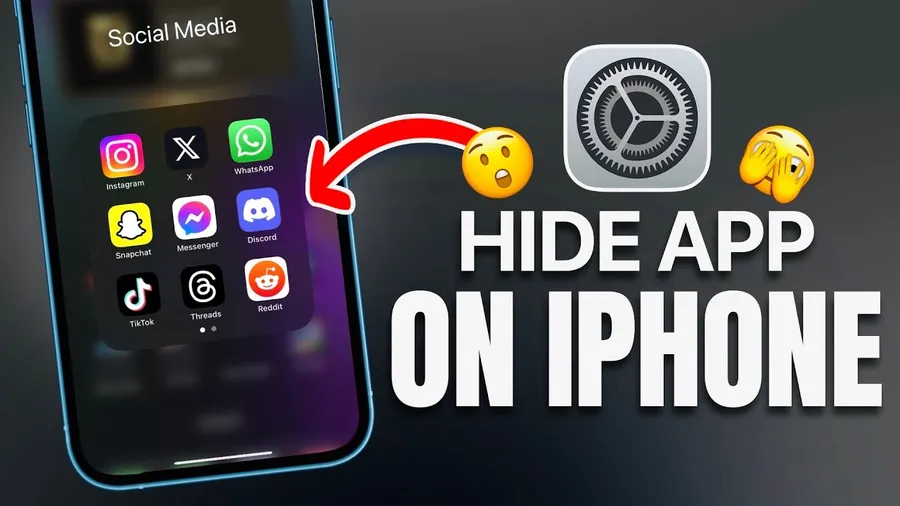
The quickest way tohide apps on iPhoneis to long-press the app icon, tap “Remove App”, then choose “Remove from Home Screen”. The app moves to the App Library and stays installed. For stronger privacy, use Screen Time to set an App Limit with a passcode or hide an entire Home Screen page. These built-in tools let you keep apps private without deleting them.
Why You Might Want to Hide Apps on iPhone
Many people want to hide apps for privacy, to keep their Home Screen clean, or to stop others from seeing certain apps when handing over the phone. Whether it's banking apps, private messages, or games you don’t want kids to see, iOS gives you several built-in ways to do this without deleting anything.
The App Library automatically organizes all your apps, so hiding them from the Home Screen is simple. For more control, you can use folders, Screen Time limits, or hide entire pages. These features have improved a lot in recent iOS versions, making it easier than ever to manage what appears on your screen.
This guide walks you through every reliable method. Related: See alsohow to hide WhatsApp chatsorhow to lock WhatsApp.
Common Reasons to Hide Apps
- Keep sensitive or personal apps private
- Reduce clutter on the Home Screen
- Prevent others from easily accessing certain apps
- Create a cleaner, more focused phone experience
Method 1: Hide Apps Using App Library
This is the simplest and most commonly used method.
- Long-press the app icon on your Home Screen.
- TapRemove App.
- ChooseRemove from Home Screen(not Delete App).
The app will disappear from your Home Screen but remains in the App Library, which you can access by swiping all the way left on your Home Screen.
Method 2: Hide Apps Inside Folders
Group apps you want to hide into a folder and move that folder to the last page or a less visible spot.
- Drag one app onto another to create a folder.
- Add more apps to the same folder.
- Move the folder to a new or distant Home Screen page.
Method 3: Hide Apps with Screen Time Limits
This method adds a passcode barrier, making it one of the most secure options.
- Go toSettings > Screen Time.
- TapApp Limits>Add Limit.
- Select the apps you want to hide and set a very short time limit (1 minute).
- Enable the limit and set a Screen Time passcode.
The apps will show a time limit screen and require the passcode to open.
How to Hide Multiple Apps at Once
Put all the apps into one folder, then either move the folder to a hidden page or apply a Screen Time limit to the entire folder.
Managing Notifications for Hidden Apps
Hidden apps still send notifications unless you turn them off. Go to Settings > Notifications and disable alerts for the hidden apps if you want complete privacy.
Benefits of Hiding Apps on iPhone
| Method | Privacy Level | Ease of Use |
|---|---|---|
| App Library | Basic | Very easy |
| Screen Time Limits | High (passcode) | Medium |
| Hidden Pages | Medium | Easy |
Frequently Asked Questions (FAQ)
Move the app to the App Library by long-pressing the icon and selecting 'Remove App' > 'Remove from Home Screen'. Or create a hidden folder using Screen Time App Limits.
No, the App Library shows all installed apps. To truly hide an app, use Screen Time to set App Limits with a passcode or move it to a folder on a hidden Home Screen page.
Create a folder with the apps you want to hide, then move that folder to a new Home Screen page and hide the entire page using the Edit Home Screen option (iOS 18+).
Yes – use Screen Time > App Limits to restrict specific apps with a Screen Time passcode. This effectively hides and locks them behind a password.
No – hidden apps will still receive notifications unless you also turn off notifications for them in Settings. The apps continue running normally in the background.
Final Thoughts on Hiding Apps on iPhone
Hiding apps on iPhone is straightforward once you know the built-in tools. Start with the App Library for quick results, then use Screen Time or hidden pages for better privacy. Combine methods if you need extra security.
Try one of these techniques today to clean up your Home Screen and keep certain apps private. For more iPhone tips, explorehow to hide WhatsApp statusorsecuring your Google account.