
Forgetting your laptop password is a common frustration that affects millions of users yearly. The good news is you can usually unlock your laptop safely without losing any files, photos, or programs. Start with the simplest option: if you use a Microsoft account, click “I forgot my password” at the sign-in screen or reset it online from another device. For local accounts, try answering security questions or use a pre-created password reset disk. Advanced built-in tricks like opening Command Prompt from the login screen also work well for most people and keep your data intact.
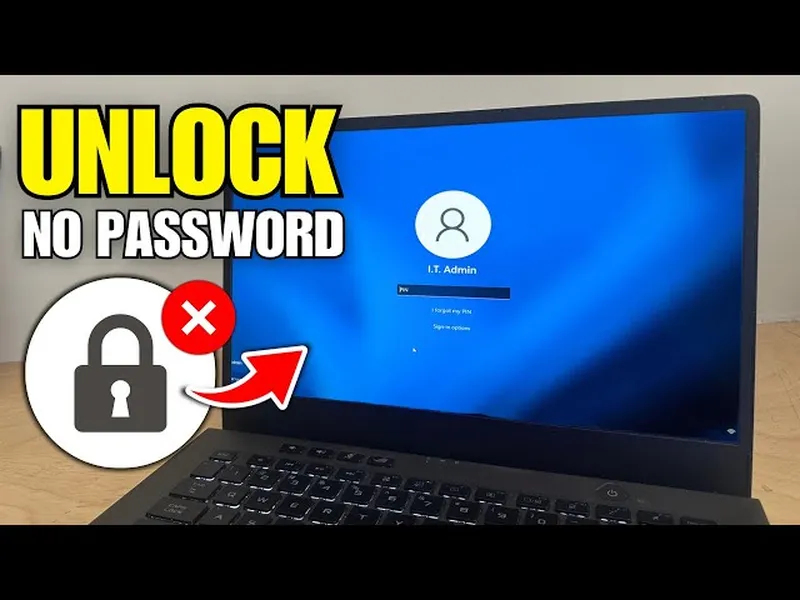
Why Getting Locked Out of Your Laptop Happens and How to Fix It
Laptops hold our most important information — work documents, family photos, banking details, and more. When you forget the login password, it can feel like everything is suddenly out of reach. Many people panic and consider factory reset, but that often wipes everything.
Windows offers several built-in ways to unlock a laptop without losing data, whether you have a Microsoft account (easy online recovery) or a local account (more private but needs preparation). This guide provides clear, tested steps for Windows 11 and 10 so you can choose the right method for your situation. You'll also find practical prevention tips to avoid this problem in the future. For more account security advice, see our guide onsecuring your Google account.
Quick List: Ways to Unlock a Laptop Forgotten Password
- Microsoft account online reset (fastest for most users)
- Security questions at the sign-in screen (local accounts)
- Password reset disk (USB prepared in advance)
- Command Prompt trick using utilman.exe or sethc.exe
- Shift + Restart into recovery and Command Prompt
- Enable hidden Administrator account via installation media
These free methods work on the majority of Windows laptops and preserve all your personal data.
How to Unlock Laptop Using Microsoft Account
If your laptop is signed in with a Microsoft account (Outlook, Hotmail, or Live email), recovery is usually straightforward because the password is managed online.
- At the laptop sign-in screen, clickI forgot my password.
- Verify your identity using email, phone number, or authenticator app.
- Set a new password.
- Connect the laptop to the internet and sign in with the new password.
You can also reset from any browser ataccount.live.com/ResetPassword.aspx. Once reset, the change syncs to your laptop. This method is popular because it works from another device and doesn't require physical access tricks.
How to Unlock Local Account with Security Questions
Local accounts keep data more private since nothing syncs to the cloud, but recovery depends on what you set up earlier.
- At the sign-in screen, enter a wrong password and press Enter.
- Click the arrow or link next to the password field.
- SelectReset password.
- Answer the security questions correctly.
- Create and confirm a new password.
If you never set security questions, move to advanced methods below. Many users regret not setting them up, so do it now if you regain access.
Use a Password Reset Disk to Unlock Your Laptop
A password reset disk is a simple USB tool you create while you can still log in. It works only for local accounts on that specific laptop.
- While logged in, search for “password reset disk” in the Start menu.
- Follow the wizard and insert a USB flash drive.
- When locked out, insert the USB at the sign-in screen and click the reset option.
- Follow prompts to set a new password.
Keep the USB safe — it's one of the easiest recovery options when prepared in advance.
Advanced Command Prompt Methods to Unlock Laptop
When other options aren't available, use Windows built-in tools to access Command Prompt from the login screen.
Utilman.exe (Ease of Access) Trick
- At the sign-in screen, holdShiftand click Restart.
- Go to Troubleshoot > Advanced options > Command Prompt.
- Identify your Windows drive (usually C: or D:), navigate to Windows\System32.
- Rename utilman.exe to utilman_backup.exe, then copy cmd.exe to utilman.exe.
- Restart normally, then click the Accessibility icon at the bottom right to open Command Prompt.
- Typenet user YourUsername NewPasswordand press Enter.
Restore the original file names afterward for security. This technique is widely used and effective without third-party software.
Alternative: Use Shift key pressed five times (Sticky Keys) or sethc.exe renaming for similar Command Prompt access.
Comparison: Microsoft Account vs Local Account Unlock
| Feature | Microsoft Account | Local Account |
|---|---|---|
| Online reset | Easy from any device | Not possible |
| Security questions | Backup verification codes | Primary method |
| Data sync | Yes (OneDrive, settings) | No |
| Privacy | Moderate | Higher |
Prevention Tips: Avoid Forgetting Your Laptop Password Again
Prevention is much easier than recovery. Use Windows Hello (PIN, fingerprint, or face recognition) for daily login while keeping a strong password as backup. Create a password reset disk and store it safely. Set up security questions and multiple recovery options for your Microsoft account.
Consider a password manager to generate and remember complex passwords. Enable two-factor authentication wherever possible. For shared laptops, create separate user accounts instead of sharing one. Regular Windows updates also improve security features. For broader protection, explore ourbest antivirus recommendationsorAI productivity tools.
- Create a password reset disk today
- Write down security questions in a safe place
- Enable multiple recovery methods in your Microsoft account
- Backup important files regularly to external drives or cloud
Frequently Asked Questions (FAQ)
For Microsoft accounts, use 'I forgot my password' at sign-in or reset online at account.live.com. For local accounts, answer security questions or use a password reset disk. Advanced options include Command Prompt from recovery or enabling the hidden Administrator account.
Yes. Most methods like Microsoft online reset, security questions, reset disk, or Command Prompt tricks allow you to regain access while keeping all your files, photos, documents, and programs intact.
Hold Shift and click Restart at the login screen to enter recovery. Use Troubleshoot > Advanced options > Command Prompt for advanced reset, or try security questions for local accounts. Microsoft accounts can be reset online.
Use the utilman.exe or sethc.exe trick to open Command Prompt at the login screen, then reset the password with net user command. This works on both Windows 11 and 10 without third-party tools.
Yes, when performed carefully on your own device. These built-in recovery techniques are widely used and do not delete personal data. Always follow steps exactly and back up important files when possible.
Final Thoughts on Unlocking a Laptop Forgotten Password
Being locked out of your laptop is stressful, but with the right approach you can almost always regain access without losing any important data. Start with Microsoft account recovery if that applies, then try security questions or a reset disk. The Command Prompt methods provide a reliable backup when nothing else works.
Take time today to set up prevention measures like a password reset disk and Windows Hello. These small steps save hours of hassle later. Remember to stay calm and follow instructions carefully to avoid mistakes.
Need more help with your devices? Browse ourcomputer tutorialsor checkbest AI toolsfor everyday productivity. You've got this — stay secure!