
Uninstalling programs on a Windows PC is straightforward and helps free up valuable disk space while keeping your system clean. The easiest way is through Settings > Apps > Installed apps (Windows 11) or Programs and Features in Control Panel (Windows 10). For stubborn apps that refuse to uninstall, Safe Mode or dedicated tools can finish the job. Regularly removing unused software prevents clutter and can reclaim several gigabytes of storage – many users free 10–50 GB after a thorough cleanup.
Why You Should Regularly Uninstall Unused Programs
Over time, installed programs accumulate and take up significant disk space — games, photo editors, and trial software can easily consume 20–100 GB combined. Unused apps also run background processes that slow down your PC and consume RAM.
Proper uninstallation removes not only the main program but also temporary files, registry entries, and leftover folders that standard deletion leaves behind. This guide covers every reliable method for Windows 11 and Windows 10, from the simple Settings menu to advanced cleanup for stubborn apps. You'll learn how to do it safely without breaking your system. For ongoing PC maintenance, check ourbest antivirus recommendations.
Quick List: Ways to Uninstall Programs on Windows PC
- Use Settings > Apps (easiest for modern apps)
- Control Panel > Programs and Features (classic method)
- Run uninstaller from the program's folder
- Use Safe Mode for stubborn programs
- Clean leftovers with manual deletion or tools
- Remove pre-installed bloatware safely
These methods cover almost every uninstall scenario while protecting your important files.
Uninstall Programs via Windows Settings (Recommended)
This is the fastest and safest method for most modern apps on Windows 11 and 10.
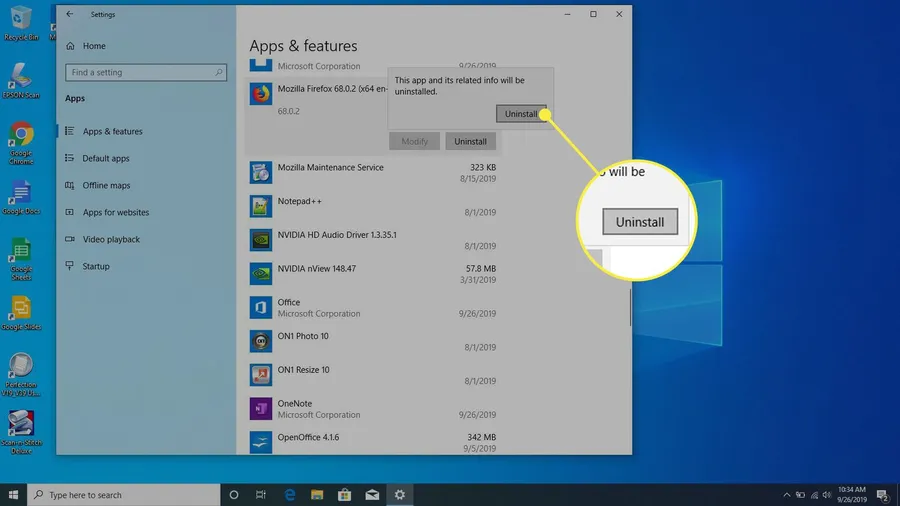
- Press Windows key + I to openSettings.
- Go toApps > Installed apps(Windows 11) orApps & features(Windows 10).
- Find the program you want to remove.
- Click the three dots (⋯) next to it and selectUninstall.
- Follow the on-screen prompts and restart if asked.
This method automatically handles most cleanup for Microsoft Store and modern apps.
Uninstall via Control Panel (Classic Method)
Useful for older desktop programs and when Settings doesn't show everything.
- Search for "Control Panel" in the Start menu and open it.
- ClickPrograms > Programs and Features.
- Select the program from the list.
- ClickUninstallat the top and confirm.
Sort by size to easily identify large programs taking up the most space.
Remove Stubborn Programs That Won't Uninstall
Some apps resist normal uninstallation due to running processes or corrupted uninstallers.
- Boot intoSafe Mode(hold Shift while clicking Restart).
- Try uninstalling again through Settings or Control Panel.
- Use the program's own uninstaller from its installation folder if available.
- As a last resort, use free tools like Revo Uninstaller (free version) to force removal.
Safe Mode prevents background processes from blocking the uninstall process.
Clean Leftover Files After Uninstalling
Even after uninstalling, many programs leave behind folders and registry entries that waste space.
- After uninstalling, check these folders and delete remaining ones:
- C:\Program Files\ProgramName
- C:\Program Files (x86)\ProgramName
- C:\Users\YourName\AppData\Roaming\ProgramName
- Use Disk Cleanup (search for it in Start menu) to remove temporary files.
- For advanced cleanup, manually search the registry (regedit) for the program name (be careful).
Cleaning leftovers can reclaim additional hundreds of MB to several GB of space.
Remove Pre-installed Bloatware Safely
Many new PCs come with unnecessary manufacturer apps that slow down startup.
- In Settings > Apps > Installed apps, look for apps from your PC brand (HP, Dell, Lenovo, etc.).
- Uninstall any you don't need (e.g., trial games, support tools).
- For deeper removal of stubborn bloatware, use PowerShell commands (search for safe scripts from trusted sources).
Removing bloatware improves boot time and frees disk space right after buying a new PC.
Prevention Tips and Best Practices
Only install software from official websites. Avoid bundled installers that sneak in extra programs. Regularly review your installed apps list and remove anything unused. Use a lightweight PC cleaner periodically to maintain a tidy system.
These habits keep your PC fast and organized over time.
Comparison of Uninstall Methods
| Method | Best For | Cleanup Level |
|---|---|---|
| Settings / Apps | Modern & Microsoft Store apps | Good |
| Control Panel | Classic desktop programs | Good |
| Safe Mode + Manual | Stubborn / leftover files | Excellent |
Frequently Asked Questions (FAQ)
Go to Settings > Apps > Installed apps, find the program, click the three dots, and select Uninstall. For older apps, use Control Panel > Programs and Features.
Common reasons include running processes, administrator rights needed, corrupted uninstaller, or leftover registry entries. Use Safe Mode, uninstaller tools, or manual removal for stubborn apps.
Uninstall via Settings, then use a tool like Revo Uninstaller or manually delete leftover folders in Program Files and clean registry entries. This frees up more disk space.
Yes. Large programs like games or video editors can free 5–50 GB each. Regularly uninstalling unused apps helps maintain performance and disk space on your PC.
Most bloatware can be safely removed via Settings. Some system apps should be left alone, but tools like PowerShell allow safe removal of unnecessary pre-installed software.
Final Thoughts on Uninstalling Programs on Windows PC
Regularly uninstalling unused programs keeps your Windows PC fast, organized, and with plenty of free disk space. The built-in Settings and Control Panel tools handle most apps perfectly, while Safe Mode and careful manual cleanup take care of the stubborn ones.
Make it a habit to review your installed apps every few months. This simple maintenance step improves performance and reduces clutter significantly.
Need more Windows tips? Explore our othercomputer tutorialsor checkAI productivity tools. Keep your PC clean and efficient!