
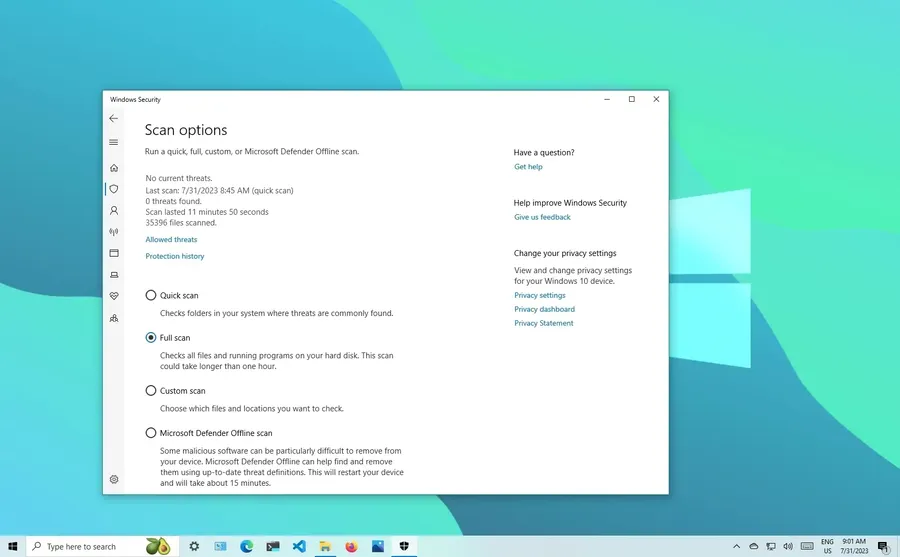
Scanning for viruses on your Windows PC is simple and essential for keeping your data safe. Open Windows Security, go to Virus & threat protection, and run a Quick scan for fast checks or a Full scan for thorough protection. Windows Defender is free, built-in, and highly effective – it catches most threats in real time. Regular scans help detect and remove malware before it causes damage. Many users run a quick scan weekly and a full scan monthly.
Why Regular Virus Scans Matter on Windows PCs
Malware and viruses remain a constant threat. Over 5.5 billion malware attacks occur globally each year, and Windows users are frequent targets due to the platform's popularity. Even with real-time protection, some threats slip through via malicious downloads, email attachments, or compromised websites.
Running regular scans helps catch hidden infections early, preventing data loss, slow performance, or privacy breaches. This guide walks you through every reliable scanning method for Windows 11 and Windows 10, from the built-in Windows Defender to advanced offline scans. You’ll learn exactly what each option does and when to use it. For ongoing protection, check ourbest antivirus recommendations.
Quick List: Virus Scanning Options on Windows
- Windows Defender Quick Scan
- Full System Scan
- Custom or Targeted Scan
- Microsoft Defender Offline Scan
- Third-party tools like Malwarebytes
These methods cover most scanning needs from fast daily checks to deep threat removal.
Scan Using Windows Defender (Built-in Protection)
Windows Defender (now part of Windows Security) provides strong, free real-time and on-demand scanning.
- Search forWindows Securityin the Start menu and open it.
- ClickVirus & threat protection.
- Under Current threats, clickQuick scanorScan optionsfor more choices.
- Select the scan type and clickScan now.
Real-time protection runs automatically in the background, but manual scans add an extra layer of safety.
Quick Scan vs Full Scan – Which to Use?
Quick scans check common locations where malware hides and usually finish in 5–15 minutes. Full scans examine every file and folder on your drives and can take 30–90 minutes or longer on large hard drives. Use Quick scan weekly and Full scan monthly or when you suspect infection.
Microsoft Defender Offline Scan for Stubborn Threats
This powerful scan restarts your PC into a clean environment to detect and remove malware that hides during normal operation.
- In Windows Security > Virus & threat protection > Scan options.
- SelectMicrosoft Defender Offline scan.
- ClickScan now– your PC will restart and scan automatically.
Use this when normal scans find threats or your PC behaves strangely (slow performance, pop-ups, or unexpected changes).
Using Additional Scanning Tools
For extra confidence, combine Windows Defender with a reputable second-opinion scanner.
- Download Malwarebytes (free version) from the official website.
- Run a Threat Scan after Windows Defender finishes.
- Quarantine or remove anything it detects.
This layered approach catches threats that one tool might miss.
What to Do If a Virus or Malware Is Detected
When a scan finds threats, Windows usually offers to quarantine or remove them automatically. After removal, restart your PC and run another full scan to confirm everything is clean. Change passwords for important accounts and monitor your system for unusual behavior over the next few days.
Prevention Tips to Avoid Viruses
Keep Windows and all software updated. Avoid clicking suspicious links or downloading from untrusted sites. Enable real-time protection in Windows Security. Use strong, unique passwords and consider a good antivirus for added layers. These habits greatly reduce infection risk.
Comparison of Virus Scan Types
| Scan Type | Duration | Best For |
|---|---|---|
| Quick Scan | 5–15 minutes | Routine checks |
| Full Scan | 30–90+ minutes | Thorough monthly scan |
| Offline Scan | 15–60 minutes | Stubborn or hidden malware |
Frequently Asked Questions (FAQ)
Open Windows Security, go to Virus & threat protection, and click Quick scan or Full scan. For deeper checks, use Microsoft Defender Offline scan.
A Quick scan takes 5–15 minutes. A Full system scan usually takes 30–90 minutes depending on drive size and number of files. Offline scan may take longer but is more thorough.
Yes for most users – Microsoft Defender offers strong real-time protection and regularly ranks high in independent tests. For extra safety, combine it with occasional scans using Malwarebytes.
Quarantine or remove the detected items immediately. Run a full scan again, change passwords for important accounts, and consider a Microsoft Defender Offline scan for stubborn threats.
Run a Quick scan weekly and a Full scan monthly. Windows Defender provides real-time protection, so manual scans supplement automatic background checks.
Final Thoughts on Scanning for Viruses on Windows PC
Regular virus scans are one of the best ways to keep your Windows PC safe and running smoothly. Windows Defender provides excellent built-in protection, and combining it with occasional deeper scans gives you strong defense against malware.
Make quick scans part of your weekly routine and run full or offline scans when needed. Staying proactive with updates and safe browsing habits will minimize risks significantly.
Stay protected! Explore more Windows security and maintenance tips in our othercomputer tutorials.