
Forgetting your Windows password is incredibly common – it happens to millions of users every year. The good news is you can usually reset it safely without losing your files, photos, or installed programs. If you're using a Microsoft account, the easiest fix is the online recovery tool or the "I forgot my password" option at the sign-in screen. For local accounts, answer security questions or use built-in recovery tricks like accessing Command Prompt from the login screen. Most people regain access in under 10 minutes using these free methods.
Why Resetting Your Windows Password Is Easier Than You Think
A forgotten password can feel frustrating, especially when important documents, family photos, or work files are locked behind the login screen. Thankfully, Microsoft has built several recovery options into Windows that let most users regain access without wiping the PC or paying for expensive tools.
The process differs slightly depending on whether you use a Microsoft-linked account (common for easy syncing) or a traditional local account (better for privacy). This guide covers every reliable method with clear steps so you can choose the one that fits your situation. You'll also learn how to prevent this problem in the future. For related account security help, check our guide onprotecting your Google account.
Quick List: Ways to Reset Windows Password
- Online Microsoft account recovery (easiest for most users)
- Security questions at the sign-in screen (local accounts)
- Password reset disk (if you created one earlier)
- Command Prompt trick via Accessibility or Shift + Restart
- Another administrator account on the same PC
- Windows Recovery Environment (Advanced Startup)
These approaches work on both Windows 11 and Windows 10 and keep all your personal data intact.
How to Reset Microsoft Account Password on Windows
Most people sign in with a Microsoft account (Outlook, Hotmail, or Live). The password is managed online, making recovery straightforward.
- At the Windows sign-in screen, clickI forgot my password.
- Follow the prompts to verify your identity using email, phone number, or authenticator app.
- Create a new strong password.
- Once your PC connects to the internet, sign in with the new password.
You can also go directly toaccount.live.com/ResetPassword.aspxfrom any phone or another computer. This method is used successfully by millions and doesn't affect your local files. After resetting, Windows will sync your settings and OneDrive files as usual.
How to Reset Local Account Password on Windows
Local accounts are not linked to Microsoft services, so recovery relies on what you set up when creating the account.
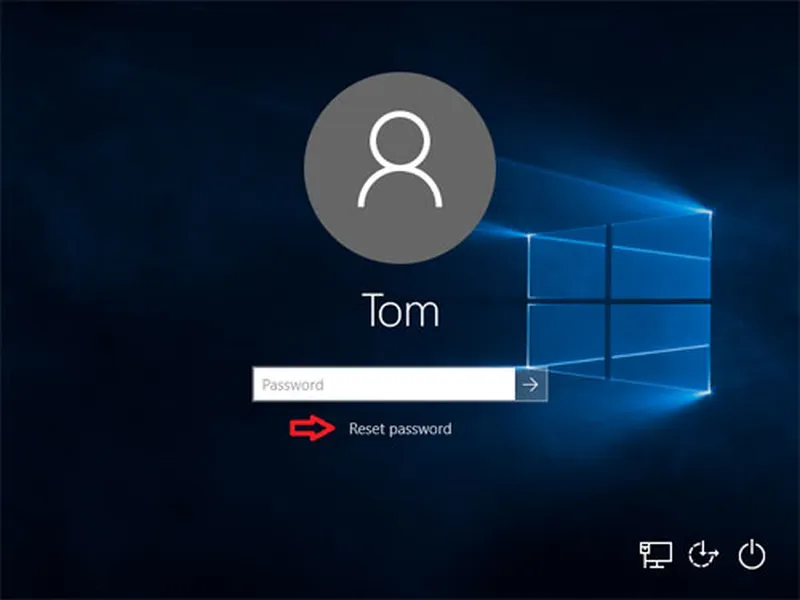
- At the sign-in screen, enter any wrong password and press Enter.
- Click the arrow next to the password field.
- SelectReset password.
- Answer the three security questions you set earlier.
- Enter and confirm your new password.
If you didn't set security questions, you'll need advanced methods like the Command Prompt trick below. Many users prefer local accounts for privacy but should always prepare a reset disk or note their questions.
Advanced Reset Methods Without Third-Party Software
When security questions aren't available, you can use built-in Windows tools to access Command Prompt from the login screen.
Utilman.exe (Ease of Access) Method
- At the login screen, hold theShiftkey and click Restart (or press Shift + Restart).
- Go to Troubleshoot > Advanced options > Command Prompt.
- Use commands to rename files (utilman.exe to utilman1.exe, then cmd.exe to utilman.exe) to open CMD at login.
- At the normal login screen, click the Accessibility icon to open Command Prompt.
- Typenet user YourUsername NewPasswordand press Enter.
- Restore the original file names afterward.
This popular technique requires careful typing but has helped countless users regain access without data loss. Always double-check commands to avoid mistakes.
Another option: Boot into Safe Mode or use Windows installation media to enable the hidden Administrator account and reset your password from there.
Create and Use a Windows Password Reset Disk
Preparing ahead saves huge headaches. A password reset disk is a USB drive that lets you unlock your local account anytime.
- While still logged in, search for "password reset disk" in the Start menu.
- Follow the wizard to create the disk on a USB flash drive.
- When locked out, insert the USB at the sign-in screen and click Reset password.
- Follow the prompts to set a new password.
Keep the USB in a safe place – it only works for the specific PC and account it was created for.
Comparison: Microsoft Account vs Local Account Password Reset
| Feature | Microsoft Account | Local Account |
|---|---|---|
| Online recovery | Easy (website or sign-in) | Not available |
| Security questions | Optional (backup codes) | Main recovery method |
| Data sync | Yes (OneDrive, settings) | No |
| Privacy level | Moderate | Higher |
Prevention Tips: Avoid Forgetting Your Windows Password Again
Strong habits make a big difference. Use a password manager to generate and store complex passwords. Enable Windows Hello (PIN, fingerprint, or face recognition) for daily sign-ins while keeping a strong backup password. Create a password reset disk right after setting up a new PC or account.
Regularly review your Microsoft account security at account.microsoft.com and add multiple recovery methods like phone numbers and backup emails. For families or shared PCs, consider separate standard user accounts instead of sharing admin credentials. Combine these with good overall security practices like keeping Windows updated and using reliable antivirus. Explore more useful tools in ourbest antivirus guideorproductivity tools.
- Set up security questions and write them down securely
- Enable two-factor authentication on your Microsoft account
- Backup important files to OneDrive or external drives
- Test your reset disk or recovery methods occasionally
Frequently Asked Questions (FAQ)
For Microsoft accounts, use the online reset at account.live.com or 'I forgot my password' at sign-in. For local accounts, answer security questions at the login screen or use a password reset disk. Advanced methods include Command Prompt tricks via Accessibility or Shift + Restart.
Yes – most official methods and built-in recovery options let you reset the password without deleting files, photos, or installed programs. Only a full 'Reset this PC' with remove everything option will erase data.
At the sign-in screen, click the arrow next to the password field, select Reset password, answer your security questions, then create a new password. If no questions were set, use advanced recovery options like Command Prompt from Windows Recovery Environment.
Go to account.live.com/password/reset from any device, verify your identity with email, phone, or backup codes, then set a new password. The change syncs to your Windows PC once connected to the internet.
Yes, when done carefully on your own PC using official recovery methods. Techniques like renaming utilman.exe to access CMD from the login screen are widely used and do not delete personal data when followed correctly.
Final Thoughts on Resetting Your Windows Password
Getting locked out of your Windows PC is stressful, but with the right steps you can almost always regain access safely and quickly without losing any important data. Start with the simplest method for your account type – online recovery for Microsoft accounts or security questions for local ones. If those don't work, the advanced Command Prompt techniques or a pre-made reset disk usually solve the problem.
The key is preparation: create a reset disk, set security questions, and enable multiple recovery options now while you can still log in. Strong passwords paired with Windows Hello and regular backups give you both convenience and peace of mind.
Stay secure and organized – check out more helpful tutorials on ourcomputer guidesor exploreAI toolsthat can boost your daily productivity. You've got this!